
For some reason, many Instagram users choose to permanently leave Instagram. This usually happens due to privacy concerns, being stalked, feeling overwhelmed by social media, or just wanting a break. Whatever your reason, you first need to know how to delete Instagram account.
Apart from deleting Instagram, there are other ways to step away from social media, which we’ll also cover in this blog. But if you’re still determined to remove your Instagram account and don’t know “how to delete an Instagram account,” this blog is the perfect guide for you. We’ll teach you how to delete it, what happens afterward, and even alternative ways if you change your mind.
Keep reading until the end!
How to Delete Instagram Account on Mobile (iPhone or Android)
This is the step-by-step guide for deleting your Instagram account on a phone:
- Open the Instagram app on your iPhone or Android device and then log in if needed.
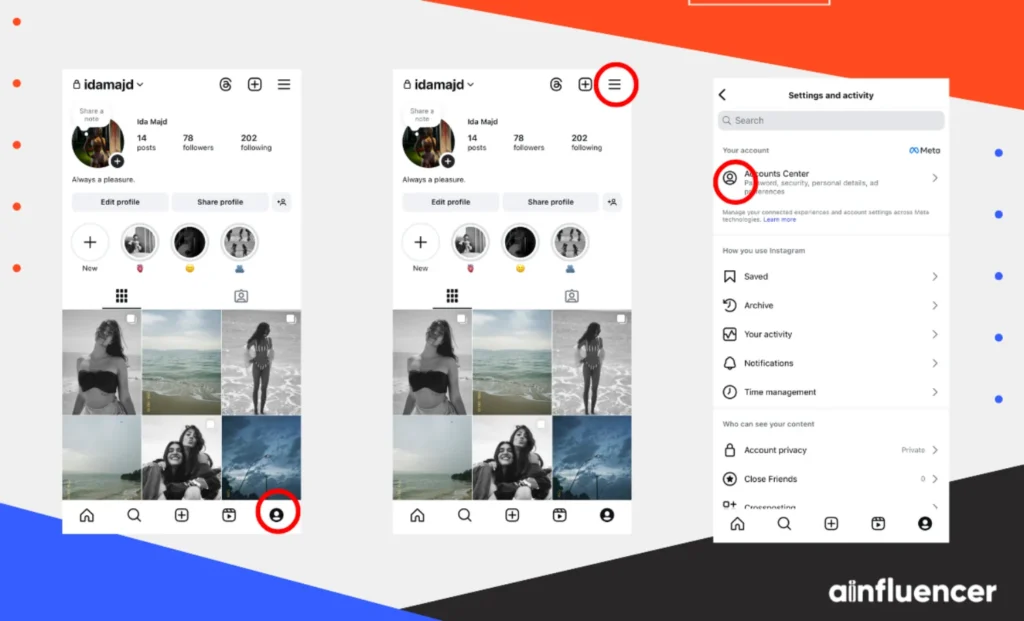
- Tap your profile icon (bottom right),
- Then tap the menu (☰ three lines) at the top right.
- Tap Settings & privacy,
- After that select the Accounts Center.
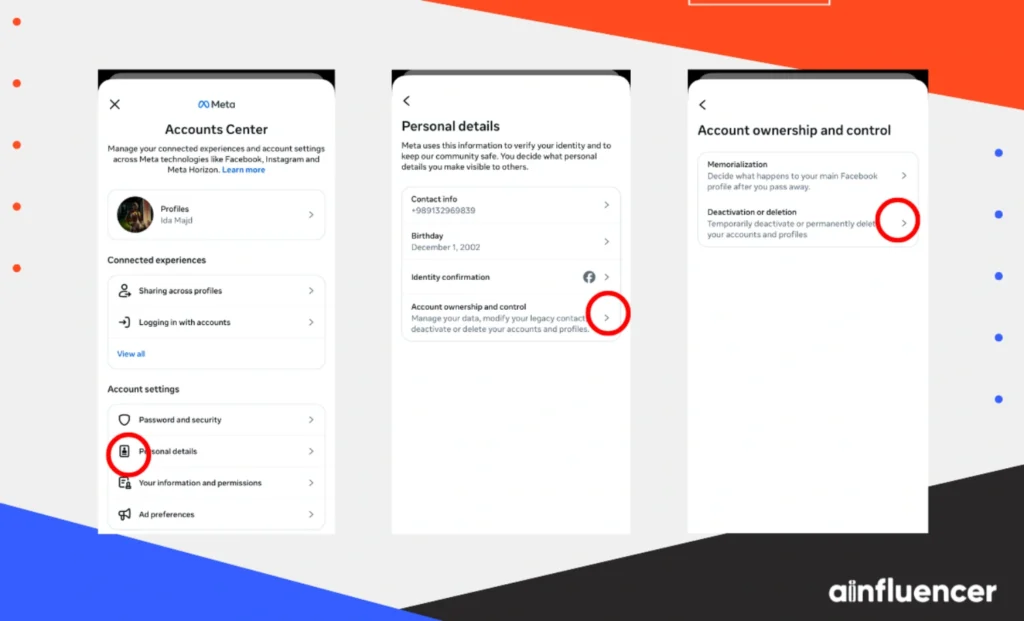
- In the Accounts Center, tap Personal details > Account ownership and control.
- Tap Deactivation or deletion.
- Choose the account you want to delete if you have multiple accounts linked.
- Select Delete account (not Deactivate), then tap Continue.
- Instagram will ask why you’re leaving; choose an option.
- Re-enter your password and tap Delete to confirm the process.
How to Delete Instagram Account on Desktop (Windows or Mac)
Here is how to delete your Instagram account using a web browser on a PC or Mac:
- Log in to Instagram in your browser (Chrome, Safari, etc.) at instagram.com.
- Click on your profile picture at the bottom left and then the menu (three lines), or just click your profile icon.
- Select Settings, then go to the Accounts Center.
- Choose Personal details > Account ownership and control.
- Click Deactivation or deletion.
- Pick the account you want to delete, then select Delete account > Continue.
- Enter your password when prompted, pick a reason for deleting, and finally click Delete Account to confirm.
There’s also an alternative method. You can use Instagram’s direct deletion link, which can be easily found through Google or by searching online. Once logged in, the page will ask you to select a reason, re-enter your password, and confirm deletion. This is a quicker and more straightforward way to permanently remove your account.
After submitting, your Instagram account will be immediately deactivated. If you don’t log back in within the 30-day grace period, your account and all associated data will be permanently deleted.
Should You Deactivate or Delete Instagram?
If you’re unsure whether you want to leave Instagram for good or just take a short break, this section will help you decide whether to delete or deactivate your account. Therefore, if you’re uncertain about permanently deleting your account or simply removing it for a limited time, make sure to keep the following points in mind. Ask yourself:
- If you feel there’s even a small chance you might want your account back in the future, you should not delete it. Only delete your Instagram account if you’re absolutely certain, because deletion is permanent. Once it’s gone, there are no do-overs.
- If you care about your personal data and want to save your messages or followers, keep in mind that deleting your account erases everything permanently. On the other hand, deactivating your account keeps all your data safe, so you can restore it later. Also, if you want to keep important chats, make sure to turn off vanish mode so your messages don’t disappear.
- Many quit social media to improve well-being and take a break from Instagram. If you think you’ll regret having content archived online, deleting is not the right way for you.
- For business or public profiles, you may face some extra troubles and might need to switch it back to personal before deleting it permanently.
The key is being certain. Deactivate your account if you just want a temporary break, but delete it if you want to permanently remove all your data and presence from Instagram. If you’ve finally decided to delete your Instagram account for good, here’s a step-by-step guide to help you do it permanently.
Before we get started, keep in mind that Instagram gives you a 30-day waiting period after you submit your deletion request. During this time, your account will be hidden but not fully erased.
If you change your mind, you can log back in to cancel the deletion. However, if you don’t log in within those 30 days, your account will be permanently deleted.
Difference Between Deleting and Deactivating Your Instagram Account
Before you learn how to delete Instagram account, keep in mind that if you ever change your mind but still want a break, there’s an alternative. You can simply deactivate your account. This way, you can step away for a while and come back whenever you’re ready.
Nonetheless, there’s a big difference between deleting your Instagram account and deactivating it. Let’s break it down:
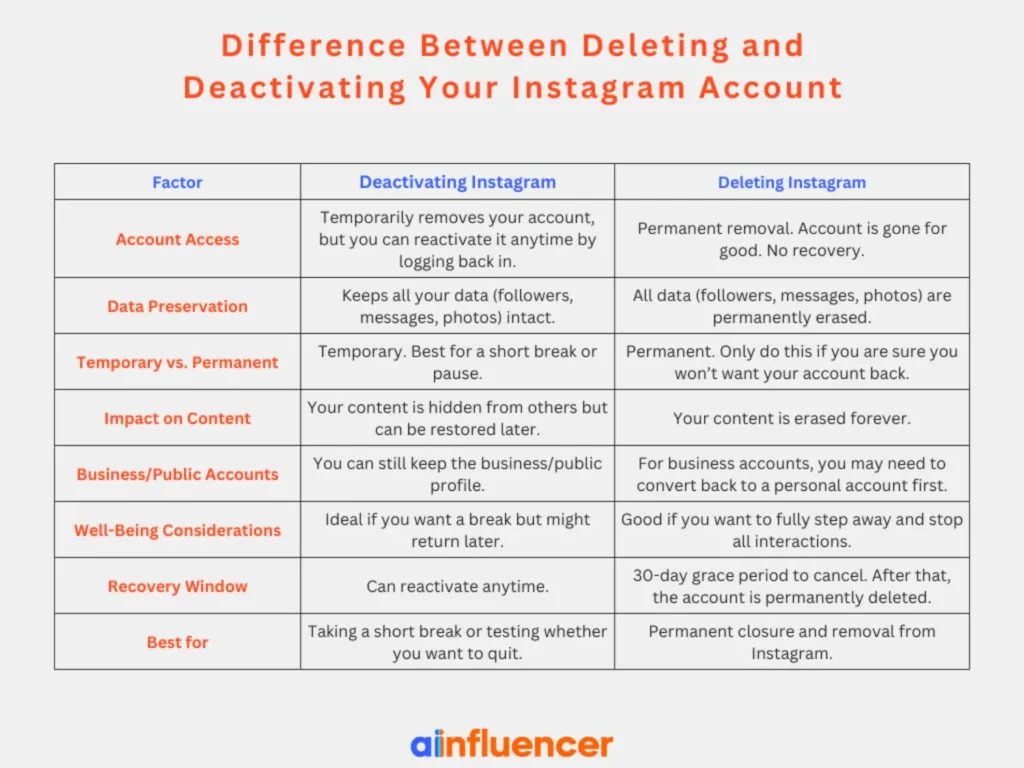
- Deleting your account permanently means all your data, including photos, videos, comments, likes, and follower,s will be completely erased. Once deleted, your account is gone forever, and you can’t recover it.
- Deactivating your account only hides your profile and content temporarily. While your account is deactivated, no one can see your profile or posts, but Instagram saves everything. You can log back in anytime, and all your data will be restored.
So, if you’re absolutely certain you don’t want your Instagram anymore, go ahead and delete it. But if you’re unsure or just need a break, deactivating is the better choice.
Apart from knowing how to delete an Instagram account, you should also know how to deactivate one. Here’s how to deactivate Instagram account:
How to Deactivate an Instagram Account?
Now that you know how to delete an Instagram account, you also need to know how to deactivate you page. If you just want a break from Instagram without losing your data, follow these steps:
- Log in to Instagram via a browser (You can’t deactivate through the mobile app),
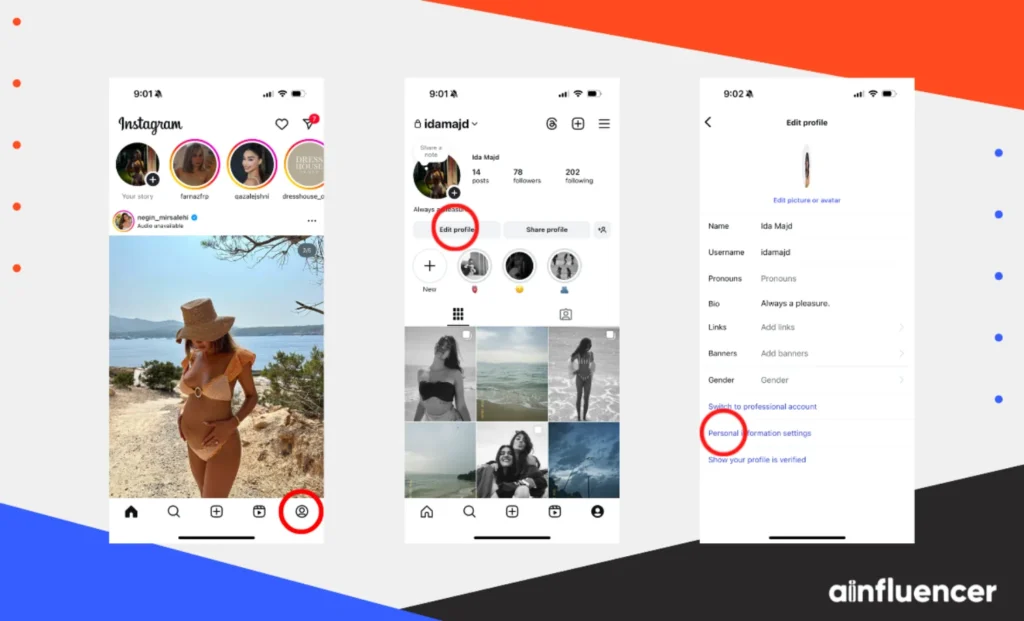
- Go to your profile,
- Click on your profile picture in the top right, then choose Settings,
- Select “Edit Profile”,
- Scroll down until you see “Personal information settings.”
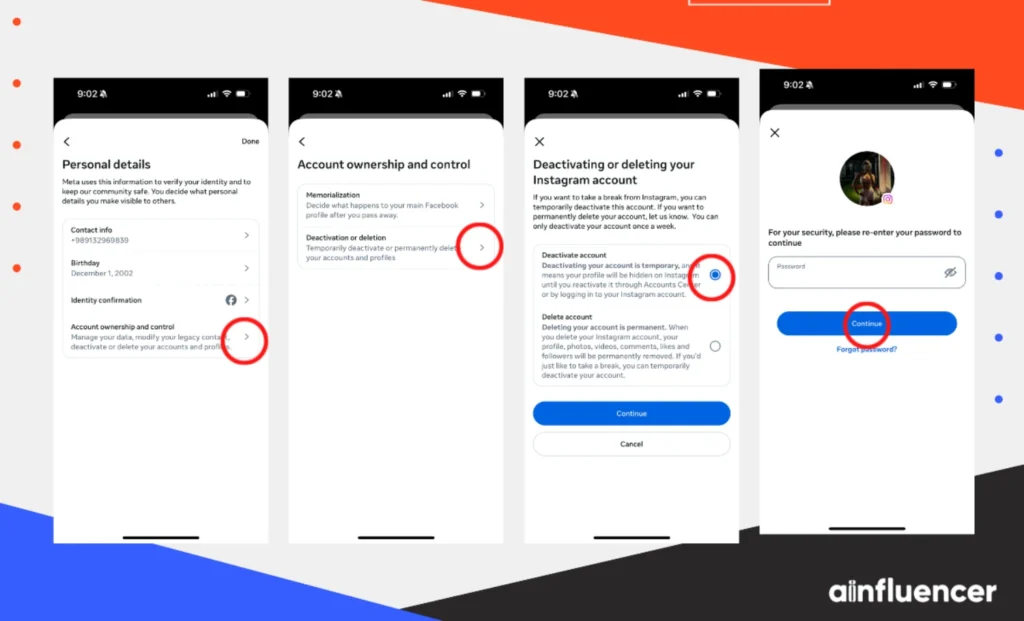
- Go to “Account ownership and control”
- Select “deactivation”,
- Re-enter your password for confirmation,
- Click “Temporarily Disable Account.”
Once you are done, your profile, photos, and comments will be hidden. When you’re ready to return, just log back in, and your account will be right there.
Why You May Not Be Able to Delete Your Account?
Sometimes, Instagram may prevent you from deleting your account. These are the common reasons why Instagram might do that:
- Login required for account deletion: The first step to delete your Instagram account is logging in and entering your password. However, if you signed up with Facebook and never made an Instagram password, you need to log in with Facebook and then create or reset a password. Instagram cannot delete an account on its own. You need to log in and confirm the deletion.
- Business or creator account: Things change a bit when you have a Creator or Business account. Instagram won’t let you delete them directly, so you first need to switch to a private account and then start deleting your Instagram account.
- Pending actions or content: If you are running an ongoing online shop on Instagram, you need to finish it before deleting your account permanently. For example, you should complete all pending transactions or fulfill customer orders to prevent any issues from arising. Once you have resolved these matters, you can start deleting your Instagram account.
- Security verifications: As usual, Instagram requires ID verification for many actions. To delete your profile permanently, Instagram may require you to prove that it is your account. If there is any doubt about account ownership, Instagram will not allow it to be deleted.
- Previously disabled account: If you have violated any Instagram guidelines and your account was disabled by the platform, you probably won’t be able to delete your Instagram account. If Instagram restores your account, you will need to regain access first before you can start deleting it.
- Technical glitches: Keep your Instagram app updated at all times. If you are unable to delete your Instagram account and it’s not because of any of the reasons mentioned above, you probably just need to update the app and try again. You can also try clearing your browser cache or using a different device or browser.
What Happens When I Delete My Instagram Account?
Let us walk you through the final process of deleting your Instagram account and answer the question: “What happens when you delete your Instagram account?”
Once you confirm your deletion, Instagram will hide your account immediately and permanently erase it after 30 days. During this time, your profile will be invisible, and confirmation will be needed. If you log back in within these 30 days, you can cancel the deletion process and continue using your Instagram account as usual.
After 30 days without logging in, Instagram permanently deletes all data, including photos, videos, likes, comments, and other content associated with your account. Additionally, the username you chose when you first created your account will become available for others to use. You may also receive an email confirming your account deletion request.
According to Instagram’ algorithm, after deletion, even searching for your old username or profile will show nothing, as it’s completely removed from Instagram’s search. Essentially, it will be as if your account never existed except, of course, for any copies of your content that others may have saved outside Instagram.
Conclusion
Now that you know how to delete Instagram account, it’s also worth noting that there is an alternative way. If you’ve changed your mind, deactivating your account is always a better option if you just need a short break from social media. However, if you are serious about deleting your account, make sure to follow the proper steps carefully and do it the right way. Keep in mind that once you delete your Instagram account, there’s no going back, and all of your data will be gone permanently.
FAQs
Yes. Simply log in to Instagram before the 30 days are up. That cancels the deletion request, and your account is restored as before. If you log in after 30 days, your account no longer exists and cannot be restored.
No one is notified when you delete your account, and during the 30-day waiting period, your profile disappears entirely. People visiting your profile will see an error or a blank page. After 30 days, your profile is gone for good. Basically, it’s as if you never had an account, as far as other users are concerned.