Keeping your Instagram account secure is always important. Sometimes you may want to update your password while logged in, and other times you might need to reset it because you’ve forgotten it. We will show you a step-by-step guide on how to change Instagram password easily.
Once your password is updated, you can get back to using the app and post on Instagram as usual. Keeping your account secure makes those everyday moments a lot more worry-free. Let’s get started!
How to Change Instagram Password on Mobile (App)?
If you do know your current password and want to update it, follow these steps on the Instagram app (Android or iOS):
- Open the Instagram app and log in to the account you want to secure.
- Tap your profile icon at the bottom-right corner, and choose the ☰ menu (three horizontal lines) at the top-right.
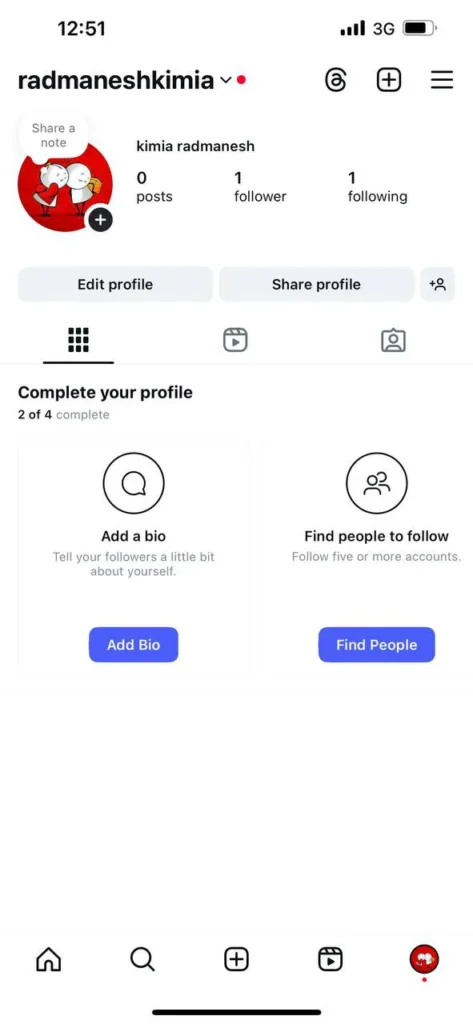
- Then, select Accounts Center.
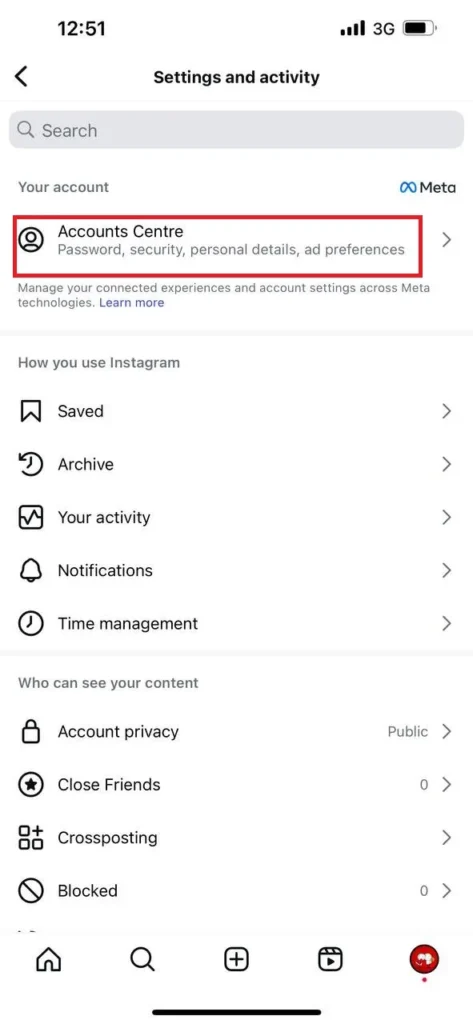
- Under Accounts Center, tap Password and Security.
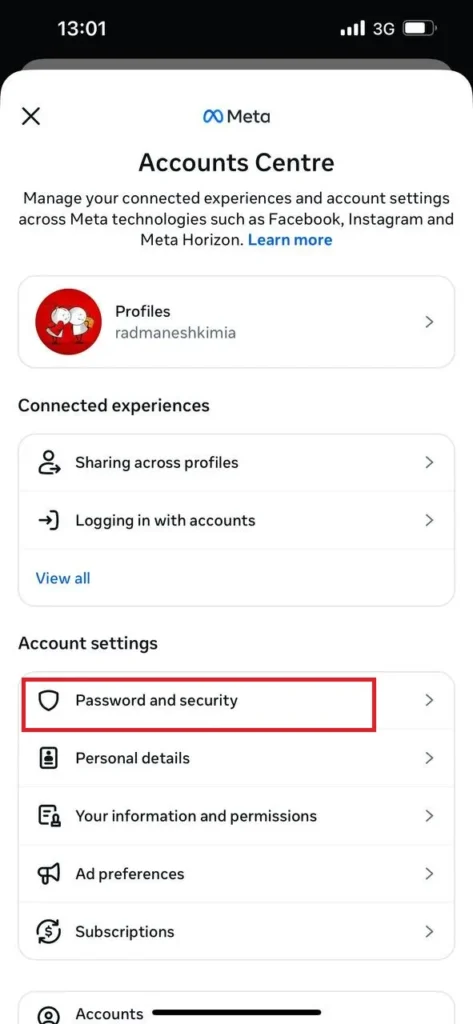
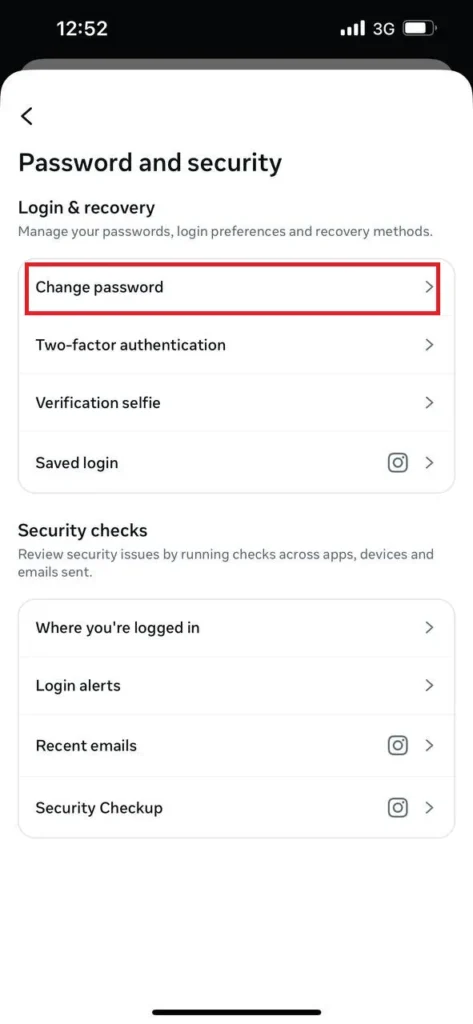
- Then Change the Password.
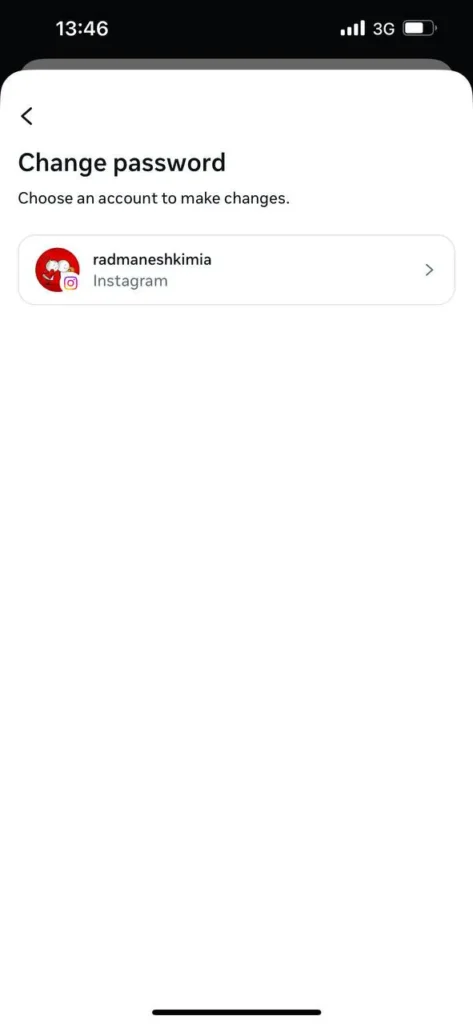
- Now, tap on your Instagram account.
- Enter your current password, then type your new password twice to confirm.
- Tap Change Password (or Save) to update it.
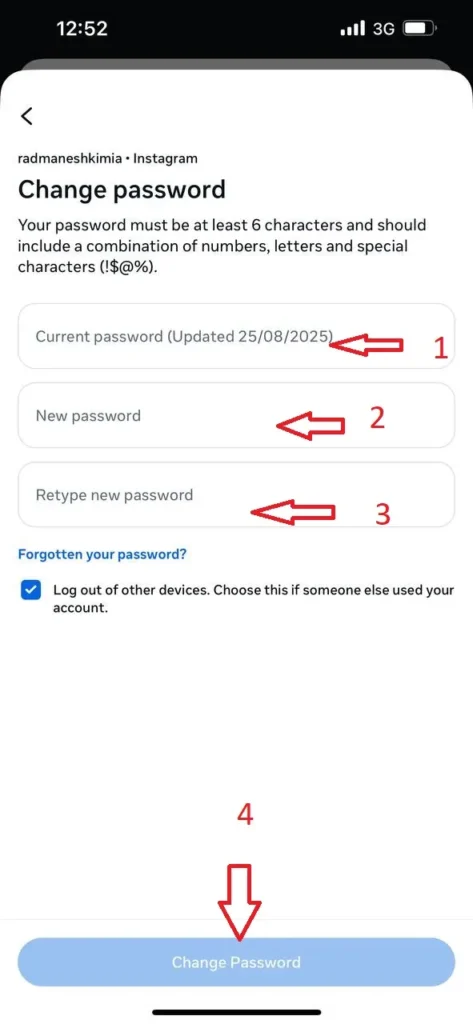
Once your password is updated, you can get back to posting without worrying about hackers or unauthorized access.
Note: Always use the official Instagram app and avoid third-party apps or browser workarounds. Double-check you’re in your own account by looking at the profile icon.
How to Change Instagram Password on a Computer?
You can also update your password using a desktop browser:
- Log in to Instagram with your account credentials.
- Click your profile picture at the top-right and select Settings (gear icon).

- Go to Settings & privacy.
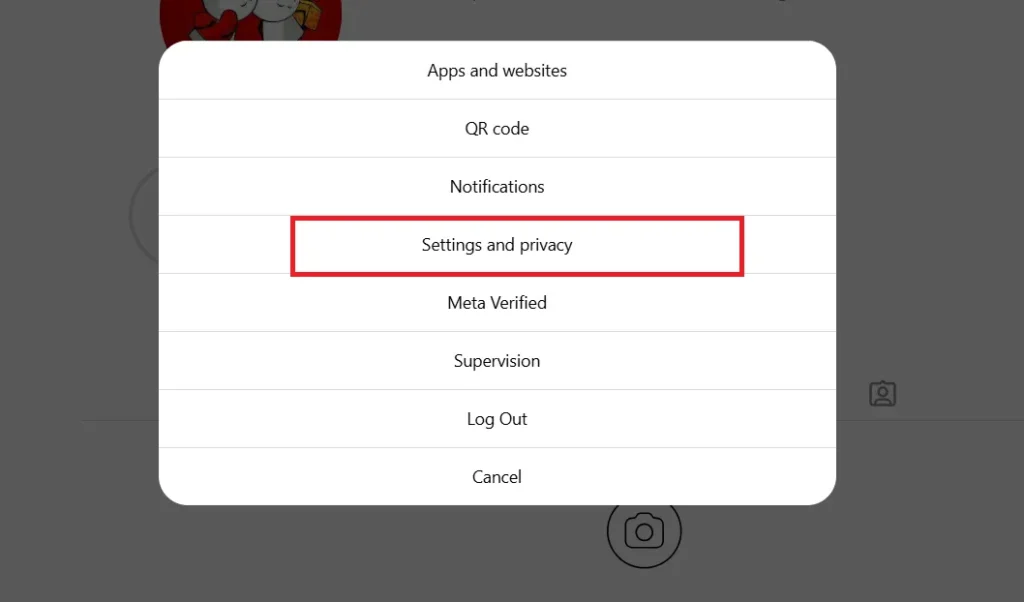
- You’ll see Settings on the left side of the screen. Select the Accounts Center at the top.
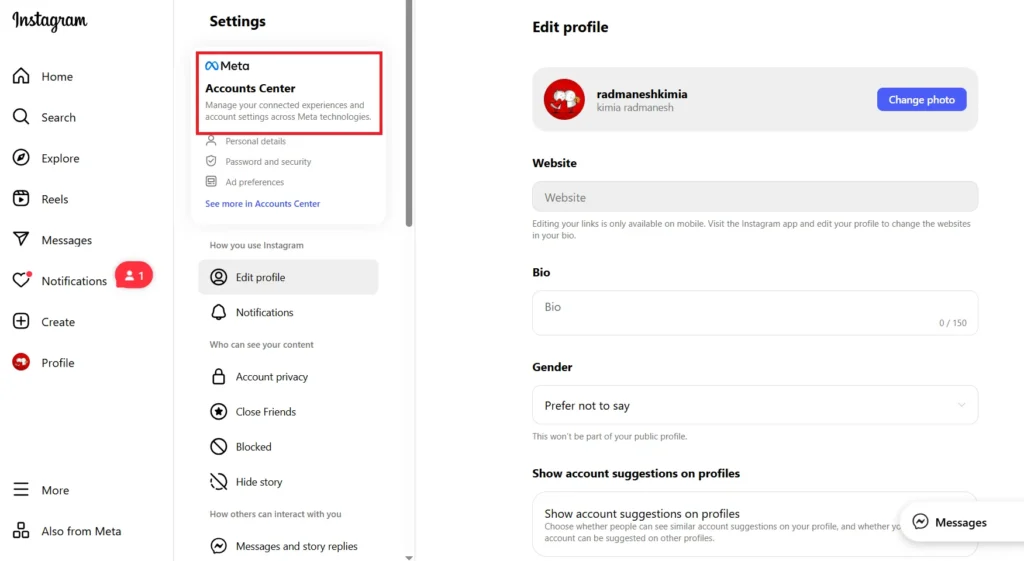
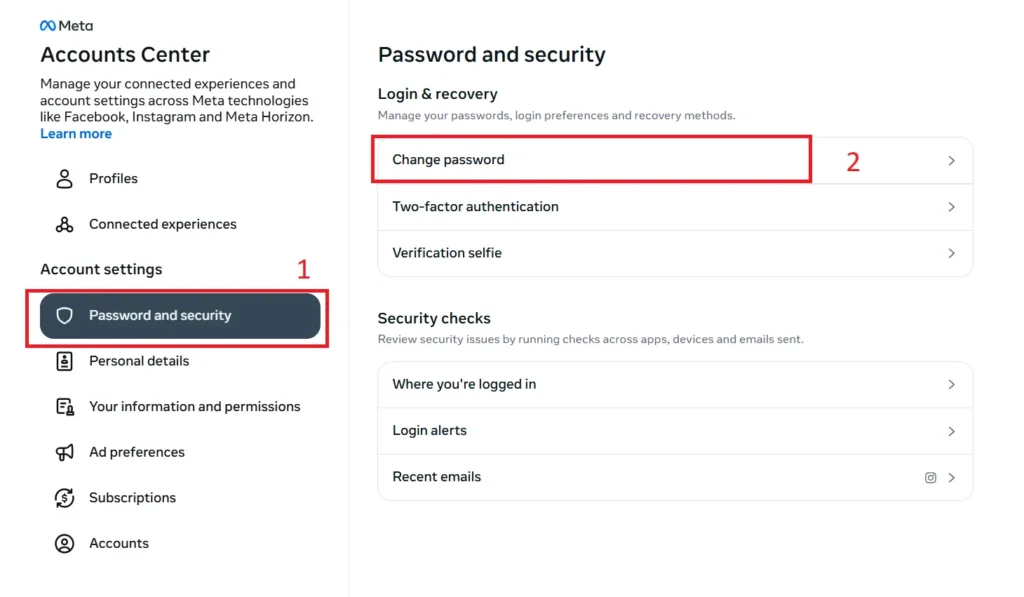
- Find Password and Security, and select it.
- Then tap Change Password.
- Click on your account.
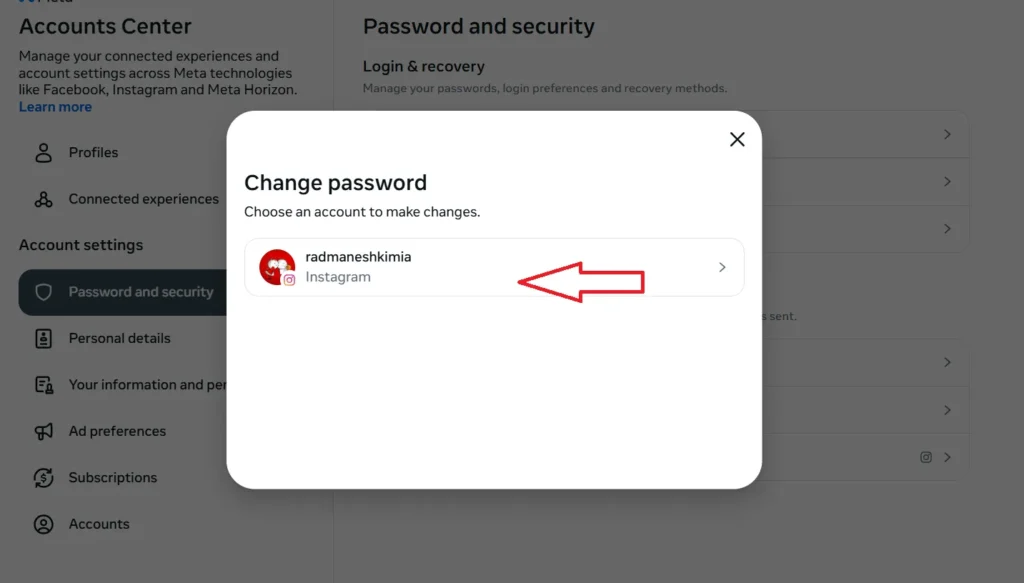
- Now, enter your current password, then your new password twice, and save.

These steps are very similar to the mobile version. If your account is linked to Facebook via Accounts Center, changing the password here may also update it across apps. After changing, the new password works immediately for future logins.
If you forgot your password after deleting and reinstalling the app to clear Instagram cache, you’ll need to reset it as explained in the next section.
How to Reset Your Instagram Password (If Forgotten)?
Forgetting a password happens to all of us, and it can feel a little stressful when it’s your Instagram account.
But don’t worry! This section will guide you on how to change Instagram password without knowing your old one. So, you can get back to scrolling, sharing, and enjoying your account without any worries.
#1 Reset Your Instagram Password On Mobile (Instagram App)
- On the login screen, tap Forgot password? or Trouble logging in?
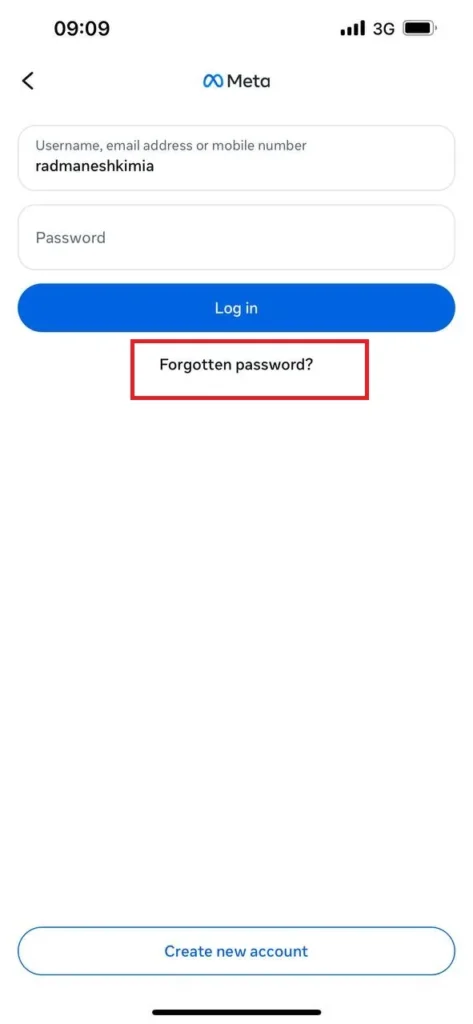
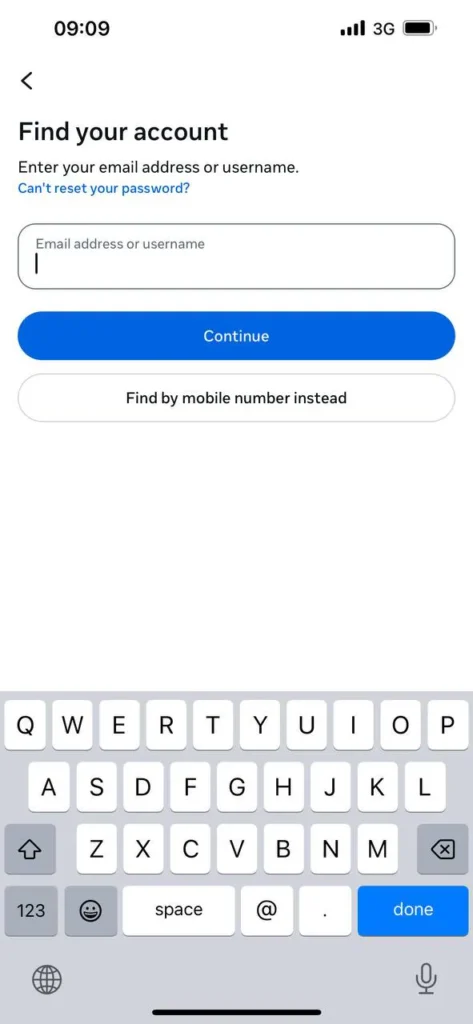
- Enter your username, email, or phone number to receive a reset link.
- Tap Next. Instagram will send a link or code.
- Open the email or SMS from Instagram and tap Reset your password (or enter the code in the app).
- Enter your new password and confirm.
#2 Reset Your Instagram Password On Computer (Web Browser)
- Go to Instagram’s Reset Password page or click Forgot password? on the login screen.
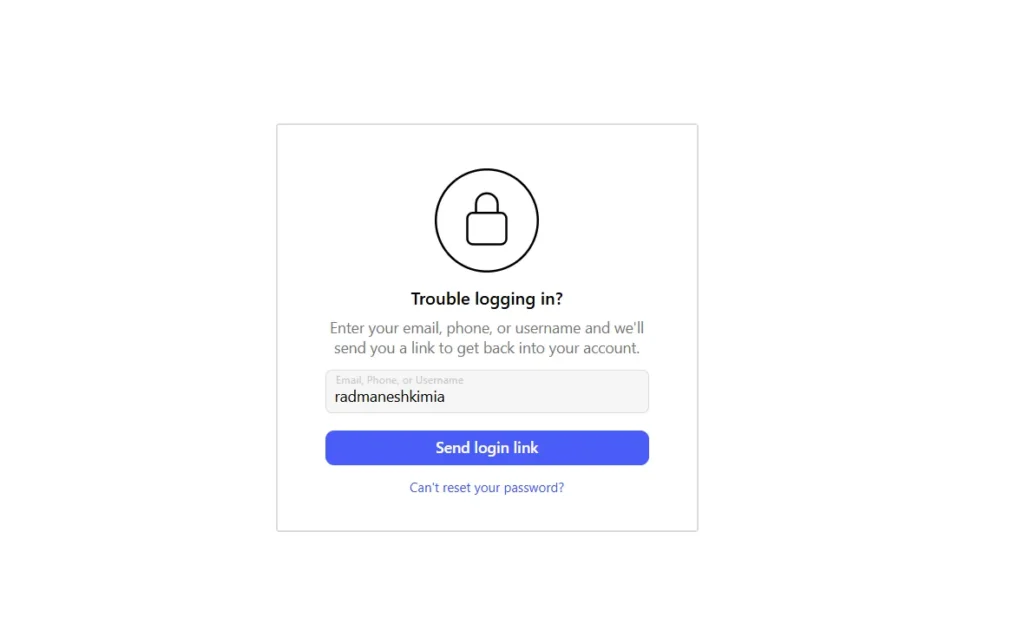
- Enter your email, username, or phone number and click Send Login Link.
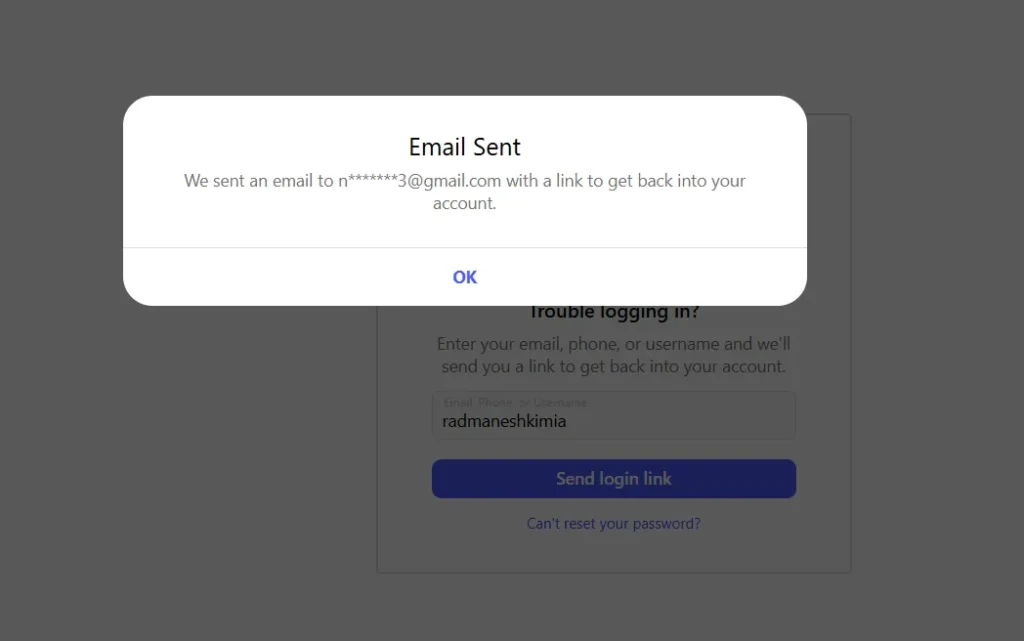
- Check your email (or SMS) for Instagram’s message and click the Reset your password link.
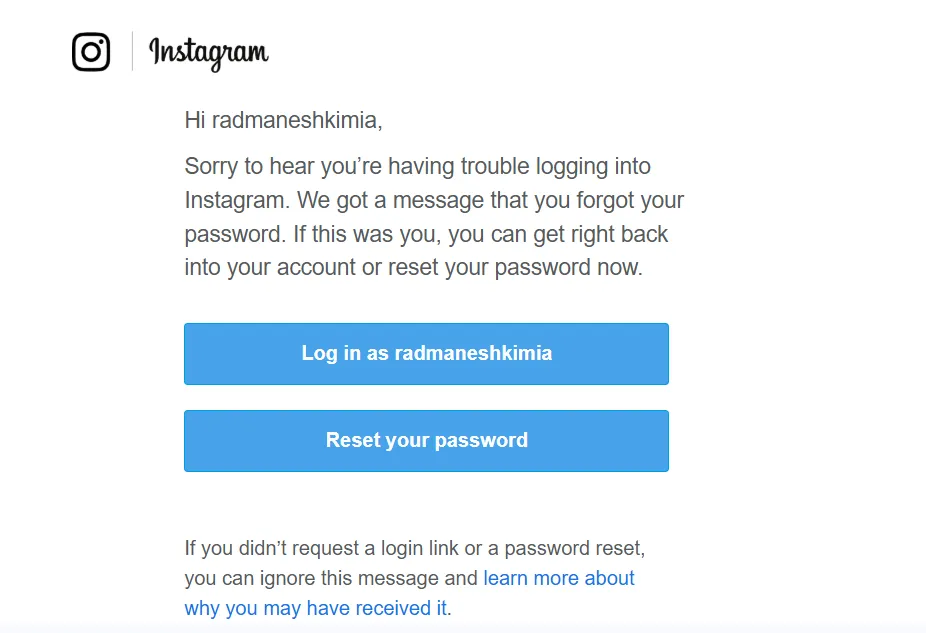
- Enter your new password twice and submit.
Make sure to check all inboxes, including spam or junk folders. If you don’t see the email, verify your contact info and try sending the link again.
How to Recover Your Instagram Account When You Forgot the Password?
You can recover your account using options like email, phone, or Facebook login. Once you get back in, Instagram will ask you to reset your password to keep your account safe. There are several ways to get back in:
- Email Recovery: If your account has a confirmed email, choose Send an email on the recovery screen. Follow the link in your inbox to reset your password.
- Phone Recovery: If you added a phone number, request a reset code via SMS. Enter the code in the app or on the web to set a new password.
- Saved Passwords: Check Google Password Manager (Android) or iCloud Keychain (iPhone) if you saved your Instagram login. You can see your current password and log back in.
- Facebook Login: If your Instagram is linked to Facebook, tap Log in with Facebook and update your password in account settings.
- Selfie Verification: If you don’t have access to email or phone, Instagram may ask you to verify your identity with a short video selfie. Once approved, you’ll get a reset link sent to a new email.
Why Doesn’t Instagram’s Password Reset Work?
Sometimes resetting your Instagram password doesn’t go smoothly. Here’s how to fix common issues:
#1 Check Your Email
- Check Spam/Junk: If you don’t receive the Reset Email or Code, Instagram emails may land in spam. Search your inbox for “Instagram.”
- Blacklist Issues: Your email provider or Facebook/Meta might block Instagram messages. Add your email in Facebook’s Accounts Center under Personal Information > Contact Points. Wait 20–30 minutes for emails to come through.
- Same Email on Facebook: If your Instagram email matches your Facebook email, try temporarily changing it on Facebook, then re-add it to Instagram. Some users report that this fixes email delivery within 20 minutes.
- Correct Account: Double-check you’re using the exact email or username tied to your account; typos happen!
#2 Solve Your Account Issues
- Instagram may block reset links if it detects suspicious activity. Use the “I can’t log in” flow to verify your identity.
- Always use official Instagram recovery pages; avoid unofficial sites.
Now you must wait a few minutes after making changes; systems need time to sync. If nothing works, contact the Instagram Help Center for support.
Tips to Choose Strong and Secure Instagram Password (Do’s & Don’ts)
A strong password is your first line of defense. Instagram requires at least 6 characters, but 8–12 characters or more with a mix of letters, numbers, and symbols is best.
How to Choose a Strong Password
- Unique and Complex: Use a password only for Instagram. Never reuse passwords across sites. One survey found 78% of people reuse passwords, which puts all accounts at risk.
- Avoid Personal Info: Don’t use names, birthdays, or common words. Hackers can guess these from your social media. Use a mix of random letters, numbers, and symbols. For example: Instead of “MyDogRex2023”, try “G7!pR$uXm2#.”
- Passphrases: This means that you should combine unrelated words or a sentence for something long but memorable. For example: SolarPenguinRiver7!
- Use a Password Manager: There are many tools, like iCloud Keychain, that can generate and store complex passwords. About 30–36% of US adults use password managers to secure accounts.
What NOT to Do
- Don’t use simple patterns (123456) or obvious substitutions (P@ssw0rd).
- Don’t use info from your Instagram profile.
How to Protect Your Instagram Account from Unauthorized Access?
Changing your Instagram password is just the first step to protect your account from unauthorized access. Here’s what else you can do to stay safe:
- Enable Two-Factor Authentication (2FA): Adds a second step when logging in (SMS or authenticator app). Even if someone has your password, they can’t log in without the code.
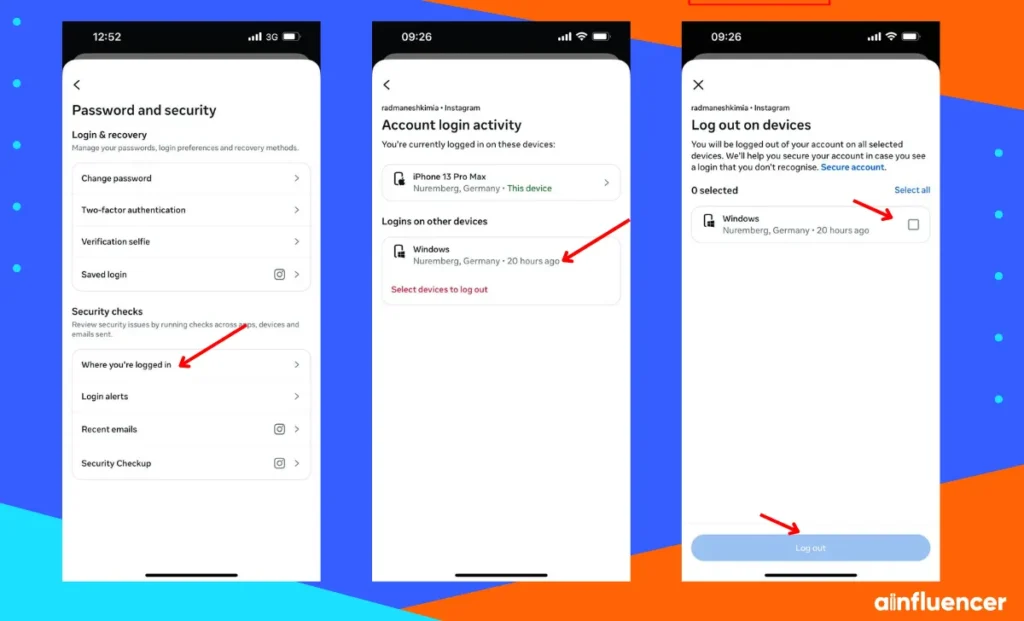
- Check Login Activity: Go to Settings → Accounts center → Password & Security → Where you’re Logged in to see recent logins and locations. Select the Device you don’t recognize, then log out.
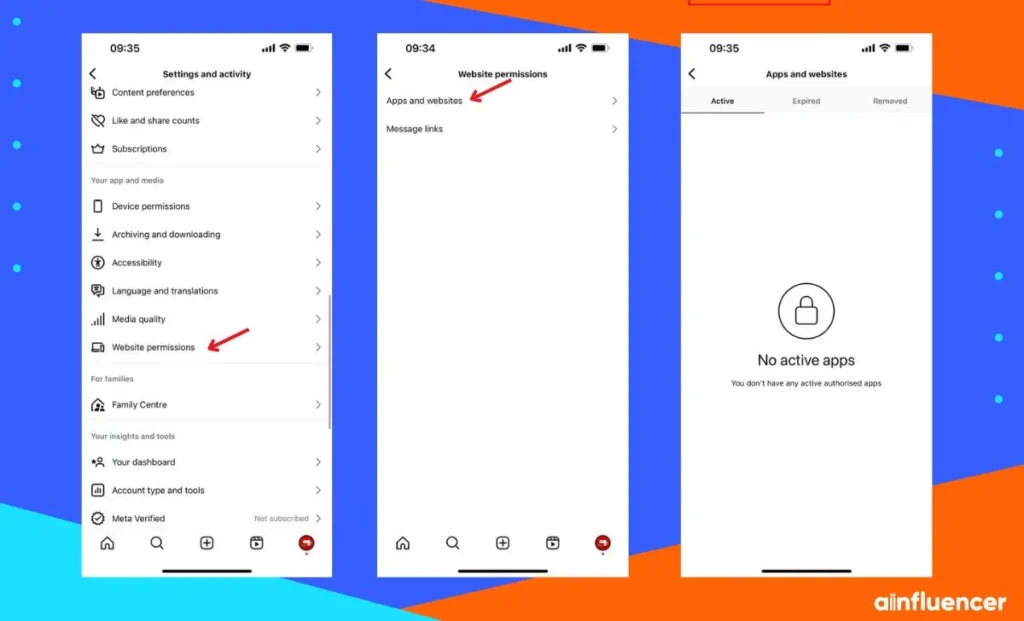
- Review Connected Apps: In Settings → Website permission → Apps and Websites, remove unused or suspicious apps. Old apps can be a backdoor for hackers.
- Watch for Phishing: Instagram will never ask for your password via DM or email. Ignore messages that demand login info or payment.
- Keep Apps Updated: Make sure Instagram and your linked email account are updated and protected with strong passwords and 2FA.
- Delete IG Account: If you feel your account is too compromised, you can permanently delete your Instagram account.
Why Change Your Instagram Password?
Keeping a current, unique password on Instagram is key to staying secure. Hackers are always finding new ways to steal accounts. So, regularly changing your password makes it much harder for them to succeed.
- Stop unauthorized access: If your password is ever compromised, updating it immediately makes the old one useless.
- Keep up with security best practices: What was safe a year ago may not be safe today.
- Protect valuable content and data: Your account may hold years of memories or even business content.
Wrapping Things Up
You learned how to change Instagram password on different devices. Now, you also know how to reset your IG password if you forgot it.
Changing your password regularly is a simple step that can save your account from unauthorized access.
So, don’t forget to keep your password strong and updated! That makes it harder for hackers to access your account and protects your info, memories, and content.
FAQs
There’s no strict rule, but changing it every few months is a good idea. Experts suggest doing it at least twice a year or right after any suspicious activity. In our experience, clients who update passwords every few months usually avoid most problems.
First, check your spam or junk folder. If it’s not there, try adding your email as a recovery contact in Facebook’s Accounts Center. Make sure you typed the correct email. If it still doesn’t work, wait a little and try again, or contact the Instagram Help Center.
Yes. You can change it in Instagram settings, which will update the linked password, or change your Facebook password directly. Securing one account helps keep the other safe, too.
If you don’t have access to your email, you can still reset your Instagram password using your phone number or Facebook account (if linked). On the login screen, tap Forgot Password?, enter your username or phone number, and follow the instructions to receive a reset link or code via SMS.