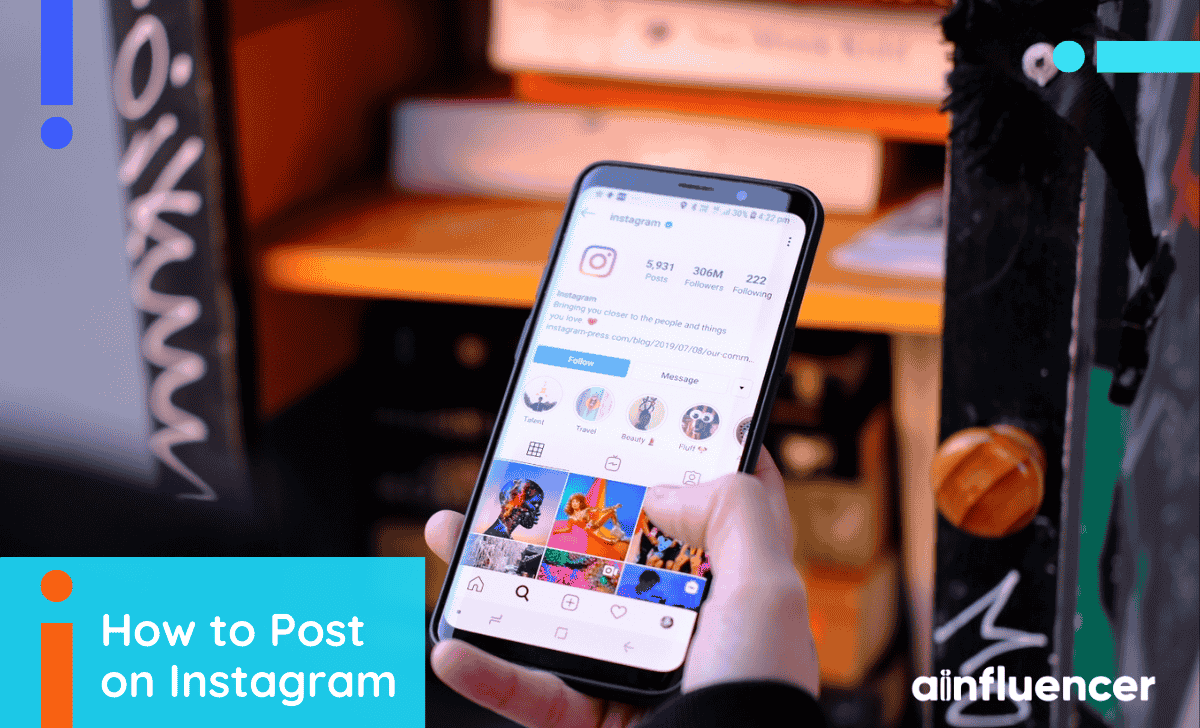
While learning how to post on Instagram seems daunting at first, it doesn’t have to be that way. What makes the process seem difficult is the decade of progress that’s been made. If you were an IG user in 2015, posting was as easy as picking your media and tapping the post button.
Nowadays, you have the option of Reels, stories, and normal posts to pick from. With Instagram post sizes and music coming into play, posting on IG may be a challenge for many. In this article, we’ll cover how you can post better on Instagram, ensuring progress and growth for your channel. Let’s get into it.
Preparing Your Content Before You Post on Instagram
Before you get to tapping the share button, you’ll need some ready content. Begin by creating or selecting visuals for your post. High-quality, eye-catching images or clips work best. Remember that the most important part of posting on any platform is the quality of content.
Use your phone’s camera or an editing app to crop and enhance your media beforehand. If posting a video or Reel, make sure it’s the correct orientation and length. Instagram favors vertical video and keeps Reels under 90 seconds.
As an example, my research has shown that this post’s 630K views are due to the trending music and perfect video length. What this has meant for the page is that with less than 100K followers, this Reel has reached over 600K people. This is something we often see with clients who know how to post strategically.
So your content is ready, your trending sound is picked, and you’re itching to put your idea out in the world. It’s time to learn how to make a post on Instagram.
Posting on Instagram from Your Phone (iOS/Android)
Whether you own an iOS or Android phone, the very first steps are the same. Open the app and tap the “+” button.
- Tap “+” to start posting, typically in the bottom middle of the screen.

- Now tap the “Post” at the bottom of the screen and choose the photos or videos you want to post. You may be asked permission to reach your gallery; grant this permission.

- Tap the “Next” on the top right of the screen.

- In this step, you can add text, filters, overlay other photos, or add a filter to your content. Once you’re done, choose the “Next” at the bottom right of the screen.

- Now you can add a caption, prompt, poll, location, and tags. You can also tag your post as AI-created and choose who can view it from your followers. When you’re happy with all the changes, tap the “Share” button in the bottom middle of your screen.

That’s it! You have now shared a post on Instagram. You can also post on Instagram from your desktop or Mac device. Let’s dive in.
How to Post on Instagram from Mac/Desktop
Posting on Mac or desktop depends on your browser, but the general steps are the same. First, you need to open your browser of choice and log in to Instagram.
- Tap on the “Create” at the bottom of the left-hand menu,
- Drag your photos and videos, or click the “Select from computer,”
- Choose your content and click the “Upload” button,
- You can now add a filter or edit your photo as you wish,
- Click the “Next” to confirm your edits,
- Now you can add a caption, location, or tag people. Once you’re done, click the “Share” option and you’re done.
That’s everything you need to do to post a picture on Instagram from your browser of choice. Remember that posting stories and Reels from desktop is not currently an option. Additionally, Videos and multiple photos also follow the same steps for posting.
With a good grasp of how to post on Instagram, it’s time to take a look at the different forms of posts you can create on the platform.
Different Types of Instagram Posts
There are a few different forms of posts on this platform. We’ll take a detailed look at each of them, giving you the means to become a professional at posting on this platform.
- Photo Posts (Feed): A single image or carousel (multiple photos/videos). These appear in followers’ feeds and on your profile grid. To post pictures on Instagram, follow the steps above for a “Post”. If you’re wondering how to post horizontal and vertical photos on Instagram, then you should know that vertical (portrait) images with a 3:4 ratio display fully; horizontal images are cropped into squares, so you may use borders or split into carousels to show the full shot.
- Video Posts (Feed): These are similar to photo posts but with video. You can post clips up to 60 seconds in a feed. Any video longer than that will automatically turn into a Reel. Simply select a video in the steps above. Before sharing, you can add a video cover image and trim the clip. Videos autoplay silently in feeds, so consider adding captions (via stickers or closed captions in advanced settings) to engage viewers. Instagram now supports multi-clip carousels, including videos.
- Instagram Reels: Short-form vertical videos (up to 3 minutes). To post a Reel:
- Tap “+” and choose “Reel” (or swipe to the Reels tab).
- Record or upload clips, add trending music (Instagram favors native audio), and apply effects.
Reels auto-play in a full-screen vertical format. Instagram suggests posting at least 10 Reels per month for growth, as this format is heavily favored to compete with platforms like TikTok. After editing your Reel, write a caption and hit “Share.” You can also share your Reel to your Story to boost views.
- Instagram Stories: Temporary posts that disappear after 24 hours. While Stories aren’t shown in your main feed, they appear at the top of followers’ apps. To post a Story:
- Swipe right from the feed or tap your profile icon.
- Capture or upload a photo/video, then add text, stickers, or filters. Finally,
- Tap “Your Story” to share.
Note that you cannot post stories from the Instagram desktop. If you don’t want to create a story from scratch, you can repost a story on Instagram and engage your followers.
- IGTV / Video: (Instagram no longer calls it IGTV; longer videos are now just “Video Posts.”) You can post longer videos here if needed. From the “+” menu, select “Feed” and pick your longer video.
- Live Video: To go live, tap the “+” and choose “Live.” Live streaming starts broadcasting to your followers in real-time. After ending the live, you can share it as a video post.
How to Post Quietly on Instagram
Posting quietly on the platform means a post will be added to your profile, but it will not show up on your followers’ feed. To do this, you need to go to your profile and tap the “+” button there; the rest of the steps are the same as before. Note that many users have talked about how this feature does not work for them.
In addition to knowing the basics of how to post on Instagram, there are also other details that may come in handy. Let’s dive in.
What Each Feature Means When Posting on Instagram
After you learn how to post on Instagram, you’ll see several posting options. Here’s what they mean and why they matter:
Tag People: Tagging people lets you share a post with everyone who is a part of it. This is useful if, for example, colleagues or models are in the shot. What makes this particularly useful is that it gives you access to an audience besides your own.
For example, this mid-size influencer typically receives around 1,000 views, but her collaborative post with another creator has achieved 2,000 views, effectively doubling their reach. In my experience as a social media strategist, such collaborations consistently enhance audience exposure and engagement.
Location: Adding a location places your post on that place’s location page. This increases discoverability; users browsing a city or venue tag might see your post. This can also give you the opportunity to promote local businesses by tagging them in your posts.
Write Alt Text: In Advanced Settings, you can add Alt Text, a short description of the image for visually impaired users. This accessibility feature also helps Instagram understand your image content.
Share to Other Platforms: You’ll see toggles to simultaneously share your post to Facebook, Twitter, etc. This cross-posts your content easily.
Advanced Settings: Under “More Options,” you can turn off commenting on a feed post, add captions for videos, or schedule (for business accounts). Remember to check these if you want to, say, prevent comments or specify a later post time.
Close Friends (Story-specific): When posting a Story, you can choose “Close Friends” to share only with a select list. This is useful for more private content, as described by experts: posting quietly or to a small group can foster authenticity without spamming everyone.
Understanding and using these features can boost your posts’ reach and professionalism. For instance, brands often tag other companies or influencers in posts to build partnerships, and they always add alt text for SEO and accessibility.
8 Tips and Tricks on How to Post on Instagram
In addition to knowing how to post on Instagram, there are also some general tips and tricks that you can only get from experts. Don’t worry! We’ve got your back. Let’s get into it.

- Post consistently: Instagram rewards active accounts. Aim to post regularly. Meta recommends at least 10 Reels a month, but more broadly, posting daily or several times a week can help.To maximize your reach, it also helps to know the Best Times to Post on Instagram so your content hits your audience when they’re most active.
- Prioritize Reels: Given Instagram’s focus on Reels, try incorporating short videos. Reels often get far more organic reach than static posts. Even if you’re posting an image, consider also creating a Reel version.
- High-Quality Content: Use bright, clear images and well-edited videos. Instagram’s algorithm favors “entertaining, funny, and interesting content.” Invest in good visuals. For product shots, show the product in use; for personal posts, use genuine expressions.
- Engaging Captions: Write captions that invite action. Ask questions, use emojis, or include a call-to-action like “Learn more” or “Tag a friend.” Adding CTAs (“link in bio”, swipe-ups, etc.) can guide viewer behavior, resulting in more engagement for you.
- Trending Hashtags and Audio: Keep an eye on what’s trending. Including trending songs or audio on Reels can boost visibility. Relevant hashtags (#) still matter somewhat for discoverability. The Instagram @creators account notes that hashtags remain “a great source of discovery,” so use relevant ones (e.g. #SocialMediaTips, #TravelInspo). But don’t overstuff, as always, it should be quality over quantity.
- Cross-Posting: Share your new post to your Instagram Story. This can double your reach, as our case studies show, sharing a Reel to Stories gives it even more views. Stories catch followers who might have missed the original post.
- Analyze Performance: Use Instagram Insights (if you have a Creator/Business account) to see when your followers are most active, what content performs well, and even track changes in your follower count to see who unfollowed you. Posting at peak times can improve engagement.
- Stay Updated: Instagram often changes. For example, in 2024-2025, it expanded carousels to 20 images and added features like “Post quietly” and “Trial Reels.” Keep your app updated and follow Instagram’s business channels to leverage new tools as soon as they drop.
By combining these tips with careful posting, you’ll maximize every Instagram post’s impact. For brands, remember: great content plus smart strategy leads to success. For example, some brands have achieved viral boosts by tailoring posts to these best practices or by partnering with influencers to amplify campaigns.
Troubleshooting Common Issues
While the general process of posting on Instagram isn’t too difficult, some issues can arise along the way. Our team has gathered user data to find the most common issues and offer a solution.
- Check your connection: Ensure you have Wi-Fi or data enabled.
- Update the app: An outdated Instagram app can lack new posting features. Update to the latest version.
- File format/size: Instagram accepts JPG/PNG images and MP4 videos (H.264 codec). If your file is too large, compress or shorten it. For photos, make sure they’re under 30MB; for videos, under 4GB.
- Restart the app: Force-close Instagram and reopen it, or log out and back in.
- Story/Reel issues: Remember, posting a story or Reel from a desktop is not possible. Try the mobile app instead.
- Tag errors: If tagging people, ensure you type the exact username. If the tag fails, it might be because the person’s account is private or has recently changed names.
- Caption glitches: Very long captions may get cut off. Also, if you paste text from another app, odd formatting can appear. Always preview before sharing.
- Instagram limits: Instagram may temporarily block posting if it detects unusual activity (e.g., posting too fast or too much, or using banned content). If blocked, wait a few hours and follow the rules.
Most problems have a simple fix. If you see an error message, note what it says and search the Instagram Help Center for that specific issue. The Instagram Help Center or support account can guide tricky fixes.
Conclusion
Learning how to post on Instagram can be crucial to your brand or personal reputation. We’ve covered the most important steps of posting, tips and tricks you may need, and common issues that can easily be fixed. Good luck on your IG journey!
FAQs
1. How to Add or Write a Post on Instagram?
“Making” or “adding” a post is just tapping “+”, selecting your media, adding a caption/tags, and hitting “Share.” There’s no separate “create post” screen; everything is done through the flow above. If you’re asking how to write a good caption or what content to post, keep captions short and engaging, and include relevant keywords or hashtags for discovery.
2. Can I Post Different-Sized Photos on Instagram?
Yes. Instagram supports multiple aspect ratios: square (1:1), vertical (4:5), and horizontal (16:9). When uploading, pinch the image to fit the frame or use the crop icon. For panoramic or very wide shots, try splitting them into a carousel. Tools like Canva or Photoshop can also add borders so your photo fits Instagram’s dimensions without cropping.
3. Do I Need a Business Account to Post on Instagram?
No. Any Instagram user with a personal account can post photos, videos, Reels, and Stories. However, business or creator accounts unlock extra features like analytics (Insights), scheduling posts, and advertising options. If you’re posting for marketing, switching to a business account is highly recommended.




![Read more about the article How to Clear Instagram Cache? [Full Guide in 2026]](https://socialmedia.ainfluencer.com/wp-content/uploads/2025/09/jpeg-optimizer_How-to-Clear-Instagram-Cache-300x182.jpg)