Is there a way to schedule posts on Instagram to save time? This is a question many users, especially brands and businesses, struggle with. Since you cannot schedule posts, stories, or reels directly on Instagram, there is another way to save time, and that is by saving drafts. But how to see drafts on Instagram, and how do you save them?
In this blog, we’re going to teach you how to see and save drafts on Instagram so you can always have fresh, ready-to-post content. This way, you won’t have to spend extra time editing and preparing. All you need to do is finalize and post your content on Instagram.
What Are Instagram Drafts?
According to Instagram, a draft is simply an unfinished post, reel, or story that you’ve saved to finish later. Instead of publishing immediately, you start creating content, then, when ready, tap “Save Draft”.
But here comes an important point to keep in mind. When you save a draft on Instagram from your phone, the draft is only stored on that device. So when you log in to Instagram from another device, the draft won’t be there.
Here is a quick breakdown of drafts:
- Post & Reel drafts: Saved indefinitely on your device until posted or deleted
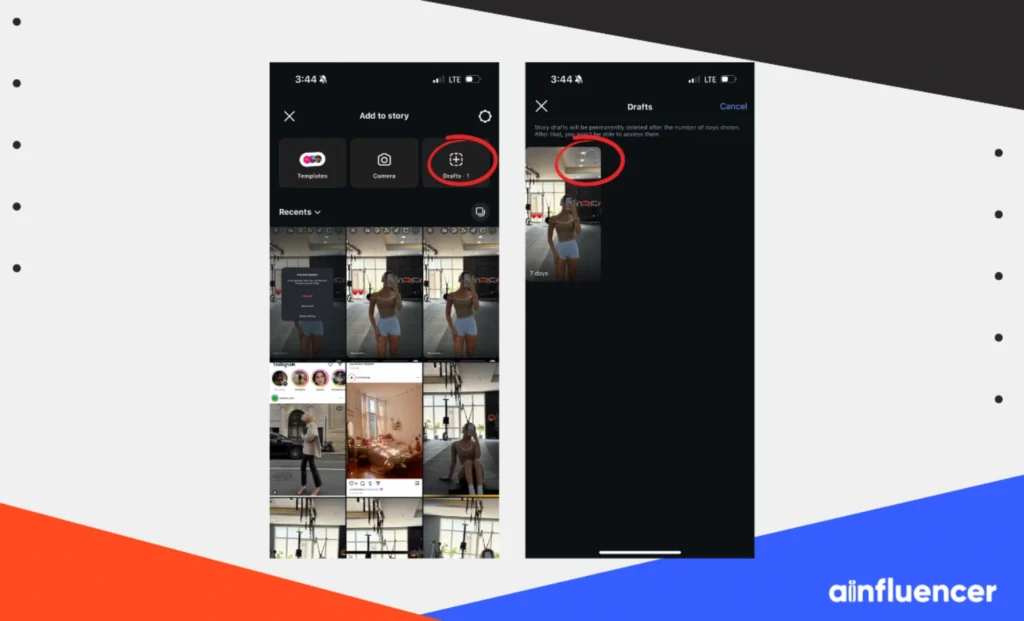
- Story drafts: Saved only for 7 days, and Instagram automatically deletes them when the time comes up.
- Storage: Your drafts are only on the device that created them. So, when you log in with another phone, the draft is gone.
In the following section, we’ll teach you how to see your drafts on Instagram.
How to See Drafts on Instagram
Ready to know where to find drafts on Instagram? Since finding your saved drafts depends on the content type, here’s how to see your drafts for each format:
How to See Post Drafts on Instagram
Let’s learn about how you can see your drafted posts:
- In the Instagram app, tap the + button and select “Post”.
- On the gallery screen, look for a “Drafts” tab in the top-left corner, next to “Recents”. If you have saved drafts, that tab will appear.
- Tap “Drafts”. You’ll see all your saved post drafts. Select one to continue editing or post it.

How to Find Reels Drafts on Instagram
To see reel drafts on Instagram, simply follow these steps.
- Through the Reels camera: Tap +, select “Reel”; on the editing screen, look for “Drafts” at the top. Tap it to view your saved reels.
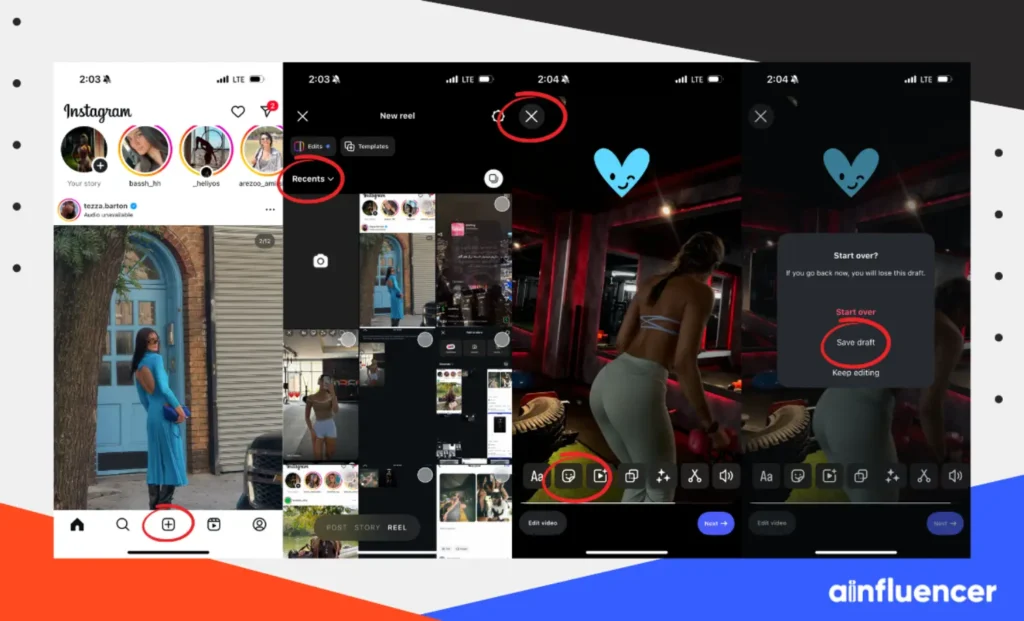
- On your profile: Go to your profile and tap the “Reels” tab. Your drafts will appear right alongside published reels, with a “Drafts” label. Just tap a draft to continue editing or publishing.
How to Find Instagram Story Drafts
In the last part, we are going to show you how to see your story drafts on Instagram.
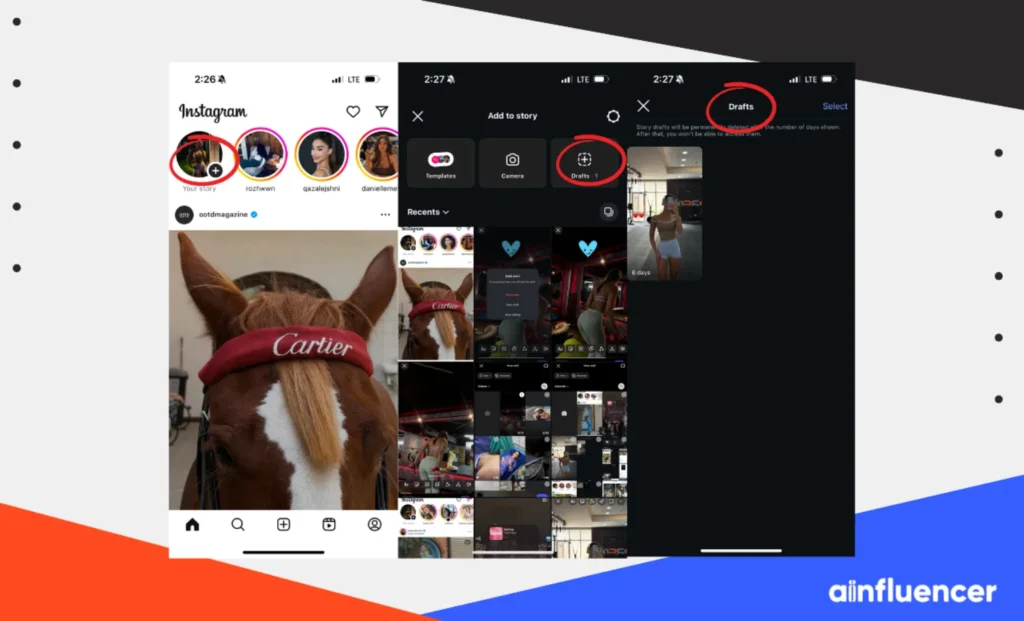
- Open Instagram and tap your profile picture or swipe right to open the story’s camera.
- Tap the gallery icon (bottom-left) to see your camera roll. If you have saved story drafts, you’ll see a “Drafts” folder at the top of that screen.
- Tap “Drafts” to view your saved story drafts. Tap any draft to continue editing.
How to See Instagram Drafts on a Computer
Instagram’s desktop experience is a bit more limited. On the official Instagram website or Windows app, you can not access mobile-style drafts for stories or reels. Simply put, you can see Instagram drafts only on mobile devices.
How to Save a Draft on Instagram
Before you know how to manage drafts on Instagram, you first need to create and save them. The process is similar for posts, reels, and stories.
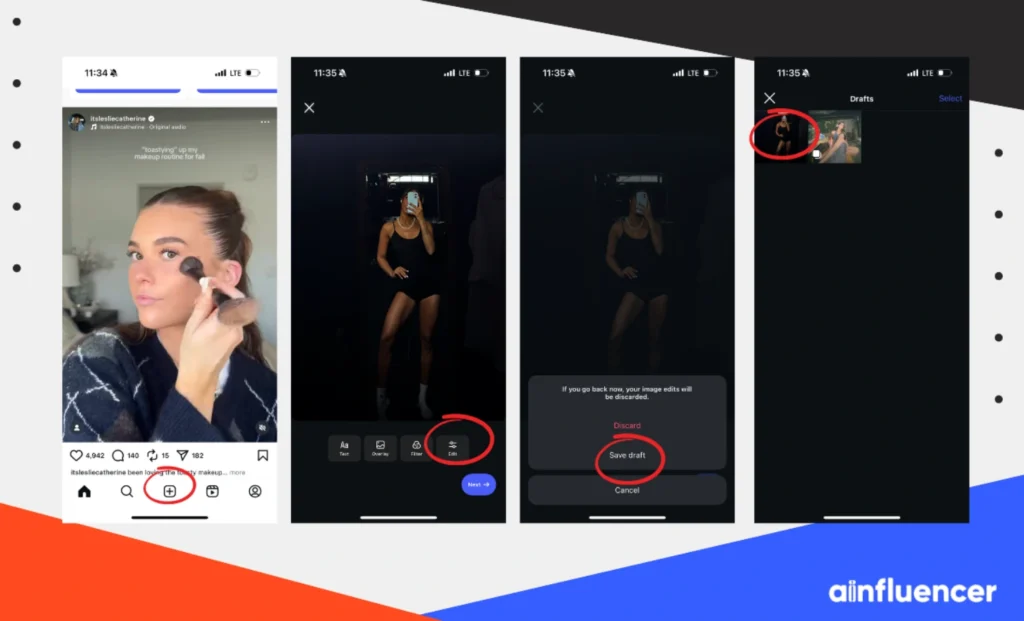
Here is how to save a post or reel as a draft with any post size on Instagram:
- Open Instagram and tap the + (create) button at the bottom center.
- Choose “Post” or “Reel”. Either select or take the photo/video you want.
- Edit reels and posts as usual and apply filters, captions, tags, location, or even add music to your Instagram posts. Remember, for a draft to appear, make sure you actually edit the content. Simply exiting without changes may not prompt the draft option.
- Next, tap the “X” in the top-left.
- Instagram will prompt “Save draft” or “Discard.”
- Tap “Save Draft” and you’re good to go.
Now, let us show you how to save a story as a draft:
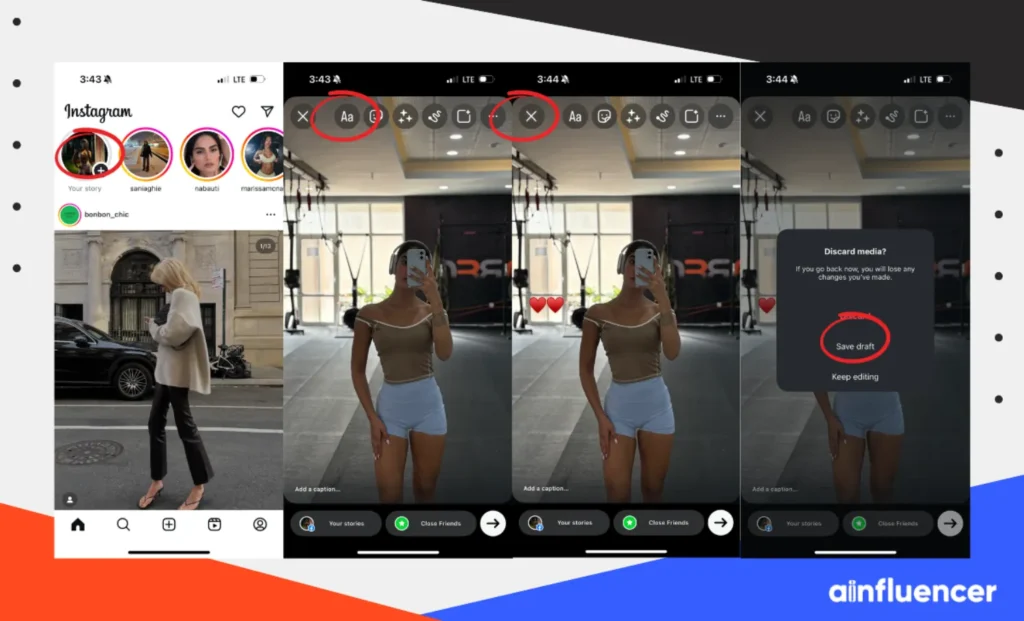
- Tap your profile picture or the “Your Story” icon to open the Story camera.
- Capture or upload a photo/video, then add stickers, text, music, or other edits. (You must add something for Instagram to offer saving).
- When editing, tap the “X” in the top-left. Instagram will ask if you want to “Save draft” or discard.
- Choose “Save Draft”.
- Instagram confirms it’s saved and reminds you that story drafts auto-expire in 7 days.
Many creators find it useful to add even a small edit (like a sticker) so that Instagram recognizes the story as draft-worthy. With your content saved, let us show you how to see drafts on Instagram.
How to Manage Your Instagram Drafts
Now, let us show you how to manage drafts on Instagram.
- Editing a draft: Go to your “Drafts” and do the following steps:
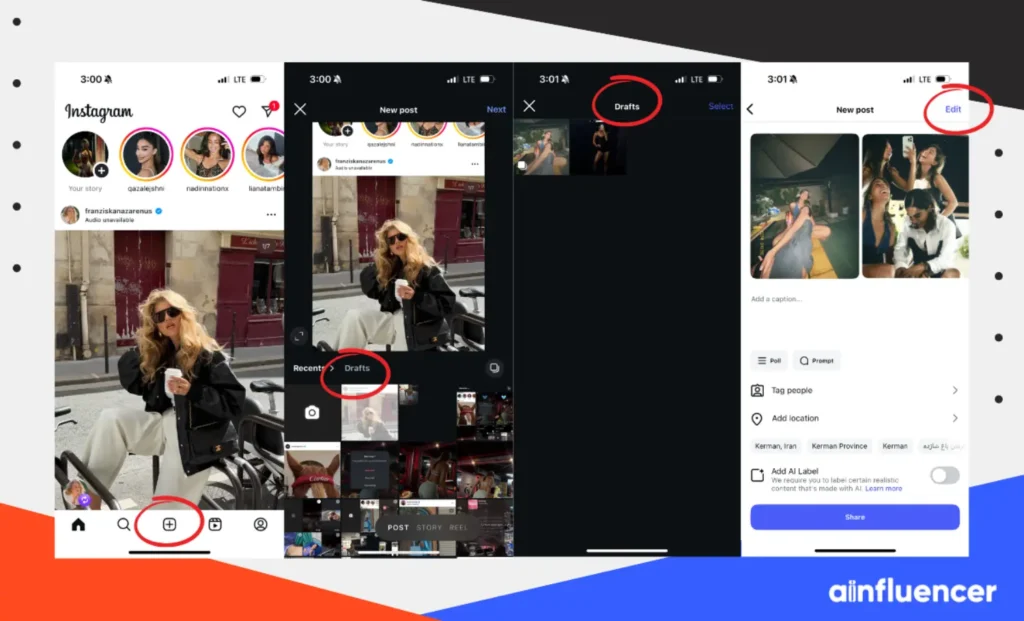
- Deleting drafts: In the “Drafts”, tap “Manage” and select the drafts to remove, and confirm deletion. For stories, tap a draft, then hit X (back) and choose to delete it; or in gallery view, use the “Select/Delete option”. Once deleted, drafts cannot be recovered.
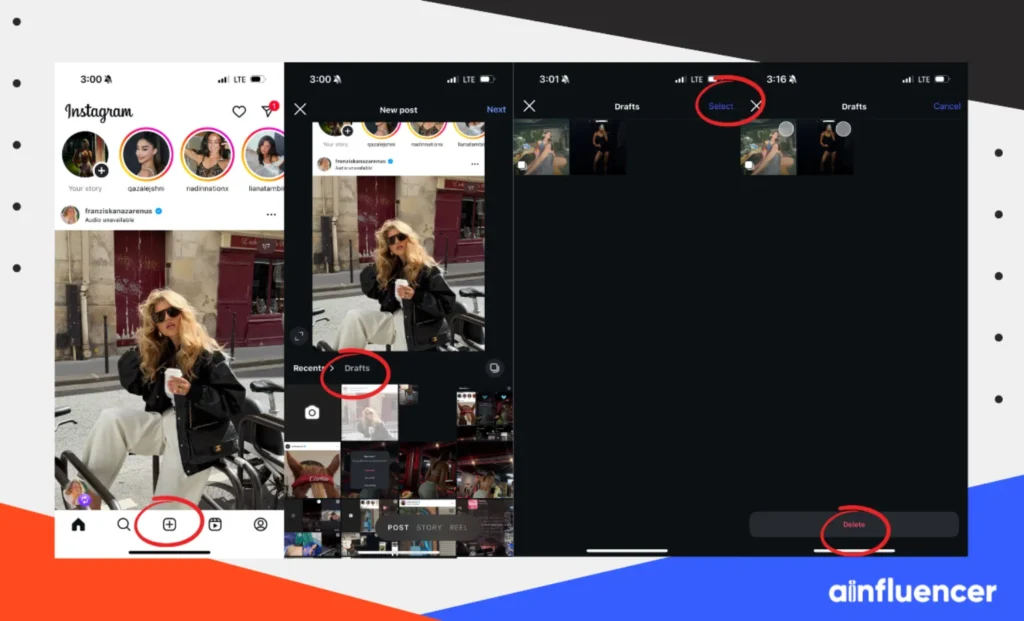
- Reviewing later: You can come back to drafts any time. Just remember that story drafts expire after 7 days. Instagram will usually show “Drafts expired” in that case.
- Sharing and publishing post drafts: Simply go to your drafts and select the draft. Make final edits as desired and tap “Next” to share. Your draft will be removed from the drafts folder and appear on your profile feed or reels grid after posting.
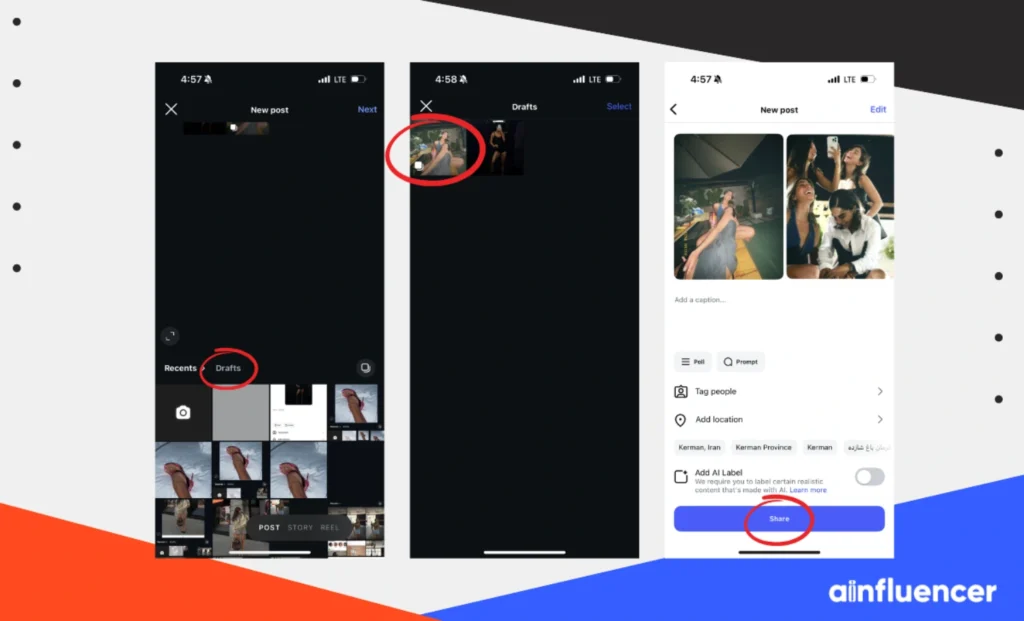
- Sharing and publishing story drafts: For stories, tap the draft and then send it to “Your Story” as usual. Posting a story draft is identical to posting casual content. The draft just means you didn’t have to recreate it from scratch. So, go to your profile and tap the plus icon, then choose “Drafts” and tap “Your Story,” and you’re done.

We recommend regular “draft housekeeping.” For instance, every week, review your drafts and delete outdated ideas. Brands looking to get new followers on Instagram often take care of their content plans by drafting. You can also even label drafts by adding notes in captions to remember their purpose.
Also, remember to:
- Apply Reels or Stories, tap the “Music” icon to add a track.
- Use good captions with hashtags and calls-to-action to attract more followers.
- Schedule posts for peak times using drafts or third-party tools.
Why Can’t I Find My Drafts on Instagram?
Sometimes drafts seem to vanish. Common causes and fixes:
- Wrong Account: Drafts are account-specific. If you have multiple Instagram accounts, make sure you’re logged into the same account that created the drafts. In fact, most “missing draft” troubles are just due to checking the wrong account or checking with the wrong device.
- App Reinstall / Logout: Since drafts live on your device, logging out or deleting the app will wipe them. If you reinstalled Instagram, your old drafts are gone. There’s no “recently deleted” option for drafts.
- App Crashes / Updates: Rare bugs or crashes during saving can delete drafts. Also, after an app update, some people have reported losing drafts. If this happens, there’s unfortunately no way to recover them.
- Expired Story Drafts: Story drafts automatically expire after 7 days. If you save a story draft and wait too long, Instagram will delete it. Keep this in mind for your story planning.
- Storage Issues: If your phone is extremely low on storage, Instagram might fail to save or load drafts. Ensure you have some free space to avoid issues. Try clearing the Instagram cache and check whether the issue persists.
- Notification/Bug: A known glitch is that Instagram occasionally hides the “Drafts” tab if you have no drafts. Make sure you actually saved a draft correctly. If in doubt, try saving a new draft and see if the tab appears.
If all else fails, the classic troubleshooting steps apply. This means you have to close and reopen Instagram, restart your phone, or update the app to the latest version. But remember, if a draft truly disappeared due to these issues, there’s no recovery.
Conclusion
Learning how to see drafts on Instagram helps you plan and refine your content more easily.
By using drafts for posts, reels, and stories, you can save time and ensure higher-quality posts.
Keep in mind that story drafts expire in 7 days, and drafts only exist on the device where you saved them. With these steps and tips, you’ll never lose a half-finished post again.
FAQs
Instagram lets you save up to 50 drafts for feed posts. While there’s no official limit for Reels, very large drafts can cause issues, so it’s best to manage them carefully. Remember that drafts take up space on your device’s storage.
To find your Instagram drafts, go to the “Create Post” section by tapping the “+” icon at the bottom center of your feed. After that, tap “Gallery” (on iOS) or “Library” (on Android). If you have any saved drafts, they will appear under the Drafts section at the top of your gallery.
Unfortunately, once a draft is deleted, it cannot be recovered. However, if your draft was saved before an app update or device change, it may still appear after re-opening the Instagram app, as drafts are often saved locally. If it’s been lost due to a glitch or issue, there’s no guaranteed way to retrieve it.
Instagram drafts don’t have a set expiration date, and they should last indefinitely as long as they remain on your account.
However, if you uninstall the app or switch devices, drafts can be lost. Make sure your drafts are saved before making any major changes to the app or your phone.







![Read more about the article How to Clear Instagram Cache? [Full Guide in 2026]](https://socialmedia.ainfluencer.com/wp-content/uploads/2025/09/jpeg-optimizer_How-to-Clear-Instagram-Cache-300x182.jpg)
