Learning how to add music to Instagram posts and stories can be greatly helpful in growing your account. With how short attention spans are these days, you need to add everything you can to keep people on your posts. The longer people are viewing your posts, the more IG’s algorithm pushes your page.
So if you’re trying to learn how to post on Instagram more effectively, one of your best choices might be adding music to your posts. In this article, we’ll take a look at why you should be adding music to your posts, how to get it done, and some important tips and tricks for your growth.
How to Add Music to Instagram Videos and Photos on Android and iPhone
Adding music to a post is easiest on Instagram’s mobile app (iOS or Android). The interface is nearly identical on both devices, so the steps below work for any smartphone:
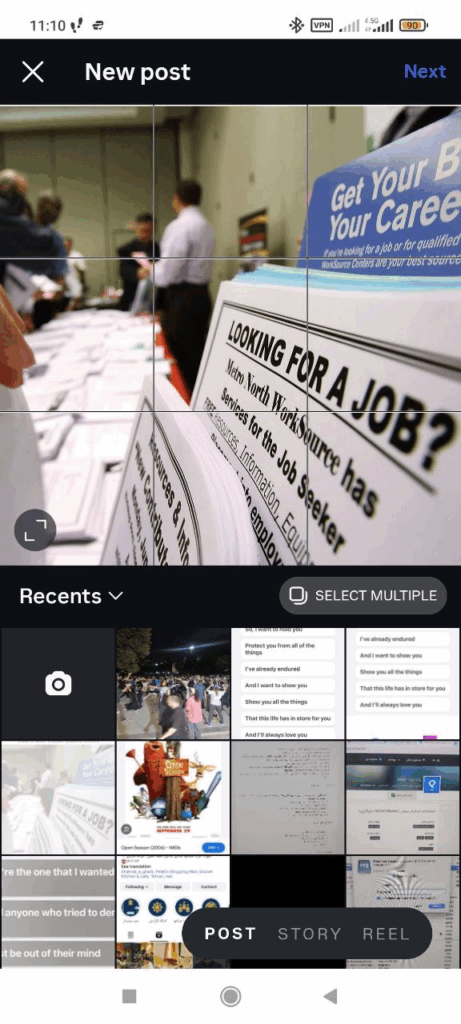
- Create a new post: Open the Instagram app and tap the + (plus) icon at the bottom (or top) to create a new post. Choose Post, then select the photo or video you want from your gallery or camera roll.
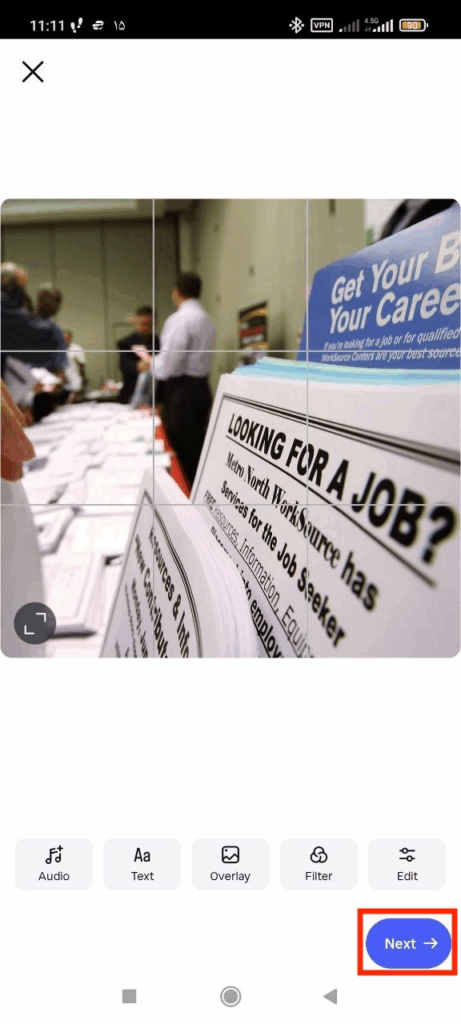
- Edit your content: If desired, apply filters, crop, or make any edits. Once you’re happy with the image or video, tap “Next.”
- Access the music picker: On the screen where you add your caption and tags, you should see an “Add Music” button or “Audio” or a music note icon (usually below the caption field). Tap “Add Music.” (If you don’t see it immediately, try tapping “Next” again on the filter screen.) Tapping “Add Music” opens Instagram’s music library.
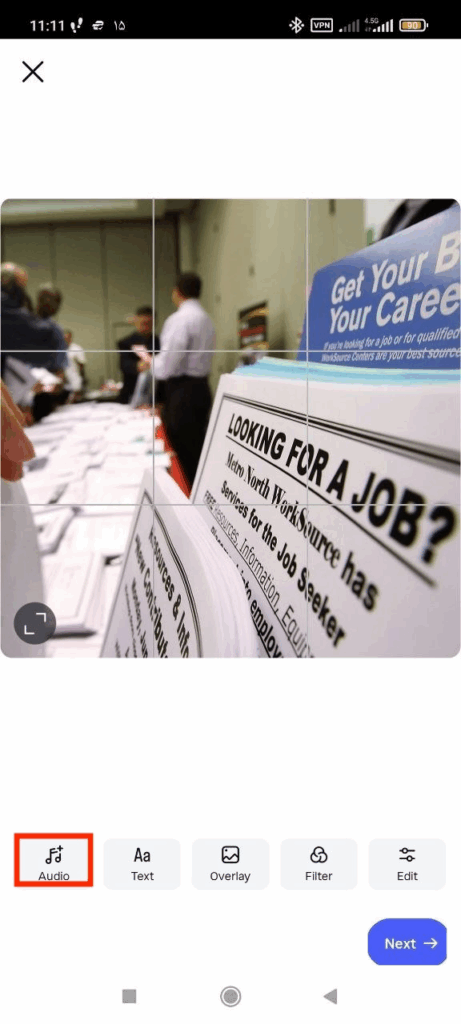
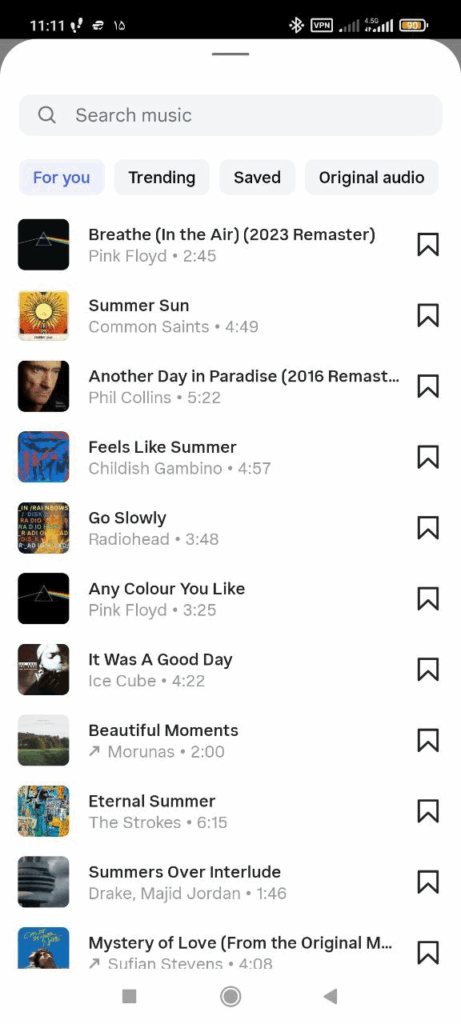
- Choose your track: You can now browse or search for songs. Instagram lets you search by song title, artist, or browse by mood/genre and trending charts. You can listen to previews by tapping the play button next to each track. When you find the perfect song, tap on it to select it.
- Select the snippet: Most songs will allow you to choose which part to play. Instagram provides a slider bar (with start/end points) to trim the clip down to the snippet you want, between 5 and 90 seconds long.
Drag the slider handles to pick the catchiest section of the song. (Shorter clips often work best to grab attention.) Preview the clip to make sure it fits your post.
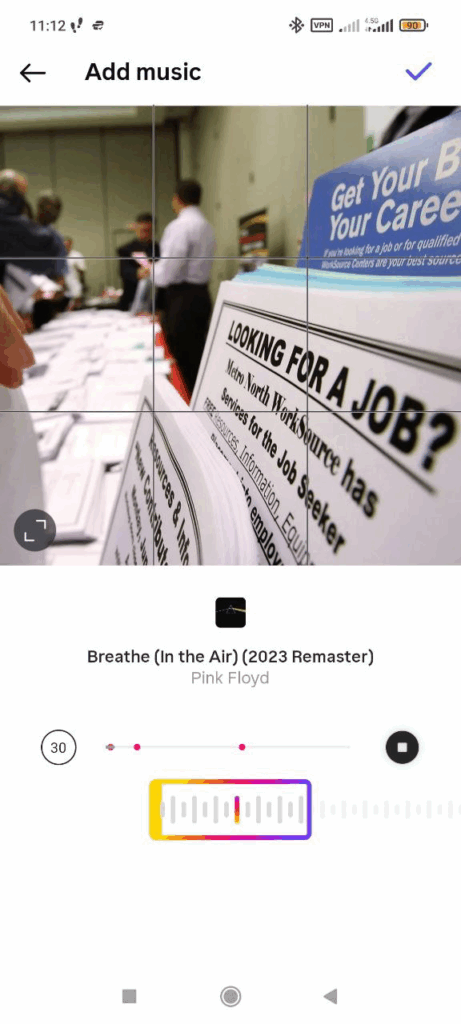
- Finalize and share: After selecting the audio clip, tap “Done” (the checkmark) to add it to your post. Then finish writing your caption, add hashtags or tags, and tap “Share.” Your photo/video will now be posted with the chosen audio. In the feed, viewers will see a small music icon and the song name at the top of your post (as in the example above).
That’s it! Now you’ve learned how to add music to Instagram posts. How long your music runs depends on how long your Instagram Reel is. On photo posts, you can choose how long the snippet you’re using is.
How to Add Music to Instagram Posts on PC
To make it easier to add music to your posts, we’ve decided to cover the steps on both PC and phone separately. Instagram’s web and desktop interfaces are more limited than the app. You cannot directly add music to a post from Instagram.com or the desktop app.
In practice, this means if you’re on a PC or Mac browser, you won’t find any way to select a song while creating a post.
There are a few workarounds to this issue, including editing offline before uploading and using mobile emulation or third-party tools. However, if you’re trying to add music to your Instagram posts from the platform’s library, we recommend downloading the app on your phone.
Adding Your Own or Original Music to Instagram Posts
What if you have an original song or a track that isn’t already in Instagram’s library? There are ways to use it, but not by directly tapping “Upload” in the app. Instead, you need to get that music into Instagram’s library. There are two main methods:
Distribute Your Music to Instagram’s Library
If you’re a musician or have rights to a song, use a music distribution service (such as DistroKid, TuneCore, CD Baby, etc.) and opt into Instagram/Facebook distribution. When you upload your track to these services, make sure to select Instagram/Meta as a platform.
After review and approval by the distributor, your song will be added to Instagram’s official music library. Then, anyone (including you) can search for it in the app and add it to a post or story like any other track.
This method is ideal for artists promoting their own work. Note that there may be a waiting period for approval, and the song must meet the distributor’s terms.
Share Via Streaming Apps or Edit Into a Video
If your music is on a public streaming platform, you can share it indirectly. For example, Spotify, SoundCloud, or Apple Music let you share a track to Instagram Stories (it creates a story with album art). You could use that story in creative ways or record your own video while playing the song in the background.
Another hack is to add the song using a video editor (like CapCut, InShot, or Premiere) before uploading to Instagram. For instance, record a short video with your song playing, save it, then upload that video as a normal Instagram post. (Since this is now part of the video file, Instagram will play the audio.)
This approach doesn’t use the official music picker, but it’s a workaround when the song isn’t in Instagram’s catalog yet.
In practice, most creators find the distribution route easiest if they intend to use their music frequently. Once the song is live in Instagram’s library, you simply pick it like any other track in the app. If you only need a one-off, editing it into a video on your phone or PC can do the job.
Adding Music to Other Instagram Content
While you can gather how to add music to your posts in general, we’ve decided to also cover how to add music to Stories and Reels as well.
How to Add Music to Your Instagram Stories
Adding music to Stories is straightforward. Create a new Story (swipe right or tap your profile icon) and either record or upload content.
- Tap the sticker icon and choose “Music” (or tap the music note icon at the top).
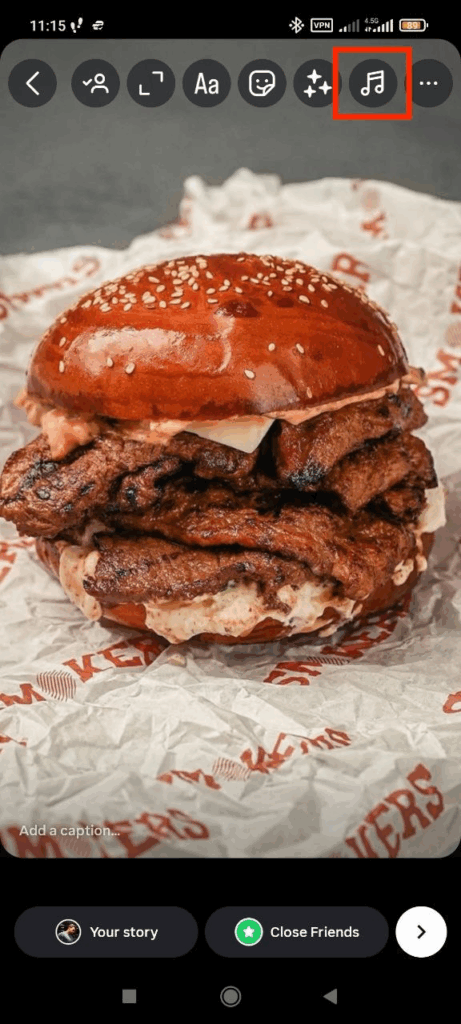
- Browse or search the music library,
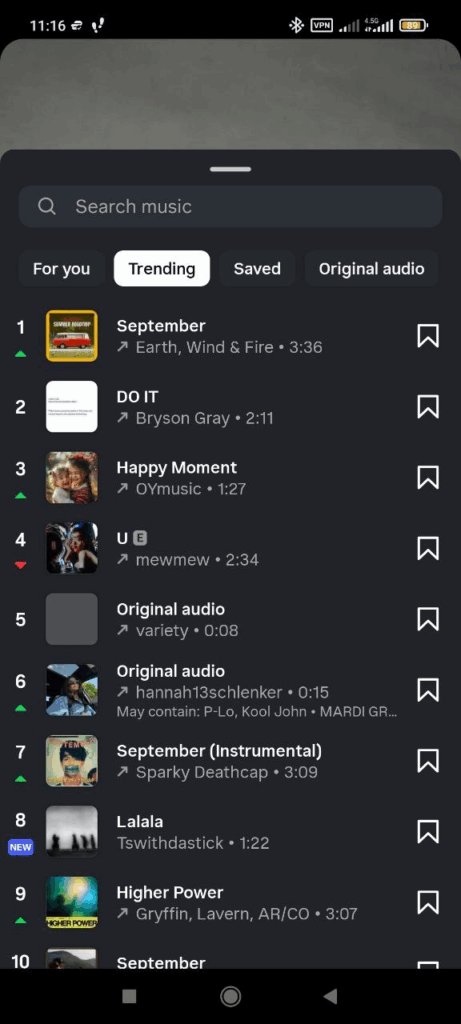
- Pick a song and a 5–15 second segment,
- Then tap “Done.”
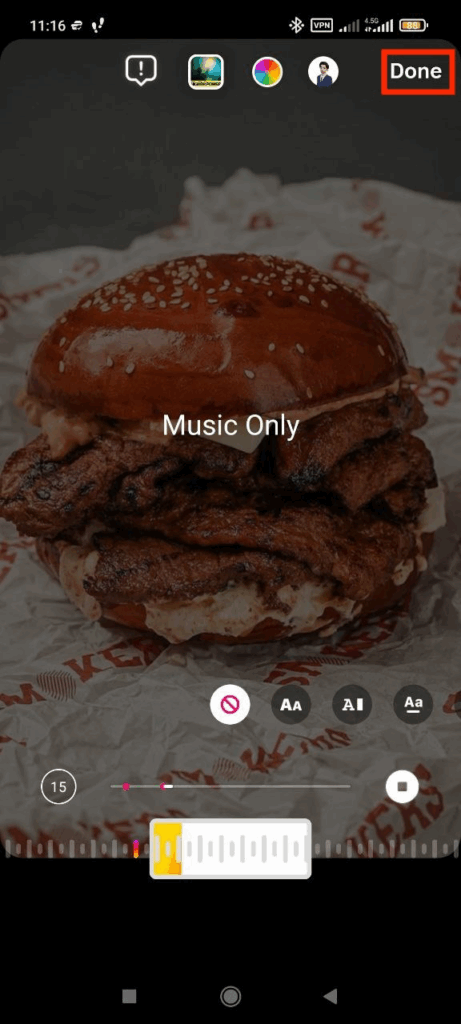
You can also choose to display lyrics or album art on the Story. When viewers watch your Story, the audio will play along with the image or video. Stories have a maximum music duration of 15 seconds, so pick the highlight of the song.
How to Add Music to Your Instagram Reels
Reels are built around music, so every Reel you create can include audio. To add music to a Reel: tap “+,” select Reel, and either record or upload your video. In the Reel editor, tap the music icon. Search and select a track, then drag to choose the part of the song to use (Reels allow up to 90 seconds). Tap Done. When you finish editing, tap Share.
Note that on Reels, adding popular or trending music is often encouraged by the algorithm, and many users specifically browse Reels by song. Because of this, you might find more reach on a Reel with a catchy audio than a static post. Reels with music show up in the Reels feed and may be boosted more.
Why Add Music to Your Instagram Posts?
Music can transform a static post into a mini-experience, capturing viewers’ attention and setting the mood. Instagram posts with music often see higher interactions: a fitting song can stop someone mid-scroll, prompting them to watch, like, or comment. In practice, creators report that posts with audio tend to receive more likes and shares.
Instagram’s leadership even suggests that adding songs makes a difference: Mosseri, the head of Instagram, confirmed that incorporating music can drive engagement. Keep in mind, adding music is absolutely free; it only requires a few extra taps in the app. Here are some key reasons and benefits of adding music to your posts:
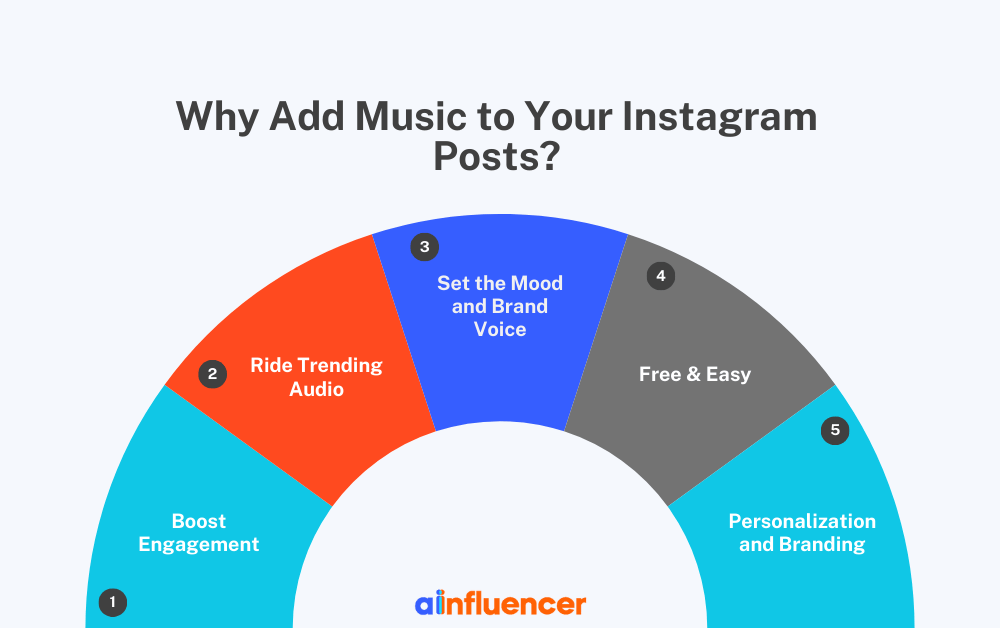
- Boost Engagement: Posts with the right soundtrack tend to grab attention. Viewers on Instagram react strongly to audio cues, so a lively or emotional song can increase likes, comments, and shares. In short, an image with music acts more like a mini-video, making people pause.
According to our data, Reels (which always include sound) get an average reach of 37.9%, compared to just 17.2% for static image posts. This suggests that content with audio naturally performs better.
- Ride Trending Audio: Instagram’s algorithm increasingly favors trending sounds. Using a viral or popular song can make your content appear under that track’s search page, giving you extra exposure. Many top influencers jump on audio trends. Ultimately, music lets you tap into a broader cultural moment, not just your follower list.
- Set the Mood and Brand Voice: Music adds instant emotional context. A relaxing acoustic guitar makes an outdoor scene feel peaceful; an upbeat EDM track energizes a workout video. Matching the music to your content creates a consistent experience that viewers appreciate.
- Free & Easy: The built-in Instagram music library is free for all users. Unlike paid ads or even most paid features, music on posts won’t cost you a penny. It’s an incredibly easy addition (just a few taps) that can significantly change how your post performs. Plus, using Instagram’s licensed tracks means you don’t have to worry about copyright issues; Instagram handles the rights with the music industry.
- Personalization and Branding: Music helps your content stand out in the feed. When scrolling quickly through images, a post with a small music icon or lyric overlay (on stories) catches the eye. Over time, using similar musical styles can become part of your brand’s identity.
For instance, a fitness influencer might always use high-energy hip-hop, signaling that vibe to followers.
Also Read: How to See Drafts on Instagram
Troubleshooting
While the process to add music to Instagram posts isn’t exactly difficult, you may still be struggling with some unknown issues. In this part of the article, we’ll be going over some of the most common problems users face with adding music to their IG posts.
- App Update and Eligibility: Make sure you’re running the latest version of Instagram. The music feature was rolled out gradually, so an old app version might not have it.
- License Issues: Business accounts and certain regions may have limited access. If your Instagram account is set as Business, you might see a reduced music library because of commercial restrictions.
In many cases, switching temporarily to a Creator or Personal account (and back) can restore the music options. If you live outside of Instagram’s supported countries, you may not have any songs available.
- Mixed Content in Carousel: If you’re trying to add music to a carousel post that includes both photos and videos, Instagram will disable the music option. For example, if you upload a 5-image post and one of them is a video clip, the “Add Music” button won’t appear. The fix is to separate your media: either post only images with music, and post the video (with sound) separately as a Reel, or vice versa.
- Music Length and Silent Parts: Instagram limits music clips to 90 seconds on feed posts (and 15 seconds on Stories). If your chosen song is longer, just the first 90 seconds will play.
- App Glitches: Sometimes the “Add Music” button still doesn’t appear even when it should. In these cases, try some basic fixes: log out and back in, clear Instagram cache, or even reinstall Instagram. Occasionally, this forces the feature to load. Check Instagram’s official help or social media: sometimes the feature temporarily rolls back in certain updates.
Conclusion
Learning how to add music to your Instagram posts is an easy way to boost your content. This can help you get more attention, get favored by Instagram’s algorithm, and ultimately grow your page for no cost at all.
FAQs
Here are some of the most commonly asked questions about how to add music to your Instagram posts.
1. Can You Add Music to Your Instagram Post After Posting?
No. You must add music before publishing. Instagram does not allow editing a post’s audio after it’s live. If you forgot, your only options are to delete and repost with music, or share that photo/video to a Story and add music there.
2. Is Adding Music to My Instagram Post Worth It?
Generally, yes. Since it’s free and easy, adding a fitting song usually improves a post’s appeal. Many brands see higher engagement on posts with music. As long as the song matches your content and audience, it’s often worth the few extra taps.