
Learning how to clear search history on Instagram is easy, quick, and a smart privacy move. With over a billion active users on Instagram and concerns about online privacy higher than ever, managing your search data is more important than ever.
No matter what device you’re on, Android, iPhone, or desktop, users go through the same process to clear Instagram search history. So if you were looking to delete your Instagram account because of the history, you can now just clear it instead.
Why Knowing How to Clear Search History on Instagram Is Important
Clearing your Instagram search history ensures past searches and suggestions are removed so they can’t be seen by others with access to your account or device. From a marketing standpoint, we’ve seen that privacy-minded audiences (such as health or finance sectors) appreciate brands and influencers that educate them on data control.
In addition to that, removing your own searches can even refresh Instagram’s suggestions: after clearing history, you may notice fewer unwanted accounts popping up in the search suggestions.
How to Clear Your Instagram Search History on iPhone and Android
Clearing search history on your phone or tablet is almost identical whether you use an iPhone or an Android device. The steps are built into the Instagram app itself. Follow these steps:
- Open the Instagram app and go to your profile: Tap the profile icon in the bottom-right corner.
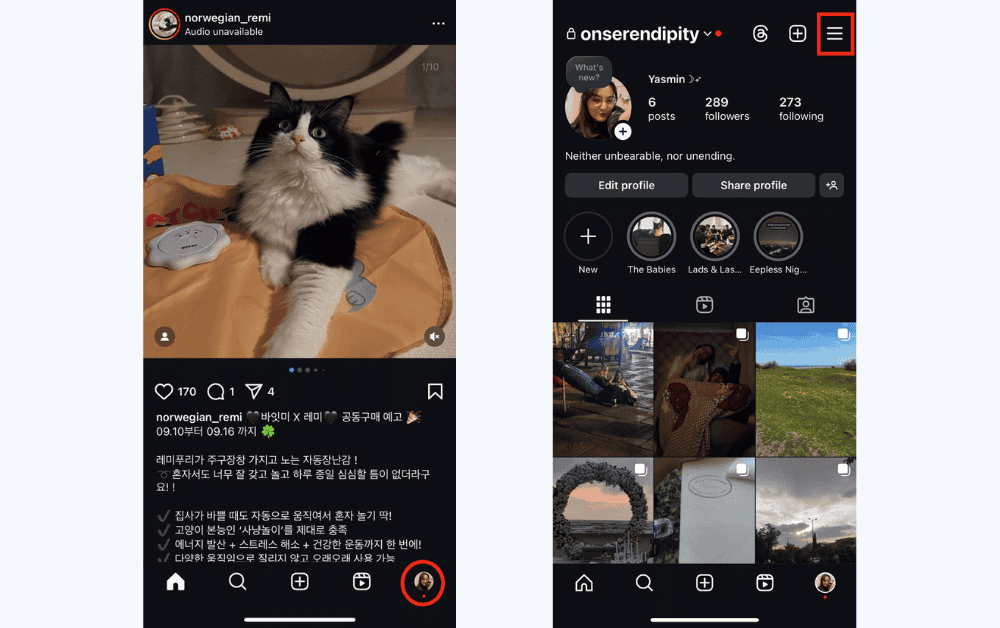
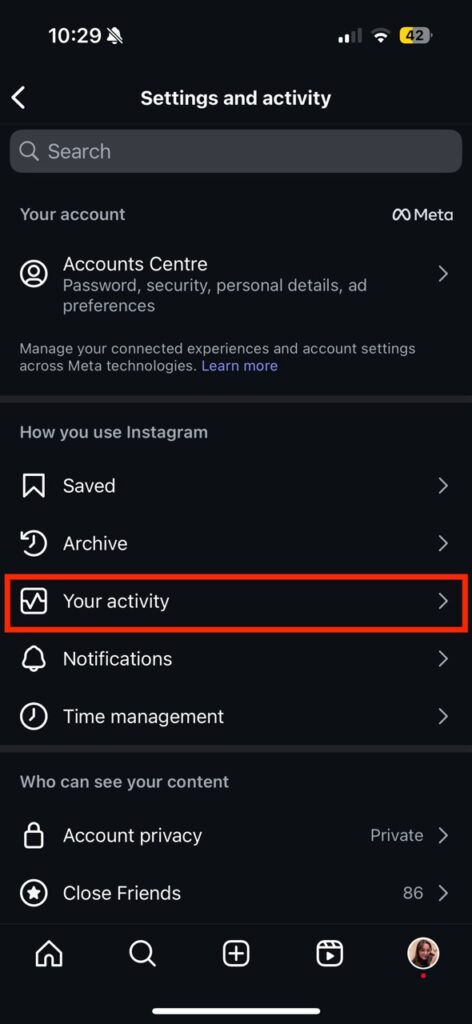
- Access Your Activity: Scroll down and tap “Your activity.” This section shows information Instagram has about how you use the app.
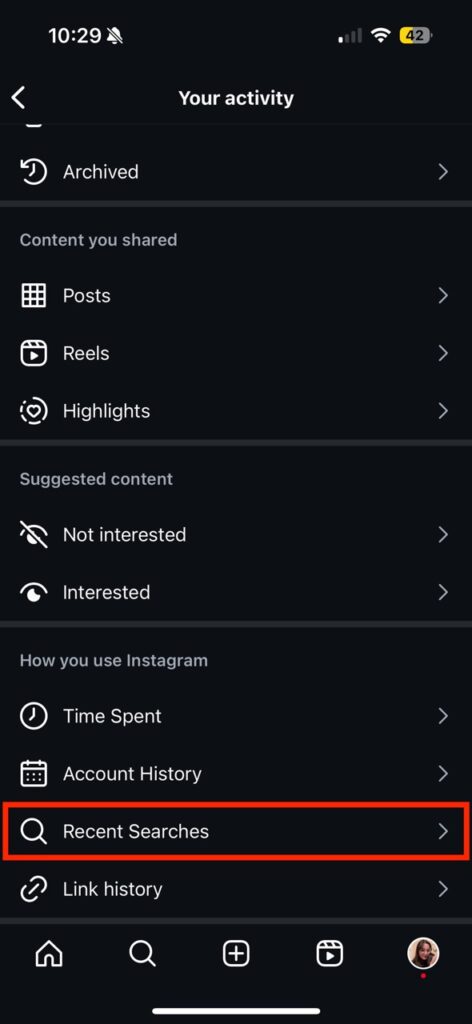
- Find Recent Searches: In “Your activity,” scroll to “Recent searches” and tap it.
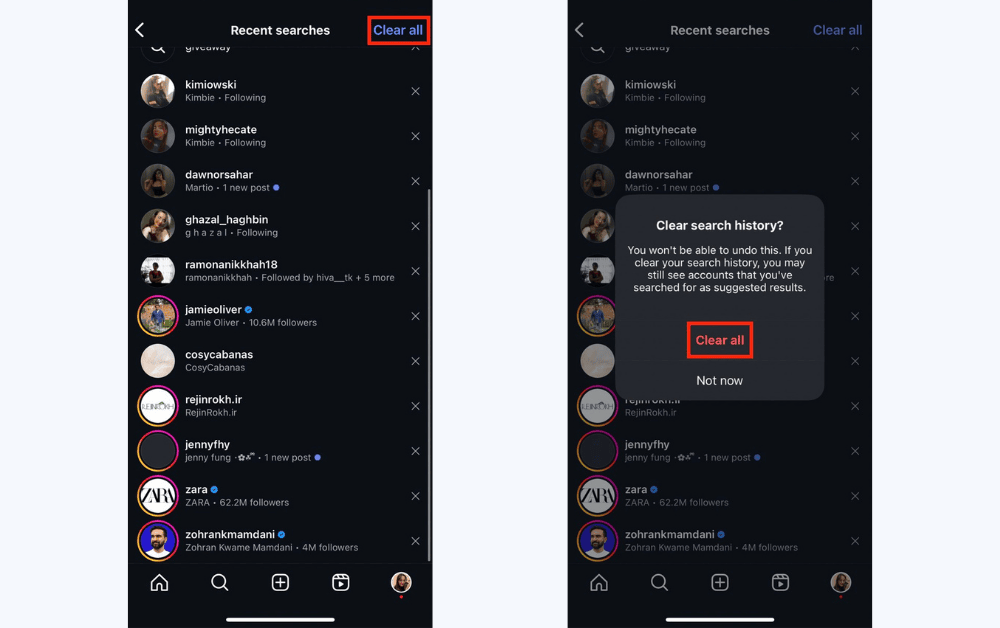
- Clear Your Searches: In the Recent searches screen, you’ll see a list of your past search terms and accounts.
- To remove a single search, tap the X icon next to that search. It will disappear.
- To remove all at once, tap “Clear all” at the top of the list, then confirm by tapping “Clear all” again in the pop-up.
How to Clear Your Instagram Search History on Desktop
If you use Instagram on your computer, clearing search history is equally straightforward:
- Log In on a Browser: Go to instagram.com and log in to your account.
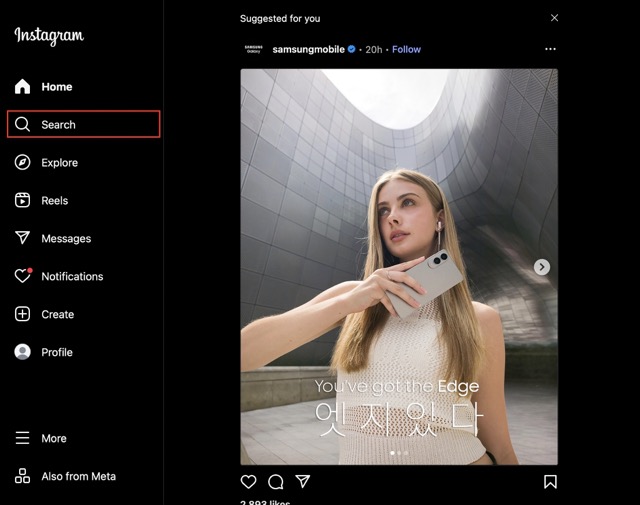
- Open the Search Field: Click the “Search” (magnifying glass) icon on the left sidebar or the search box at the top of the page. A drop-down will appear showing recent searches.
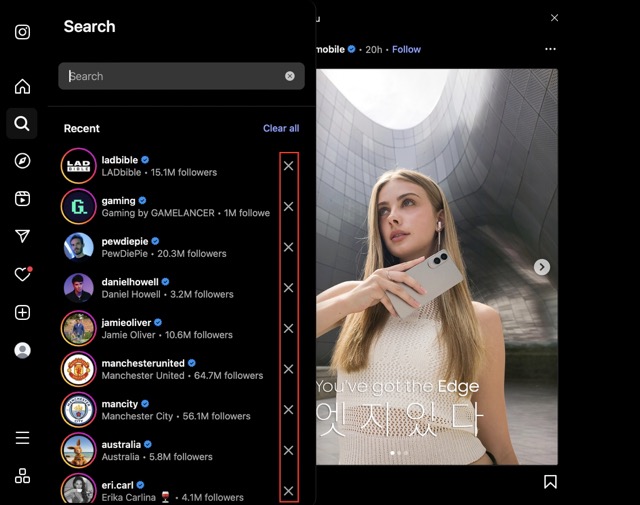
- Remove Searches:
- To delete one item, click the “X” next to that search in the drop-down list.
- To clear everything at once, click “Clear all” at the top of the drop-down (or near it), then confirm by clicking “Clear All” in the dialog that appears.
These steps are all you need to learn how to clear search history on Instagram. If you use Instagram Web on multiple browsers or devices, you’ll need to repeat this on each one if you want a truly clean slate everywhere.
How to Auto-Clear Your Instagram Search History
Instagram’s Accounts Center (Meta Accounts Center) lets you manage settings for all your Meta accounts (Instagram, Facebook, etc.) in one place. It includes a dedicated “Search History” section for clearing searches.
This is especially useful if you have an Instagram business/creator account linked to Facebook, or if you simply want an alternative method. Here’s how to use it on both mobile and desktop:
- On Mobile (Android & iOS):
- Open Instagram and tap your profile icon.
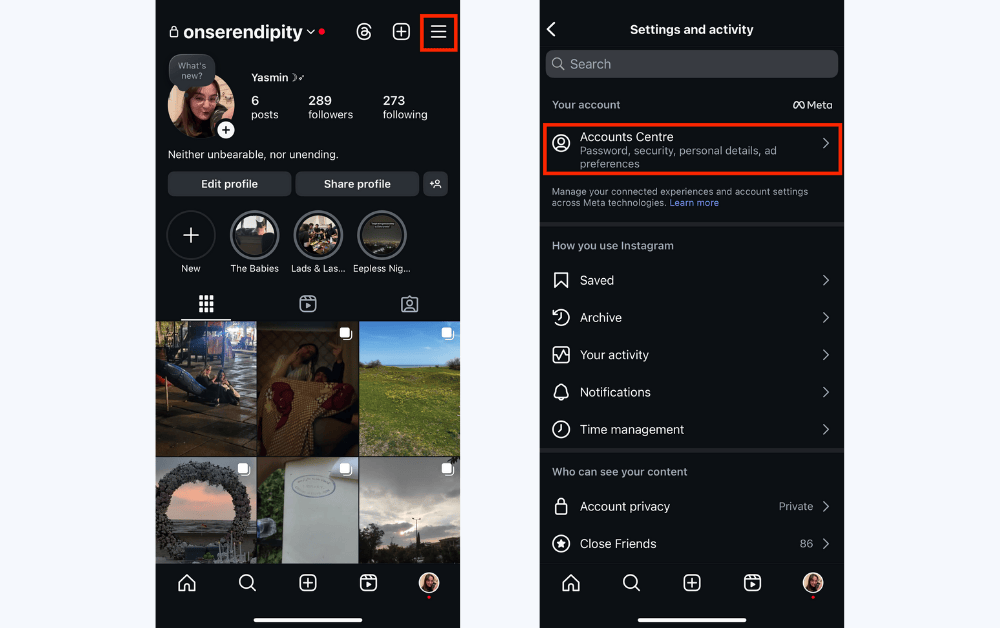
- Tap the menu (☰) and select Settings & privacy, then scroll down to Accounts Center (usually at the top under your account picture).
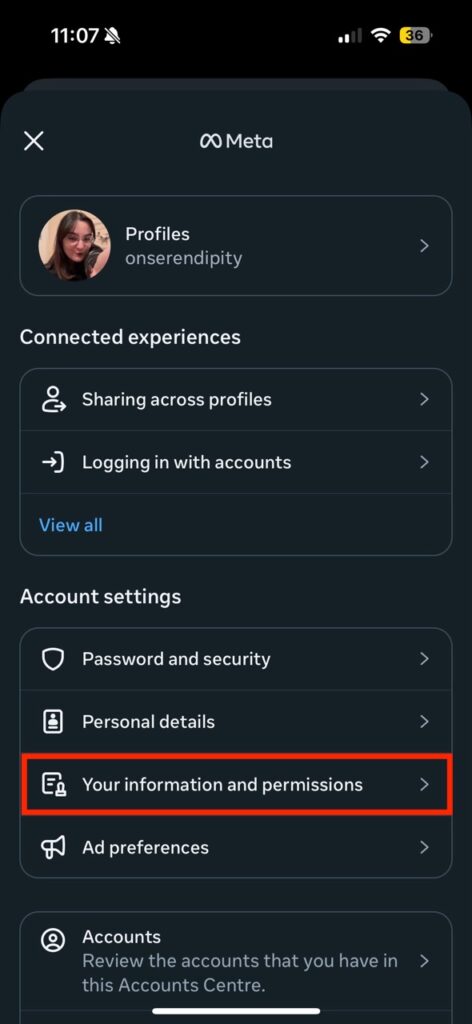
- In Accounts Center, tap “Your information and permissions.”
- Tap “Search history.” You’ll see a list of your searches (sorted newest first).
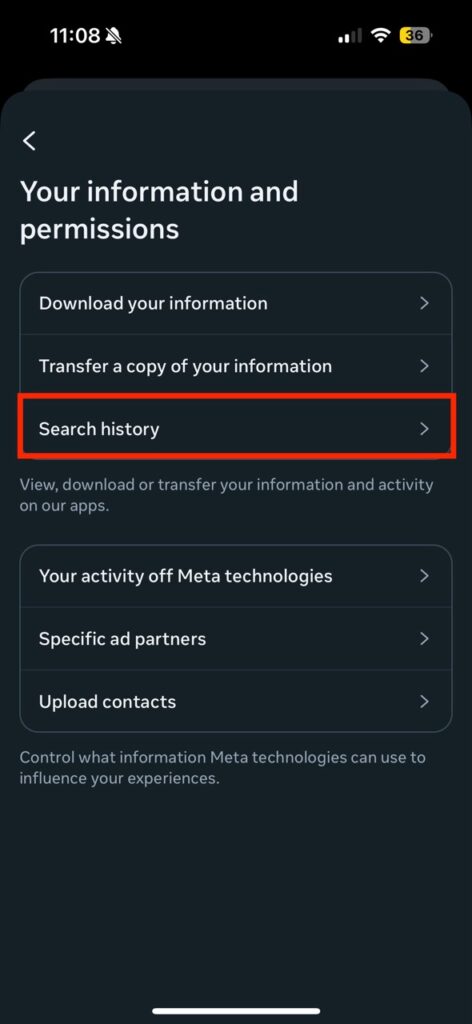
- To delete everything, tap “Clear all searches.” Confirm by tapping “Clear all searches” on the pop-up. To delete individual entries, tap your account under “Your accounts and profiles,” then click the X icons next to specific searches.

- On Desktop (Web Browser):
- Log in to Instagram and click your profile picture (bottom left) and choose Settings.
- Click the “Accounts Center” tab on the left (under the Settings heading).
- Select “Your information and permissions.” Then click “Search history.”
- To clear all, click “Clear all searches” (the blue button) at the bottom. Confirm in the prompt. To remove an item, click the X by it in the list.
Using Accounts Center has the advantage of impacting all linked accounts (e.g., your Instagram and Facebook history can both be managed here). It also shows more options, like the auto-clear settings.
Also Read: How to Turn Off Vanish Mode on Instagram
Troubleshooting: How to Clear Search History on Instagram If Nothing Works
Normally, the methods above should clear your history instantly. If you find that search entries or suggestions are sticking around, try these fixes:
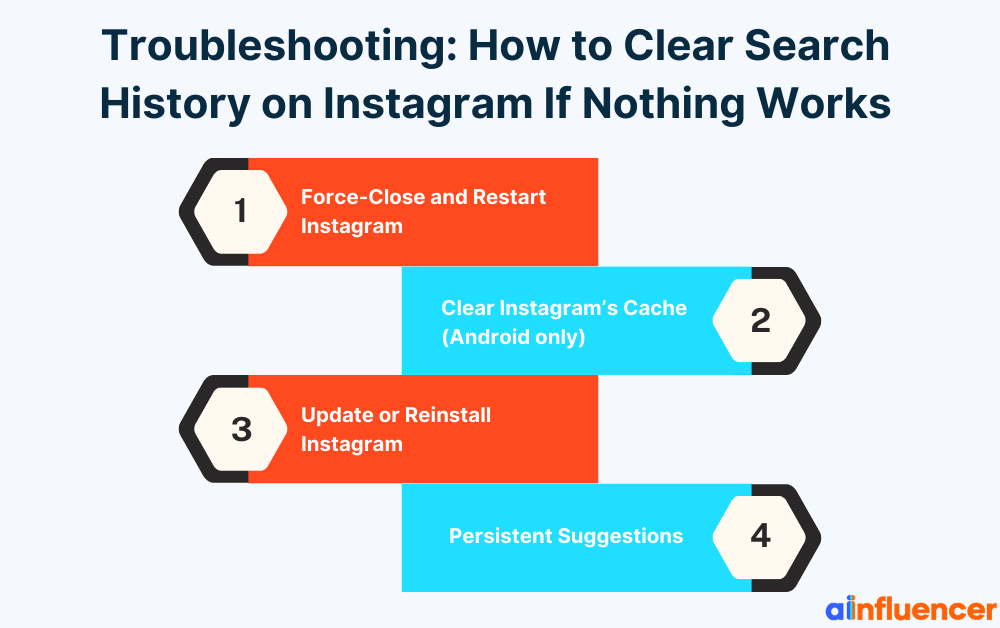
- Force-Close and Restart Instagram: Sometimes the app needs a reboot. On Android, go to Settings → Apps → Instagram → Force Stop, then reopen the app. (On iPhone, swipe up or double-tap Home and swipe Instagram away.) After restarting, try clearing again. This often resolves glitches if a clear didn’t seem to take effect.
- Clear Instagram’s Cache (Android only): If you’re on Android and searches still reappear, clearing Instagram cache might fix it. Go to Settings → Apps → Instagram → Storage & Cache → Clear Cache. (Don’t tap Clear Data or you’ll have to log in again.) Then reopen Instagram and clear search history again.
- Update or Reinstall Instagram: An outdated app can misbehave. Update Instagram via the Google Play Store or Apple App Store. If clearing still fails, uninstall and reinstall Instagram. (On iPhone, you can offload the app in Settings → General → iPhone Storage to achieve a similar clean-up). Logging back in and repeating the clear process often fixes stuck search issues.
- Persistent Suggestions: Remember that clearing search history doesn’t change who you follow. If an account you follow keeps showing up as a suggestion (because Instagram thinks you’re interested in it), you can hide it manually or block/unblock the account. For example, if an ex-partner’s name keeps appearing, either unfollow them or go to their profile, tap ⋯, then “Hide” or “Block” to stop seeing them in suggestions.
If none of the above work, consider contacting Instagram support or checking the Instagram Help Center (they have official instructions on clearing search history). But in most cases, a quick app restart or update solves the problem.
Conclusion
There are plenty of concerns regarding how to clear search history on Instagram, and all of those are valid. You can clear this history from your devices, but remember that there’s no way to clear data from Instagram’s servers. So if there’s something you don’t want Meta to know about you, don’t search it at all!
Frequently Asked Questions About How to Clear Search History on Instagram
1. Does clearing Instagram Search History Log Me Out of My Account?
No. Clearing search history only removes the records of what you searched for. Your account and profile stay intact. You will remain logged in and keep all your posts, followers, and messages.
2. How Long Does Instagram Keep Search History If I Don’t Clear
It?
Instagram says it keeps searches for up to 30 days. After that, they claim to delete it from their active logs. However, by default, Instagram’s app will auto-delete searches from your view after 30 days. Clearing manually removes your view of searches immediately.
3. I Removed Searches, But They Keep Reappearing. Why?
This usually means Instagram is re-synchronizing from cache or your account. Try the troubleshooting steps above: force-close, clear cache/reinstall, then clear again. Also note that if you search again for the same terms, those will reappear. To fully stop repeats, avoid searching for unwanted accounts/terms again, or hide/block those accounts.

![Read more about the article How Long Can Instagram Reels Be? [A Complete 2026 Guide]](https://socialmedia.ainfluencer.com/wp-content/uploads/2025/09/How-long-can-instagram-reels-be-1-300x182.jpg)






![Read more about the article How to Clear Instagram Cache? [Full Guide in 2026]](https://socialmedia.ainfluencer.com/wp-content/uploads/2025/09/jpeg-optimizer_How-to-Clear-Instagram-Cache-300x182.jpg)