![You are currently viewing How to Clear Instagram Cache? [Full Guide in 2026]](https://socialmedia.ainfluencer.com/wp-content/uploads/2025/09/jpeg-optimizer_How-to-Clear-Instagram-Cache.jpg)
Have you noticed Instagram slowing down recently? Doesn’t it load feed or Stories? Well, it’s time to learn how to clear Instagram cache.
Instagram saves a lot of photos and videos on your phone, and it can take up several gigabytes! Too much cache can make the app crash or even show “Storage Full” warnings. That’s why it’s a good idea to clear your Instagram cache now and then.
In this guide, we’ll explain why clearing it can boost performance and provide a step-by-step guide on how to clear Instagram cache on iPhone and Android. We also explore the difference between clearing the cache and clearing the Instagram history. These topics are just as essential as knowing how to post on Instagram.
Let’s get started!
How to Clear Instagram Cache on iPhone?
Unlike some apps, Instagram doesn’t have a “clear cache” button. On iPhone, you have two main ways to clear cached data: offload the app or delete and reinstall it. Both remove temporary files, but offloading keeps your login info, while deleting wipes everything.
Either method won’t delete your Instagram account or posts. You’ll keep all followers, content, and settings after logging back in.
Method 1: Offloading the App
Offloading removes the app itself but keeps all your data. It clears most of the cache while letting you stay logged in.
- Open Settings on your iPhone and go to General.
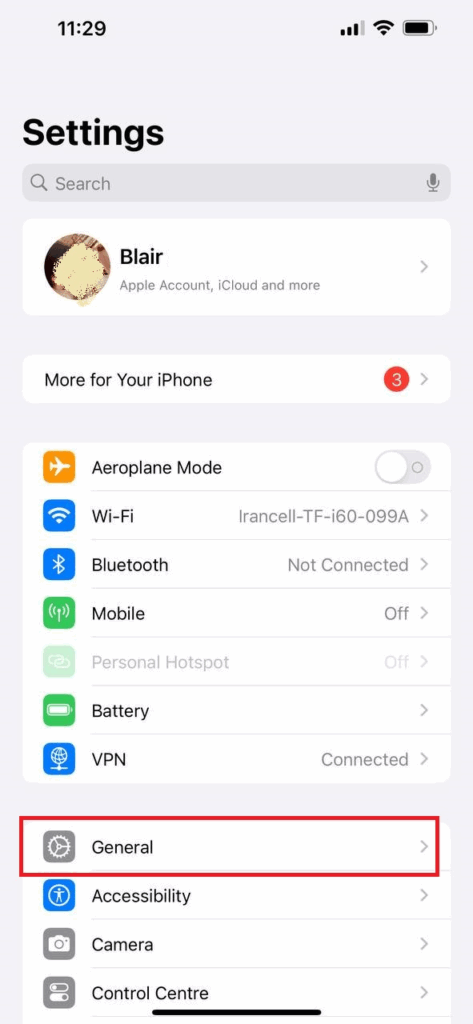
- Tap iPhone Storage.
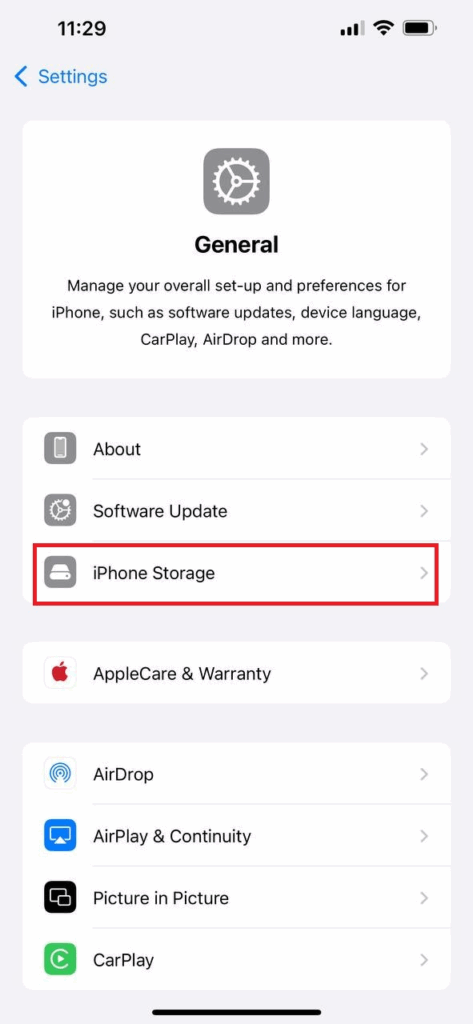
- You’ll see a list of apps and how much space each is using. Scroll down and find Instagram in the list, then tap it. Do you see how large Instagram’s footprint is?! 😲
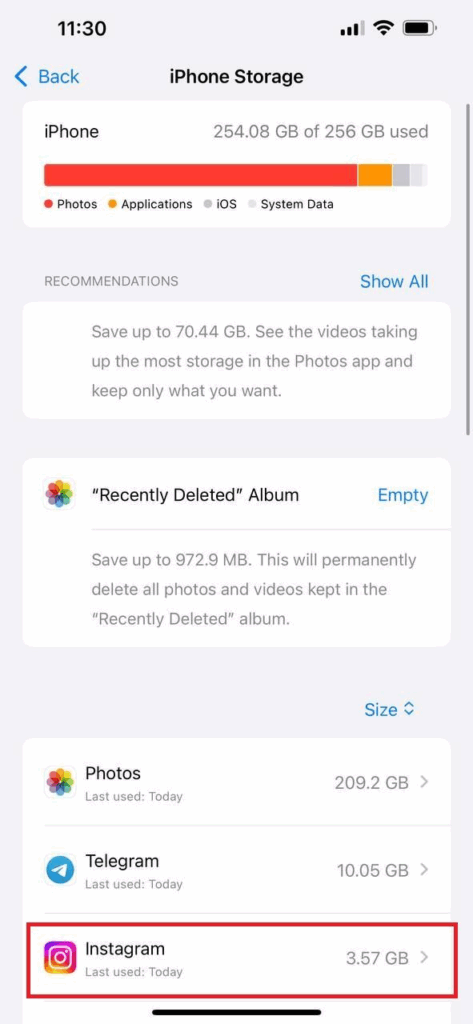
- Tap Offload App and confirm.
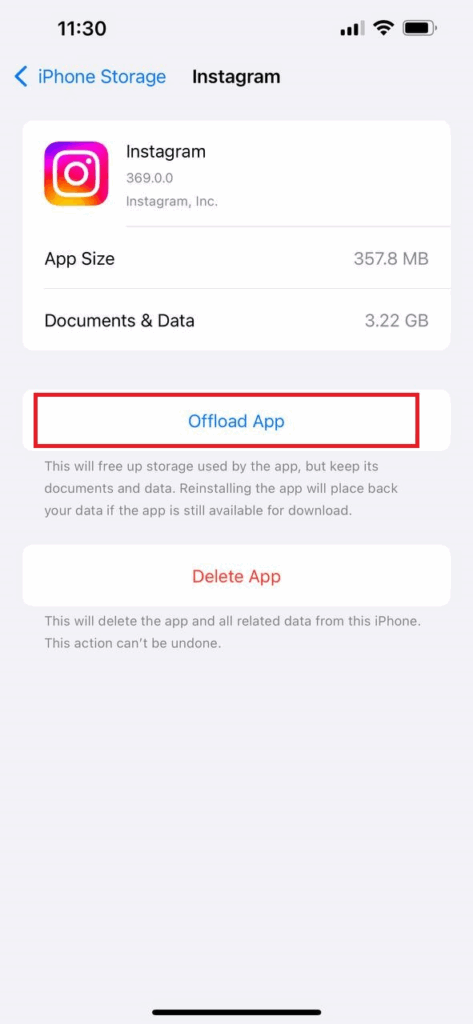
- Tap Reinstall App to download Instagram again.
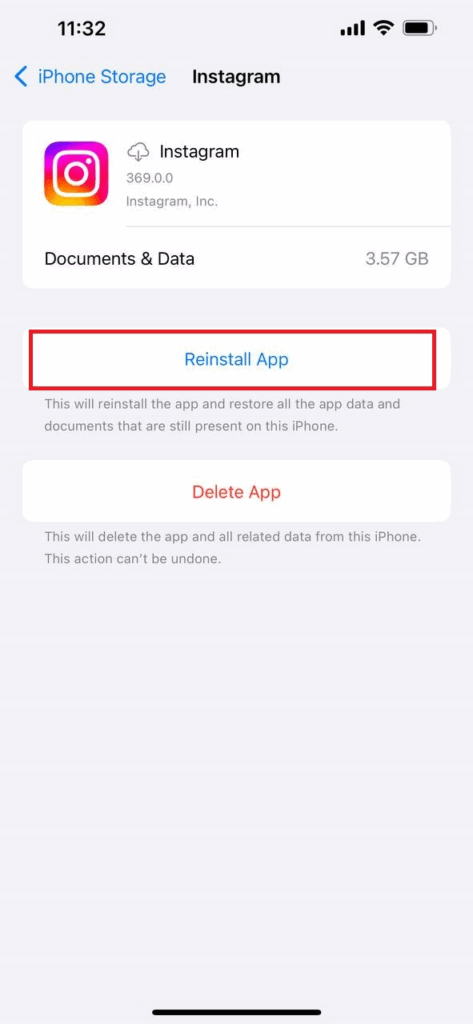
After reinstalling, Instagram should open normally with your account intact, but most of the cache (not all) will be cleared. Offloading works well if you want to free space without logging in again.
Method 2: Deleting and Reinstalling the App
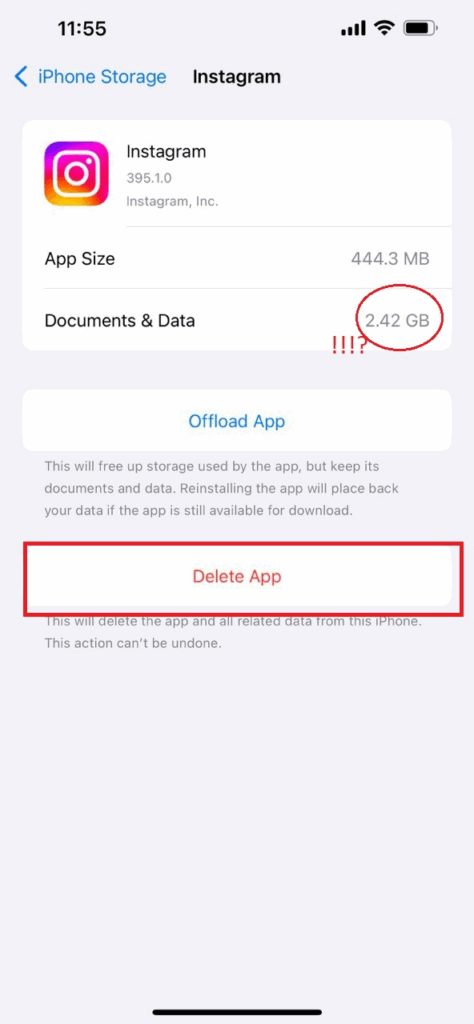
Before offloading, my Instagram was using 3.57 GB, and after offloading, it dropped to 2.42 GB. So, as you can see, offloading only clears part of the cache. If you want to remove all of it, you’ll need to try the Delete App option instead. It removes all cached files and data, but you’ll need to log in again.
Take the following steps like the previous section and choose “Delete App” instead of offloading.
- Go to “Settings”, then tap on “General”
- Find Instagram in the “iPhone Storage” section.
- Tap Delete App under the Offload option.
- Don’t forget to open the App Store, search for Instagram, and reinstall it.
- Log in to your account(s).
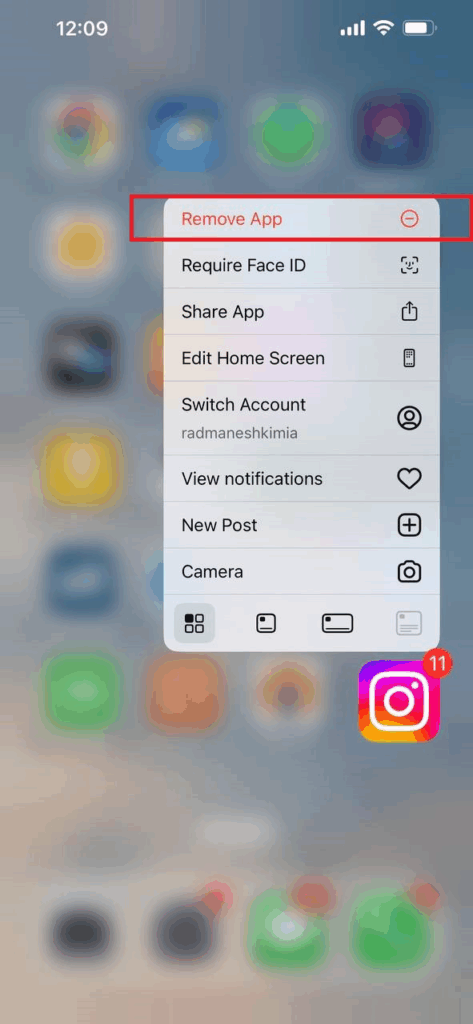
There’s also an easier way! Find Instagram on your home screen, long-press the icon, and select “Remove the App”. Then, tap on the “Delete App”.
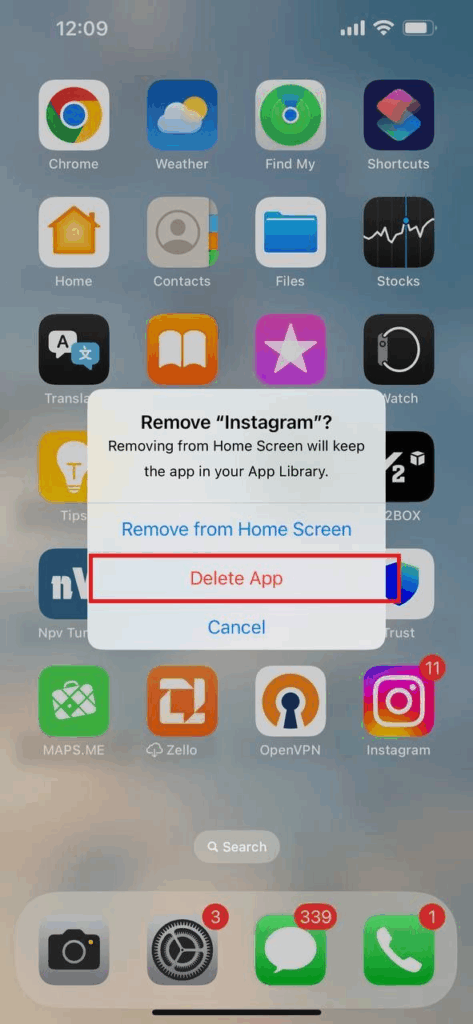
After reinstalling, Instagram will be fresh, fast, and free of old cached files. This method also fixes any glitches caused by corrupted files.
How to Clear Instagram Cache on Android?
Clearing Instagram’s cache on Android devices is easy, and you don’t need to uninstall the app or log in again. This will just remove temporary files, free up space, and make the app run smoother.
Here’s how to clear Instagram cache on Android:
- Open “Settings” on your phone.
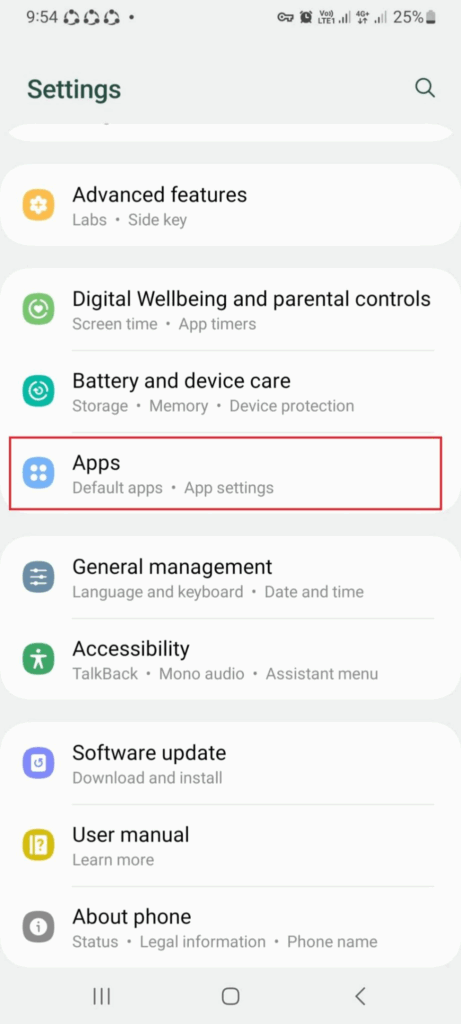
- Go to “Apps (or Apps & Notifications)” and find Instagram.
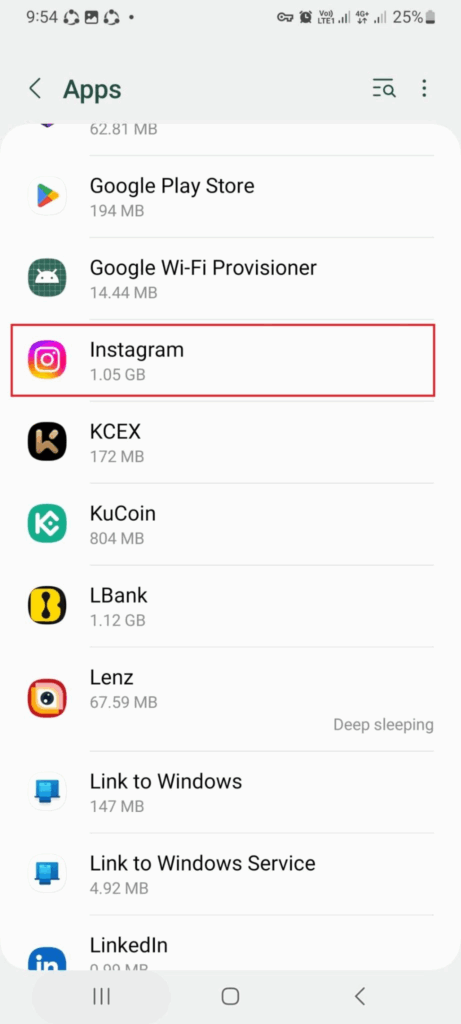
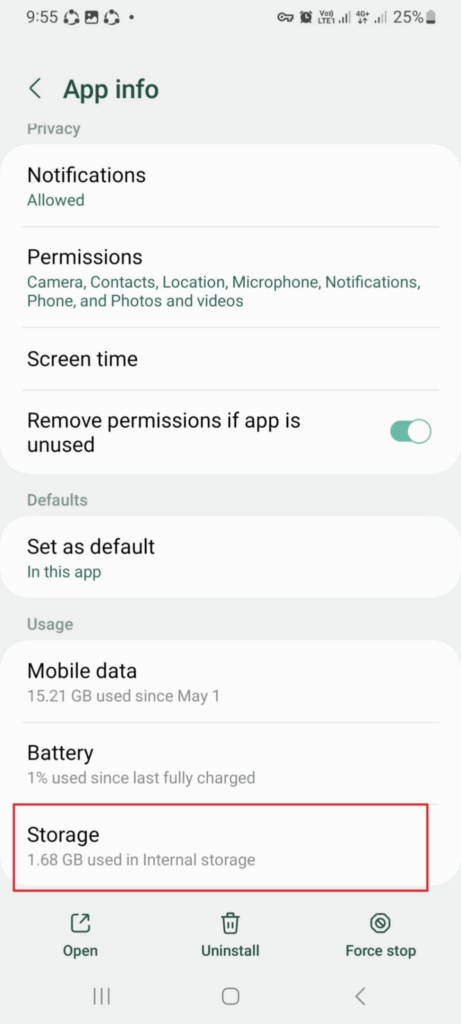
- Tap “Storage & Cache” (sometimes just Storage).
- Hit “Clear Cache”.
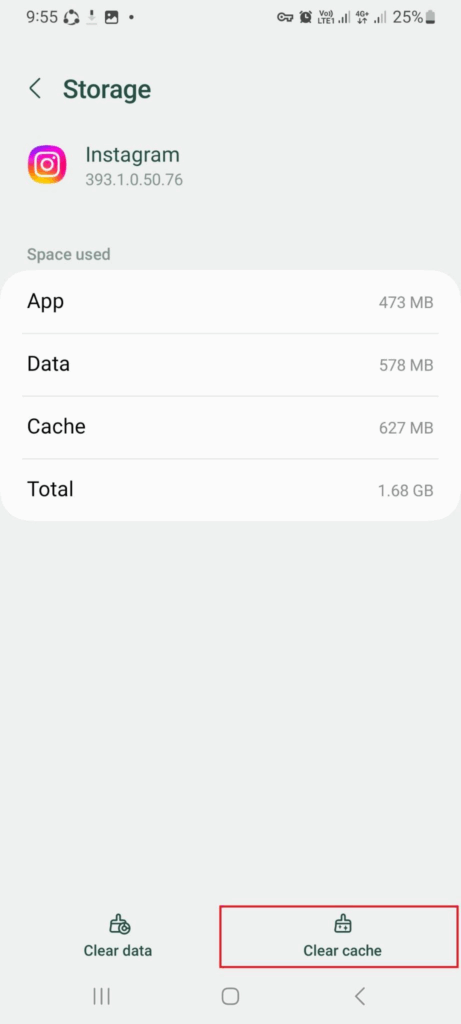
Don’t tap Clear Data, since that resets the whole app and logs you out.
Instagram will rebuild its cache as you use it, but you’ll instantly get some storage back. A smoother app means your content loads faster, helping you post consistently and even get more Instagram followers.
How to Clear the Instagram Cache on Your Browser?
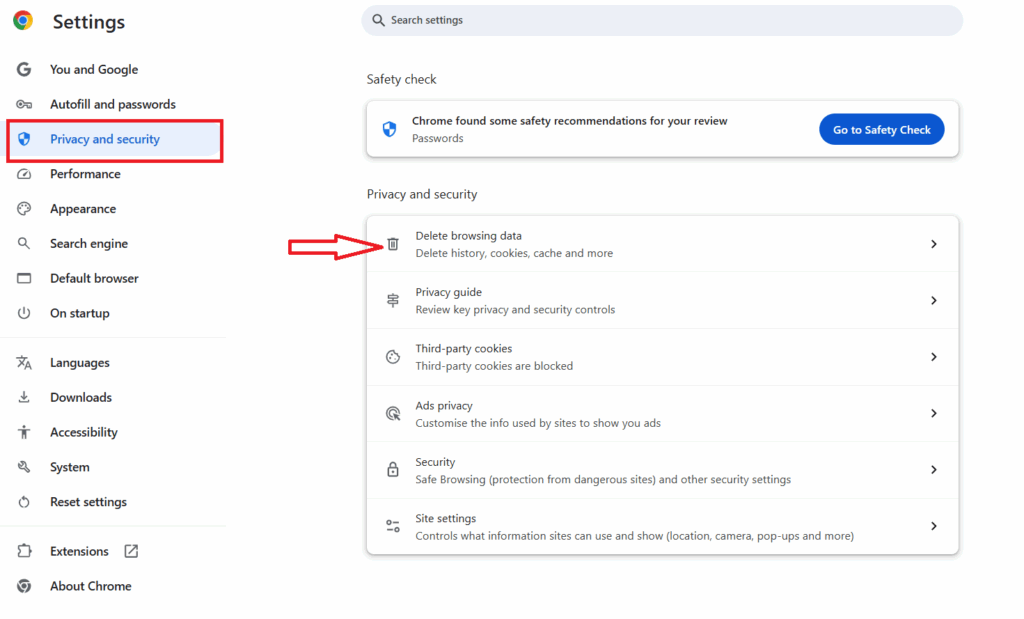
If you like using Instagram on your browser, the cache isn’t inside the app; it’s in your browser settings. To clear cache & cookies, just go into your browser’s settings, then tap on “Privacy & Security”, choose cache settings (Chrome, Safari, Edge, Firefox, Opera, etc.), and wipe it out.
What Happens When You Clear the Cache on Instagram?
A lot of people think clearing the Instagram cache will delete their posts or account, but that’s not true! It only removes temporary files like photos and videos you’ve already viewed, profile pictures you browsed, bits of Explore page content, and even some recent searches.
Basically, it just wipes the “memory” Instagram keeps on your phone to load things faster. Nothing important, like your posts, chats, or login info, gets touched.
When Should You Not Clear the Cache?
Clearing Instagram cache is usually helpful, but there are a few times you should wait:
- If you’re on slow or limited internet: Once cleared, Instagram has to re-download images and videos, so it’s better to wait until you’re on Wi-Fi.
- If the cache is tiny: If it’s only a few MB and you have plenty of space, clearing won’t make much difference.
- Right before posting (iPhone): Deleting the app logs you out, so avoid doing it when you need to post or go live quickly.
Clearing Instagram Cache vs. Clearing Search History
These two often get mixed up, but they’re not the same thing.
- Cache = When you clear your Instagram cache, all the temporary files (like photos and videos) are stored on your phone. Clearing it frees up space and can make the app run smoothly.
- Search history = On the other hand, if you clear Instagram search history, you will delete the accounts, hashtags, or places you’ve looked up. Clearing this just removes them from your search suggestions; it doesn’t free up storage.
Wrapping Things Up
Clearing your Instagram cache is like giving the app a quick reset. It frees up space, fixes slowdowns, and keeps things running smoothly. So, if you’re wondering “is it worth it to clear my Instagram cache?”, the answer is yes when you need to reclaim space or fix performance issues. It’s easy, safe, and effective.
FAQs
1. How Often Should I Clear My Instagram Cache?
There’s no strict rule. If you’re on Instagram all the time, clear it every few weeks to a month, or sooner. You don’t need to clear it all the time, but it helps if:
- The app feels slow: posts, Stories, or Reels take forever to load.
- It keeps crashing: Instagram freezes or shuts down often.
- Your storage is low: cache files can pile up and take up lots of space.
- You have login issues: old data can sometimes mess with sign-ins.
2. Does Clearing the Instagram Cache Delete Any of My Photos, Posts, or Messages?
Nope! Clearing your cache only removes temporary files (like stored images and videos) from your phone. All your posts, Reels, messages, likes, and saved items stay safe in your Instagram account. Your app will just run smoother and free up space.
3. Will I Be Logged Out After Clearing Instagram Cache?
On Android, no, you’ll stay logged in. On iPhone, if you fully delete the app, you’ll need to log in again. So, if you want to avoid logging back in, use the offload option instead of deleting.
4. How Can I Clear Instagram Cache Without Deleting the App?
On iPhone: Go to Settings > General > iPhone Storage > Instagram > Offload App. This clears the cache but keeps your data.
On Android: Go to Settings > Apps > Instagram > Clear Cache. Done!
In both cases, the app stays on your phone, and you can keep using Instagram as normal.


![Read more about the article How Long Can Instagram Reels Be? [A Complete 2026 Guide]](https://socialmedia.ainfluencer.com/wp-content/uploads/2025/09/How-long-can-instagram-reels-be-1-300x182.jpg)