Instagram is where friendships, vibes, and daily updates all come together. But sometimes, you might want a little space without fully blocking someone. That’s why it’s important to know “What does restricting someone on Instagram do?”
Instagram’s Restrict tool was built to help you keep things positive while posting on Instagram. In this guide, we’ll break down what happens when you restrict someone on Instagram and how it’s different from blocking or muting.
What Does “Restrict” Mean on Instagram?
“Restrict” is a private and reversible feature that lets you quietly limit how someone interacts with you, without blocking them on Instagram.
It’s like muting someone on Instagram: they can still follow you and see your posts, but their comments and DMs won’t bother you unless you choose to see them. Instagram designed this as an anti-bullying tool, giving users more control without starting conflict.
When you restrict someone, they won’t know it. From their side, everything looks normal, but you’ve basically “ghosted” their comments and messages.
Unlike deleting your Instagram account, restricting keeps your account active while limiting interactions. Many call it a “block-light” option since it protects your peace without blocking.
What Does Restricting Someone on Instagram Do?
Restricting someone on Instagram changes how they can interact with you, without them knowing. Here’s what restricting someone on Instagram does:

- No Notification: Instagram doesn’t alert the person that you restricted them. They can still browse your profile normally, unaware of any change.
- Hidden Comments: Their comments on your posts are only visible to them. You can approve, delete, or ignore these comments. Other followers won’t see them.
- No Comment Notifications: You won’t get notifications for their comments, so toxic remarks don’t pop up in your feed unexpectedly.
- DMs Go to Requests: Messages from restricted users appear in Message Requests, not your main inbox. You won’t get notifications unless you choose to check them.
- No Read or ‘Seen’ Tag: If you read their messages, they won’t see the “Seen” tag. You stay in control of when or if you respond.
- Hidden Active Status: They can’t see when you’re online or active. It’s the same effect as turning off your active status on Instagram.
- Limited Story Interactions: They can watch your stories, but their replies or reactions go to Requests, unseen by you unless you open them.
- Tagging & Mentions Restricted: Their tags or mentions may not notify you or might be blocked entirely.
- Profile Still Visible: They can still see your profile, posts, and followers. Restrict doesn’t hide you; it just muffles their interactions.
How to Restrict Someone on Instagram (Step-by-Step)
Instagram gives you multiple ways to restrict an account. You can do it from their profile, your settings, a comment they left, or directly in direct messages. Let’s buckle up!
Note: According to the Instagram Help Center, the Restrict feature is only available on mobile devices, not on computers. You can temporarily limit someone’s interactions directly from your phone.
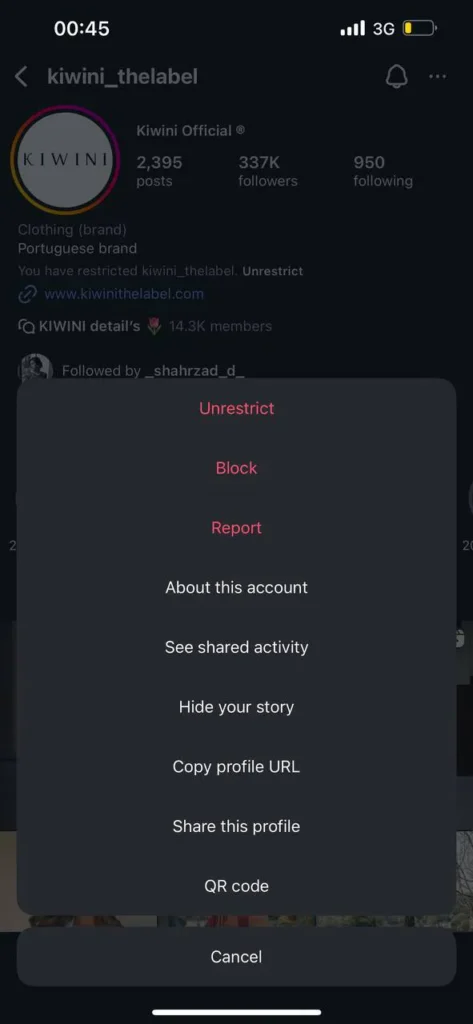
Method 1: How to Restrict Someone via Their Profile?
This is the quickest way to restrict someone, and it only takes a few taps on their profile.
- Go to the user’s profile by searching their username or tapping their name on a post/comment.
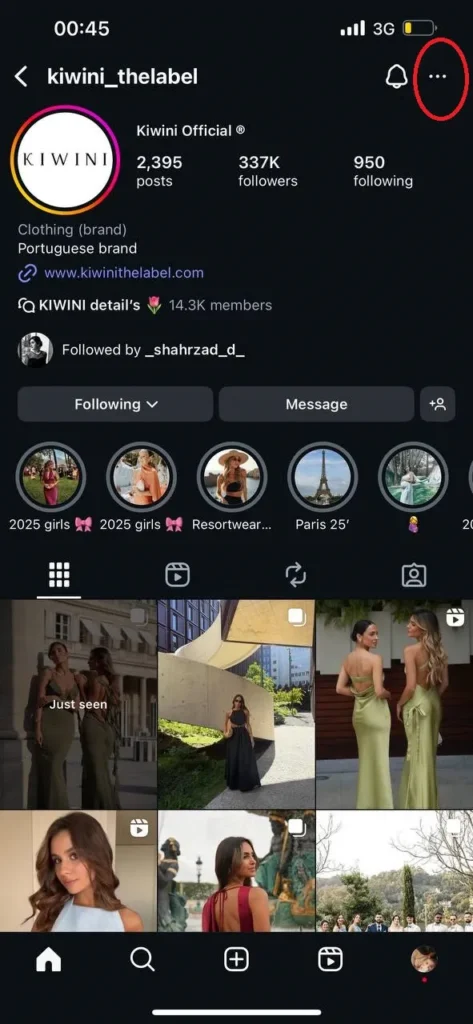
- Tap the “···” menu in the top-right corner.
- Select Restrict from the menu.
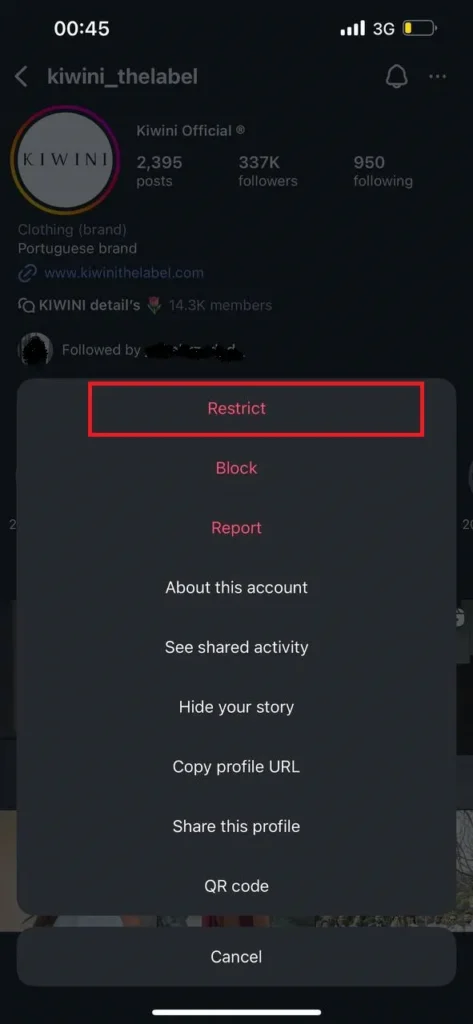
A small banner will appear saying “You have restricted [username].” Only you can see this. To unrestrict later, just revisit their profile and tap Unrestrict from the same menu.
Method 2: How to Restrict Someone via Settings (Restricted Accounts List)?
If you want to manage several restricted accounts or restrict someone without visiting their profile, this method makes it easy.
- Go to your profile and tap the menu (≡) to go to Settings and privacy.
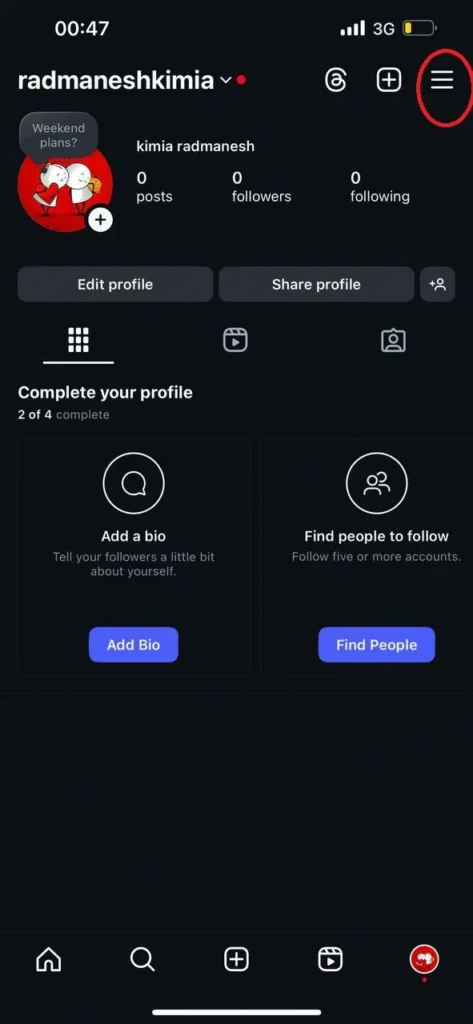
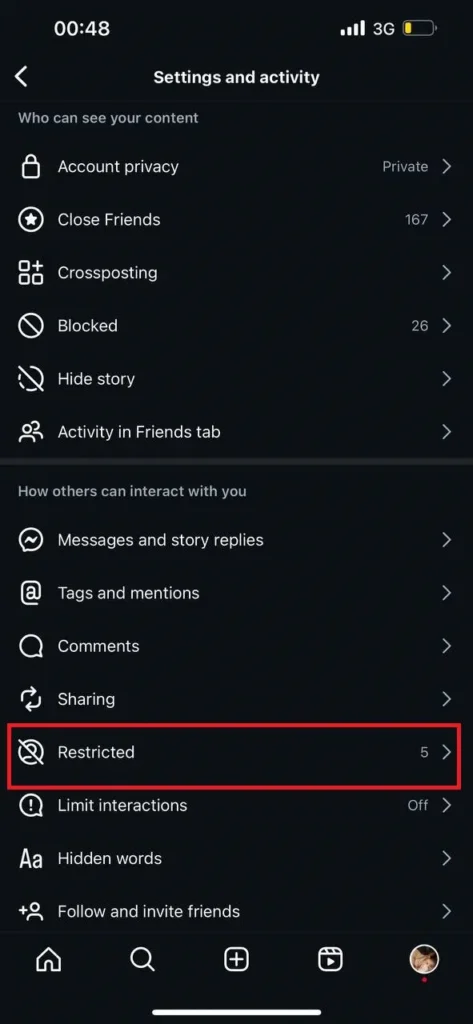
- Scroll down to find the ”Restricted” option (or “Accounts you have restricted”).
- Use the search bar to find the person you want to restrict.
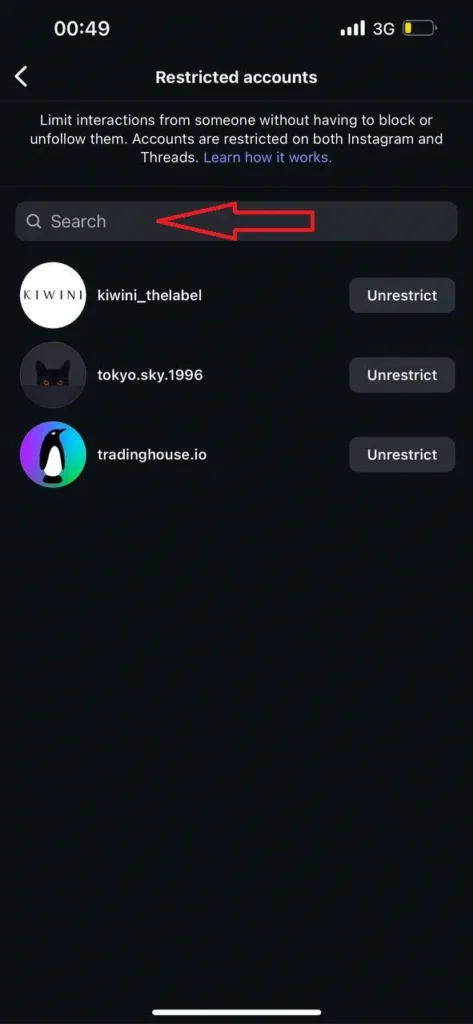
- Tap Restrict next to their name.
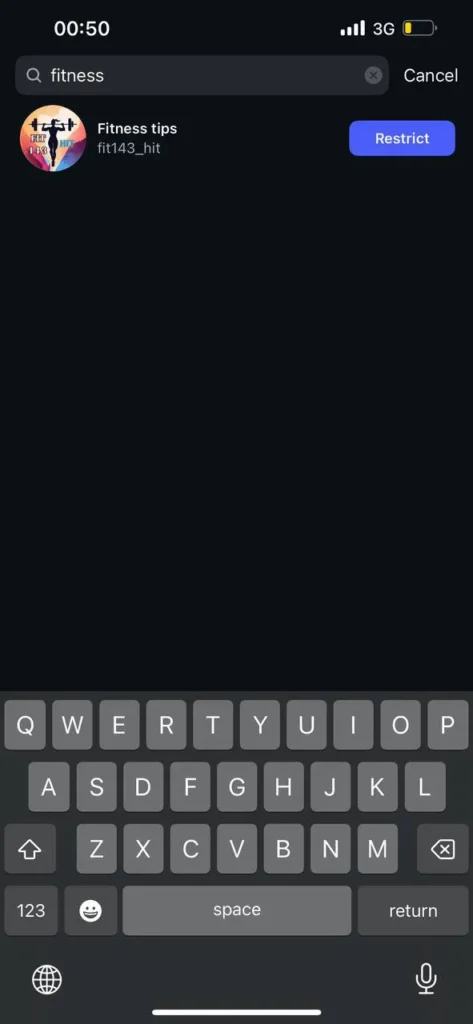
You can see all restricted accounts here and tap Unrestrict anytime to restore normal interaction. This is also a good way to manage multiple restricted users at once.
Method 3: How to Restrict Someone via a Comment?
If a comment has upset you, you can restrict the person directly from that comment in just a few taps.
- Open the post where they commented and tap View all comments.
- Tap and hold it.
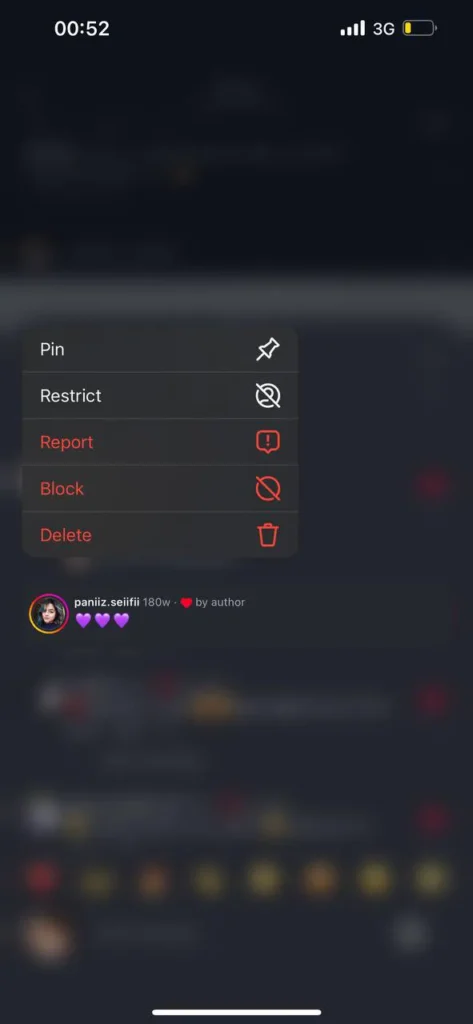
- Tap the Restrict option.
- Confirm if prompted.
Their comment may be hidden immediately. You can also delete the comment if you don’t want it visible, while future comments from them will stay hidden unless you approve them.
Method 4: How to Restrict Someone via Direct Messages (DMs)?
You can also restrict someone right from your inbox. It’s a great idea for quieting unwanted DMs without leaving the chat.
- Open Instagram and go to your DM inbox.
- Open the conversation with the person you want to restrict.
- Tap their name at the top of the chat screen to open details.
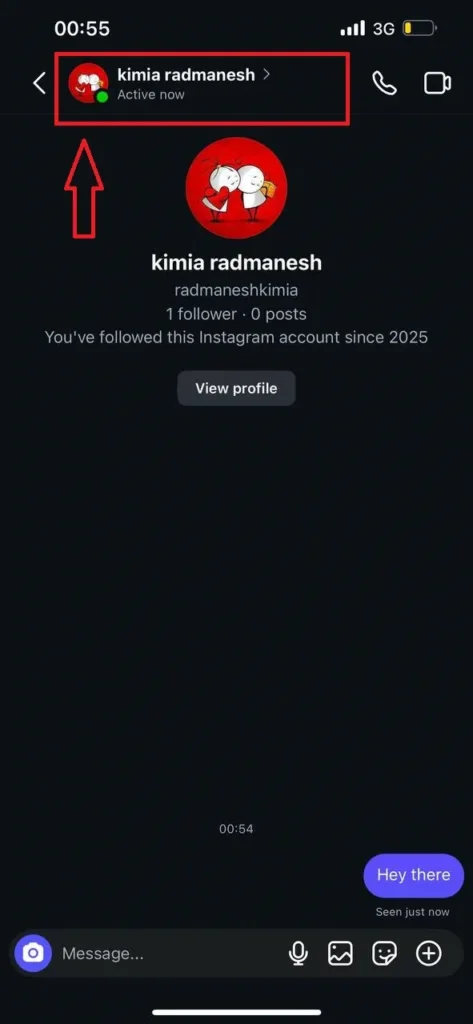
- Scroll and tap Restrict (sometimes under an Options or “…” menu).
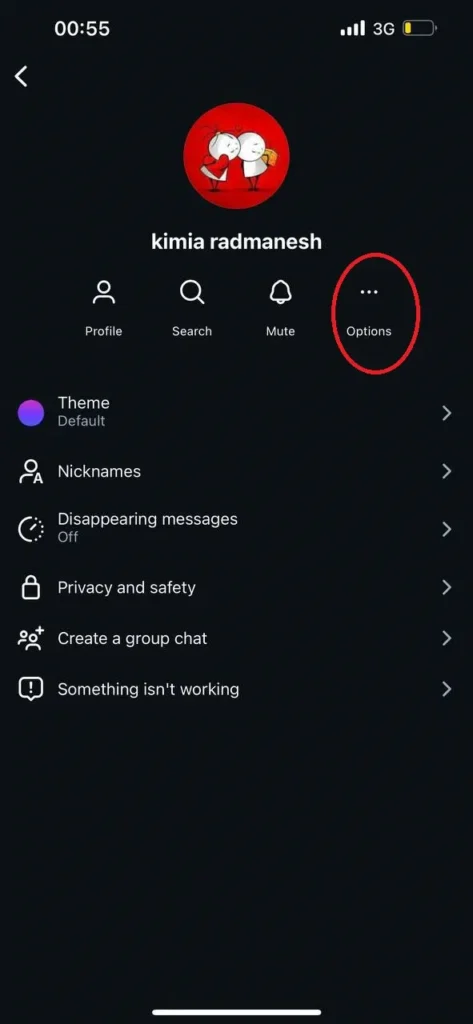
- Confirm by tapping Restrict Account.
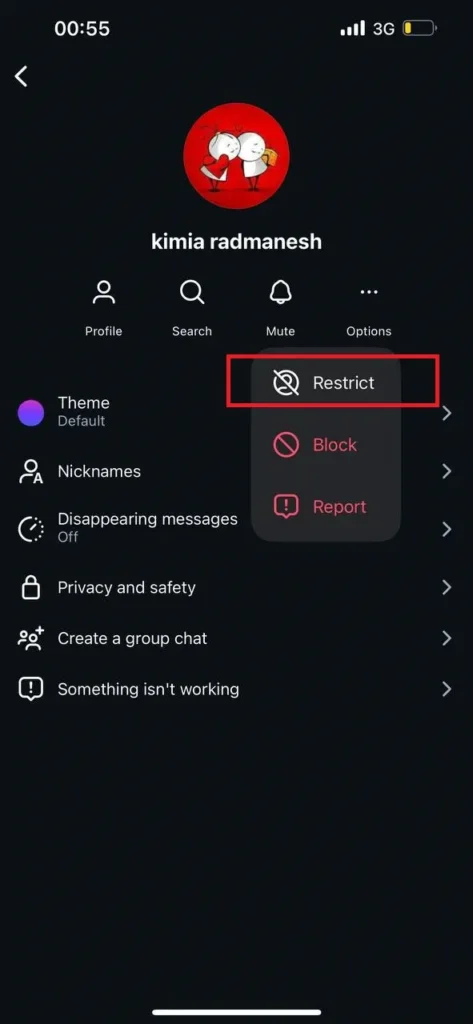
The chat will move to “Message Requests”, and you won’t get notifications for their messages unless you choose to check.
You can also long-press a message in the DM or tap the “i” info icon to find Restrict; the result is the same.
How to Unrestrict Someone on Instagram?
If you’ve previously restricted someone but want to restore full interaction, take the following simple steps:
- Go to Settings > Privacy > Restricted Accounts.
- Find the person in your restricted list and tap Unrestrict next to their name.
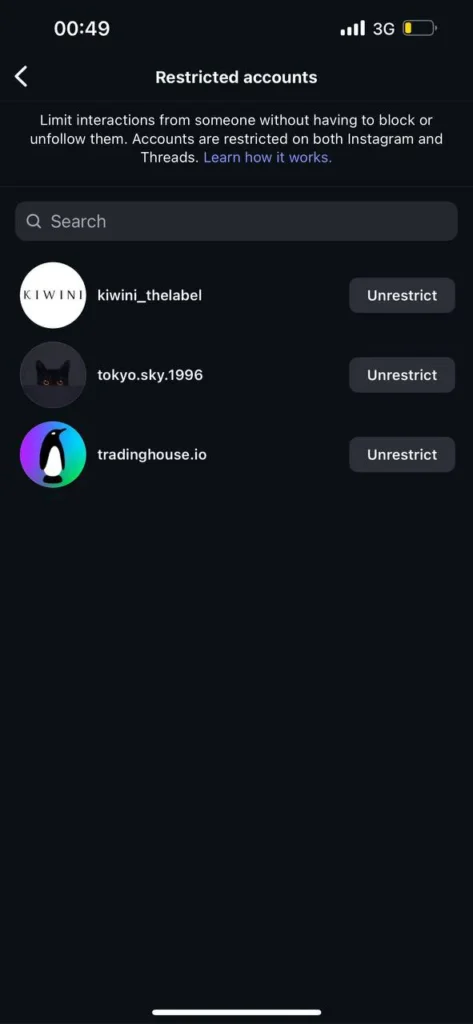
- Alternatively, visit their profile, tap the three-dot menu in the top-right corner, and select Unrestrict.
Once done, everything goes back to normal – their comments will be visible to everyone again, and their DMs will appear in your main inbox.
Instagram Restrict vs Block vs Mute vs Report: What’s the Difference?
Instagram offers Restrict, Mute, Block, and Report to help you manage interactions safely and maintain a positive experience. Here’s a comparison table based on the Instagram official blog post table to understand how each works and when to use them:
| Feature | Restrict | Block | Mute | Report |
| Interaction Limit | Can comment and interact, but only you see it | Cannot interact at all | Can interact fully; you just don’t see their posts/stories | No direct effect on interaction |
| Notification | User is not notified | User is not notified, but may notice | User is not notified | User not notified |
| Online Status | Restricted users cannot see your online status | Not visible to blocked users | No change | No visible |
| Profile Visibility | Visible to restricted user | Cannot reach your profile | No change | No |
| Use Case | Quietly limit a user’s impact without cutting ties | Complete cut-off for serious problems | Hide someone’s content from your feed without affecting engagement | Report unsafe, harassing, or rule-breaking behavior |
When Should You Restrict Someone on Instagram?
You can use this when you want to quietly limit someone’s impact without blocking them. It’s ideal for borderline cases or keeping negative interactions under control while still being able to monitor the person if needed.
Does Restricting Someone on Instagram Hide Their Posts from My Feed?
No. You’ll still see their posts and stories if you follow them. Restrict only affects their interactions with your content. To hide their posts from you, use Mute or unfollow them.
Also Read: How to See Who Unfollowed You on Instagram
How to Know If Someone Restricted You on Instagram?
If a friend never responds to your comments or messages, you might wonder: “Have I been restricted?” Instagram’s Restrict feature is designed to be discreet, so there’s no official list. But if multiple signs appear.
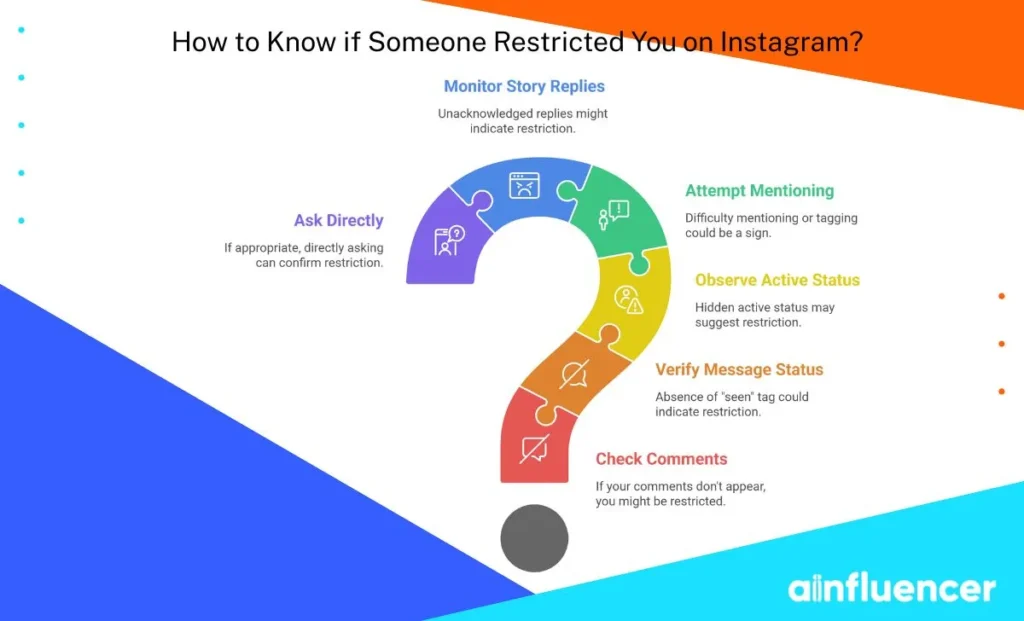
1. Your Comments Don’t Show Up
If you comment on their posts and only you can see it, that’s a strong clue. Test it by checking from another account or asking a friend. If your comment is invisible to everyone else, you might be restricted.
2. No “Seen” Tag on Messages
Messages you send go to their Message Requests. You won’t see the “Seen” receipt even if they read it. You can also notice if they’re active, but your messages will only say ‘sent.’
3. Their Active Status Is Hidden
Previously visible green dots or timestamps in DMs may no longer appear. If mutual friends can still see it, this could indicate you’re restricted.
4. Difficulty Mentioning or Tagging Them (Unconfirmed)
If you want to mention someone in your post or story, but it doesn’t autocomplete or give an error, it might hint at a restriction. But it could also be their privacy settings.
5. Story Replies Go Unacknowledged
Replies to their stories may show as DMs, but never get responses. This alone isn’t proof, since busy users often ignore story replies.
6. Ask Directly (If Appropriate)
If you’re comfortable, politely asking the person may clarify things. Sometimes restrictions are accidental or situational.
Best Practices to Use the Restrict Feature on Instagram
Using the restricting feature on Instagram is easy, and it helps keep your Instagram safe and stress-free. Here’s how to use it smartly:
- Take a Step-by-Step Approach: Not every annoying comment needs a block. Mute small annoyances, restrict mild trolls, and block only serious troublemakers. This keeps things calm without overreacting.
- Be Proactive: If you think someone might cause trouble, restrict them early. They can still comment, but it won’t bother you or others.
- Use Other Features Together: Combine Restrict with Comment Filters, Limits, Close Friends, or Muting. This adds extra protection and keeps your account positive.
- Check and Update: Look at your restricted accounts sometimes. If someone behaves better, you can restrict them. If they get worse, you can block.
- Learn from Patterns: Pay attention to who you restrict. This helps you understand what content or comments cause problems and keep your page friendly.
- Stay Calm and Professional: Quietly restricting them protects your energy and keeps your profile positive. For serious threats, report to Instagram.
What Does Restricting Someone on Instagram Do: Wrapping Things Up
Restricting someone on Instagram is like giving them a quiet timeout. They can still see your posts and stories, but you control how they interact with you. It’s a great way to manage unwanted interactions without causing drama or burning bridges.
Next time someone is making your Instagram experience stressful, remember the Restrict button is there. 😄
FAQs
No. Instagram doesn’t notify them, and nothing obvious changes. They might notice indirect signs, like no replies from you, but usually, they remain unaware.
Blocking cuts them off completely; they can’t see your profile, posts, or stories, and can’t interact with you at all.
Restricting is subtle: they can still see your content, try to comment or message, but their comments are hidden, DMs are tucked away, and they can’t see your online status. They also aren’t notified.
Old comments stay the same. Restrict only hides future comments. You’ll need to delete any old inappropriate comments manually if you want them gone.
They can try, but you usually won’t get notified. Some tags might not go through at all. Either way, they can’t pull you into a conversation effectively.
Blocked users, on the other hand, can’t tag or mention you at all.
Yes, restricted users can still see your posts on your feed, just like any other follower. Restricting doesn’t hide your regular posts from them.
By default, restricted users can still see your stories. If you want to hide your stories from them, you need to use the “Hide Story” option in Story settings.
Restricted users can still see your notes, but their interactions with you are limited. You control whether they can comment or reply, keeping things private.