Have you heard anything about Instagram dark mode? Dark mode is an option that changes the app’s visual look to a darker theme. It not only makes it easier on your eyes, but it also helps save battery life on your mobile phone.
It was first launched in 2019, and ever since then, it has remained super popular among Instagram users, especially those who spend a lot of time scrolling or posting on Instagram. If you don’t know how to turn on Instagram dark mode, this blog is for you.
In this guide, we’ll explain what Instagram dark mode is, why it matters, and how to enable or disable it on Android, iPhone, and desktop. We’ll also cover troubleshooting tips so you can make the most of this eye-friendly feature.
What Is Instagram Dark Mode?
You must have heard of Instagram dark mode. To keep it simple and clear, Instagram dark mode, also known as the dark theme or night mode, is the app’s interface shown in shades of black and gray instead of the default white background.
In 2019, Instagram officially introduced dark mode for its app. When you tap to enable it, menus, feeds, and profiles appear on a dark background. Remember, enabling this option doesn’t change your photos or videos; only the app’s UI elements switch to dark colors.
For many users, this mode feels more comfortable than the default white mode. Enabling dark mode can reduce glare and eye strain, especially when scrolling through Instagram at night.
It’s also often highlighted that dark mode helps save battery on phones with OLED screens, since true black pixels draw very little power. Even if you don’t have an OLED phone, many people simply like the sleek, modern look of a dark interface. In short, dark mode on Instagram is a user-interface option that can make browsing the app easier on your eyes and phone.
How to Turn on Instagram Dark Mode (Android Phones)
Wondering how to turn on this feature on Instagram? Here’s a specific guide for Android phones. To activate dark mode on Instagram through app settings, make sure to follow these steps. Some Android versions let you override system settings:
- In Instagram, tap your profile icon at the bottom right. Then tap the menu and choose “Settings”.
- Look for “Theme” or “Set Theme”.
- Select “Dark” (or disable “System default” and choose “Dark”).
- Instagram will switch to dark mode immediately.
This will give you the result you are looking for. But there is a small point to keep in mind. Activating dark mode on Instagram is different from activating your phone’s system-wide dark mode. When you enable this feature, you’re only turning the Instagram app dark, not your entire phone.
In the next part, we will teach you how to turn on dark mode on Instagram on iPhone.
How to Turn on Instagram Dark Mode (iPhone)
To know how to turn on dark mode on Instagram for iPhones and iPads running iOS/iPadOS 13 or later, you first need to understand that Instagram dark mode is tied to your device’s system settings. According to Instagram’s algorithm, you cannot change Instagram’s theme separately on iOS.

To enable this feature, you have to change your phone’s appearance:
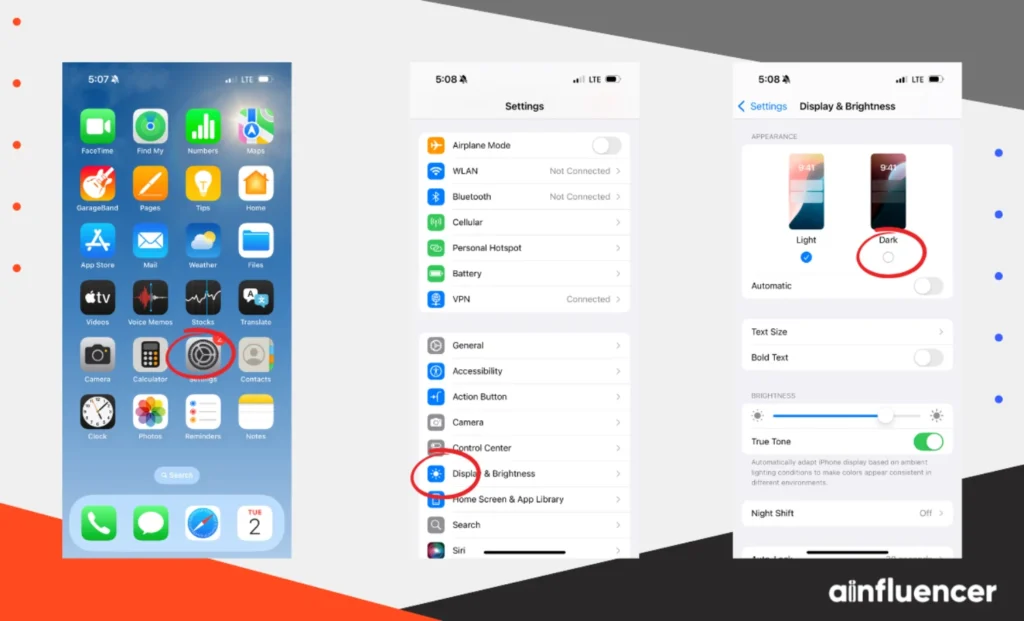
- Open “Settings” on your iPhone or iPad.
- Tap “Display & Brightness”.
- Select “Dark” under the “Appearance” section.
Once you switch your system to dark mode, any app that supports it (including Instagram) will appear in dark mode. After selecting the dark option in display settings, just reopen Instagram, and the app should now be in dark mode.
If Instagram does not appear dark, make sure your app is up to date and that your device is running iOS 13 or newer. Some older iPhones/iPads won’t have this option.
Unlike Android, iOS does not (at this time) offer an in-app flip for Instagram’s theme. The Instagram app follows whatever appearance you chose at the OS level. So if you want to make Instagram “light” again, change back to light mode in iOS Settings.
How to Turn on Instagram Dark Mode on PC (Web/Desktop)
Yes, Instagram on a computer or web browser can also be viewed in dark mode. Curious to know how to put dark mode on Instagram on PC? The desktop Instagram (via instagram.com) includes a setting to switch themes. To enable this feature on the Instagram web interface:
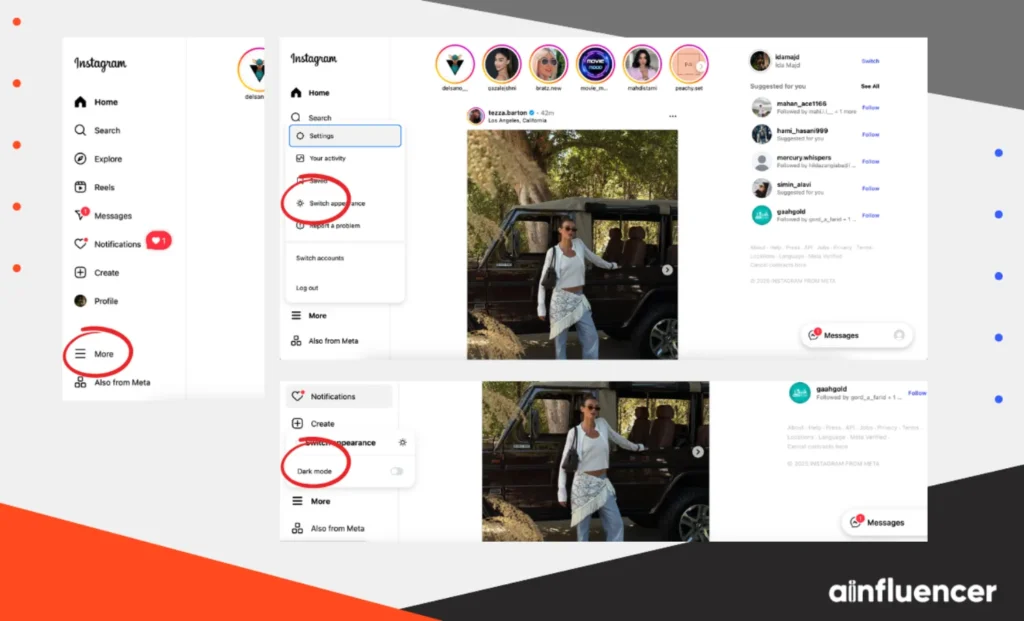
- Log in to “Instagram.com” on your computer.
- Look at the bottom left corner of the page and click the three-line menu.
- Select Switch Appearance (or Theme).
- Flip on “Dark Mode”.
This will immediately switch the web interface to dark mode (menus, backgrounds, etc. become dark). All your feed content stays the same, but the surrounding interface goes dark.
Here is a quick note to keep in mind. If you prefer using Instagram in a browser with your OS theme, some modern browsers and operating systems offer a system-wide dark mode for websites. In those cases, Instagram might follow your browser’s color scheme automatically.
Why Use Instagram Dark Mode?
Dark mode on Instagram has many benefits that users love. These benefits include:
- Reduced eye strain: Protecting your eyes is the main benefit of enabling Instagram dark mode. Dark mode lets out less bright light, which feels gentler on the eyes, especially if you spend hours scrolling during the day or late at night. People with light sensitivity or vision issues often find dark mode more comfortable than the default light theme.
- Battery savings: On OLED screens, dark pixels use far less power. Tests show dark mode can cut display power consumption significantly at high brightness. When it comes to lower brightness levels, the savings are smaller, but it still helps.
- Aesthetic appeal: the darker the better, that is what many people believe. Many find dark mode “cooler” and more modern-looking. Aesthetically, it makes colorful photos and videos pop against a black background.
- User expectation: Once users set their phone to dark mode, they often expect apps like Instagram to follow suit automatically. Instagram generally honors your system theme, so you don’t have to flip it in the app (especially on Android).
In short, if you enjoy scrolling Instagram at night or simply want a new look, turning on Instagram dark mode is “eye-friendly” that many find worthwhile. Studies suggest roughly one-third of users keep their devices in dark mode by default, and Instagram’s dark theme supports this preference.
How to Turn Off Dark Mode on Instagram
Let us teach you how to turn off Instagram dark mode. To switch back to “Light Mode”, simply reverse the steps you used to enable dark mode:
- On iPhone/iPad: Go back to “Settings” and “Display & Brightness” and select “Light”. Instagram will revert to the light theme when you reopen it. Just keep in mind that on iOS, you can’t independently switch Instagram’s mode inside the app, but you control it through the device settings.
- On Android: In the Instagram app, go to “Profile” and then “Menu”. Press on “Settings” and tap “Theme”, then choose “Light”. If you had set it to system default, switch off that option first, then select “Light”. This will immediately switch Instagram back to light mode. If you enabled dark mode via Android settings, just turn off “Dark” theme in settings and tap “Display”.
- On PC (Web): Click the Instagram menu at bottom-left again, choose “Switch Appearance”, and turn off dark mode on Instagram.
In case you have trouble with Instagram dark mode, no need to worry. The next part will give you all the information you need.
Troubleshooting Instagram Dark Mode Issues
Sometimes, dark mode on Instagram doesn’t appear to work. Here are common fixes:
- Check OS and App Versions: Make sure your phone’s operating system supports dark mode (Android 10+ or iOS 13+) and update Instagram to the latest version. Dark mode won’t be available on very old devices or the provided version of the app.
- Restart the App/Phone: Simple yet often effective, this approach works well in many situations. Close Instagram completely and reopen it. If that doesn’t help, restart your phone.
- Reinstall Instagram: If the Instagram dark mode is still not flipping off/on, uninstall Instagram and reinstall it fresh. A clean install often resolves stuck theme issues.
- System vs. App Settings: On Android, ensure you didn’t set a conflicting system theme. If the phone is in light mode but Instagram is still dark (or the opposite), try switching the Instagram app’s theme setting to make it right. If it’s not working, try clearing Instagram’s cache.
- Browser Cache (Web): If you are using Instagram web, clear your browser and Instagram cache, or try a different browser. Occasionally, the cached settings might prevent switching themes.
Most users find updating the app and flipping the theme setting fixes any odd behavior.
Conclusion
Now that you know how to turn on Instagram dark mode, you should also know that it can be activated on Android, iPhone, and even on your PC. Keep in mind that enabling this mode is not only stylish but also helps save battery life on your phone. It’s also healthier for your eyes, especially if you spend long hours scrolling through Instagram.
Overall, Instagram’s dark mode puts more focus on your content by reducing the bright white glare of menus and backgrounds. So, if you’re an active Instagram user, you should definitely give this option a try at least for a while.
FAQs
Yes! Instagram introduced a built-in dark mode in 2019, often referred to as the “dark theme.” All users on supported devices, including Android 10 or later, iOS 13 or later, and even those using a web browser can enable it easily.
No. Dark mode only changes the interface colors. Your photos and videos display normally. According to Instagram help, “Dark mode adjusts the color scheme of the interface, but it doesn’t affect the visibility of photos and videos on Instagram”.




![Read more about the article How to Clear Instagram Cache? [Full Guide in 2026]](https://socialmedia.ainfluencer.com/wp-content/uploads/2025/09/jpeg-optimizer_How-to-Clear-Instagram-Cache-300x182.jpg)