Live streaming is one of the powerful ways to connect with your audience in real time. But, how to go live on TikTok? It is easier than you might think. By going live, you can interact directly with your followers, answer questions instantly, and show a more personal side of your content.
To get the most out of your live streams, it helps to first build a solid audience by regularly posting on TikTok. The more followers you have, the more people are likely to join your live sessions and engage with your content.
In this guide, we’ll show you how to go live on TikTok step by step, what requirements you need, and tips for hosting engaging streams.
Let’s get started!
What Is TikTok Live?
TikTok LIVE lets you broadcast in real time and interact with your viewers. During a live stream, your audience can ask questions, chat with you, and share ideas to connect directly with them.
You can use effects and filters, just like in regular TikTok videos, and there’s no strict time limit; you can also stay live as long as you want to reach more people.
TikTok Live Features
TikTok LIVE includes features like giving and receiving gifts or raising money. This makes it useful for events, fundraisers, or simply rewarding your followers.
Creators can access features such as multi-guest hosting, moderation tools, and LIVE Gifts. Viewers can support their favorite creators by joining the live, sending Gifts, reacting in chat, and subscribing to LIVE communities.
Note: LIVE and Gift features may not be available in all regions.
How to Go Live on TikTok? (Step-by-Step Guide)
Now, let’s go through the steps to start a TikTok Live on iPhone, Android, and PC.
How to Go Live on TikTok by Mobile App?
Going live on TikTok from your phone is simple and quick. Here’s a 4-step guide:
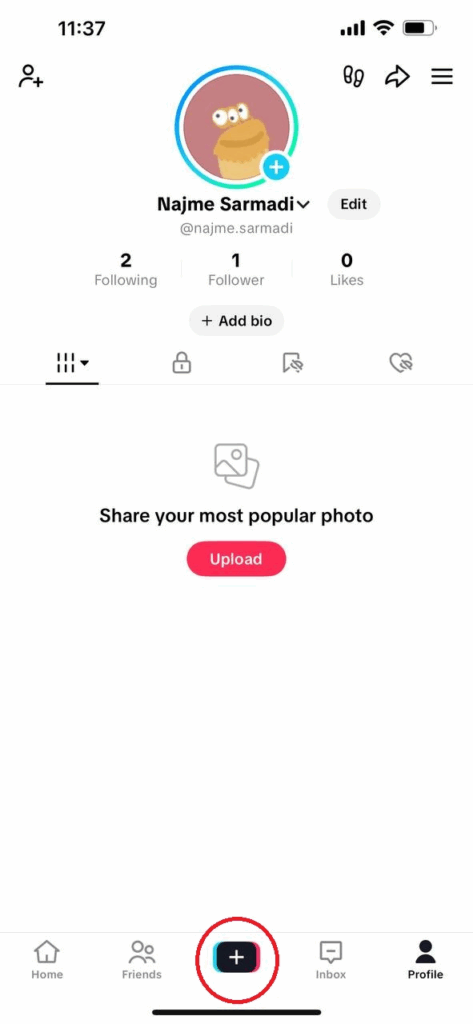
- Open TikTok and tap “+” like creating a new video.
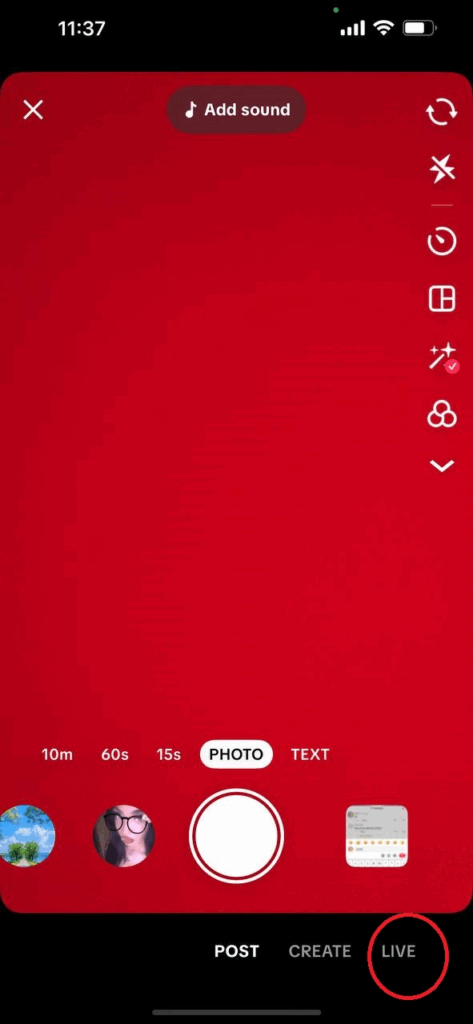
- Swipe to “LIVE”. If you don’t see it, your account isn’t eligible yet.
- Set up your stream. Now, you can add an engaging title, an optional cover image, and any filters. Check lighting, framing, and settings.
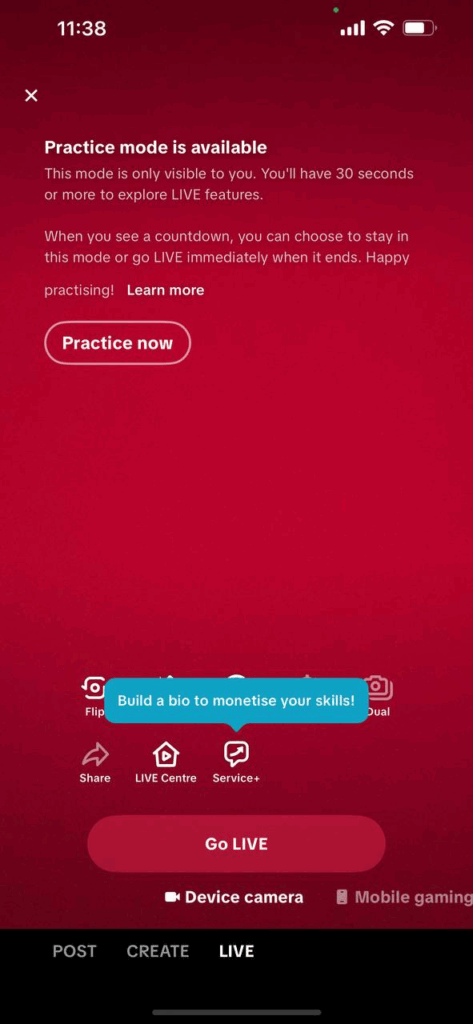
- Tap “Go LIVE”. TikTok will notify followers, and your viewers can join instantly.
During your Live, interact with viewers, respond to comments, flip cameras, or add co-hosts.
How to Go Live on TikTok on PC?
While most TikTok Lives happen on mobile, PC streaming lets you use external cameras, microphones, share your screen, or stream gameplay for a more professional look. Here are the main options:
1. Using LIVE Studio (Official Desktop App)
Here are the simple steps to go live on PC with Live Studio:
- Download TikTok LIVE Studio for Windows and log in.
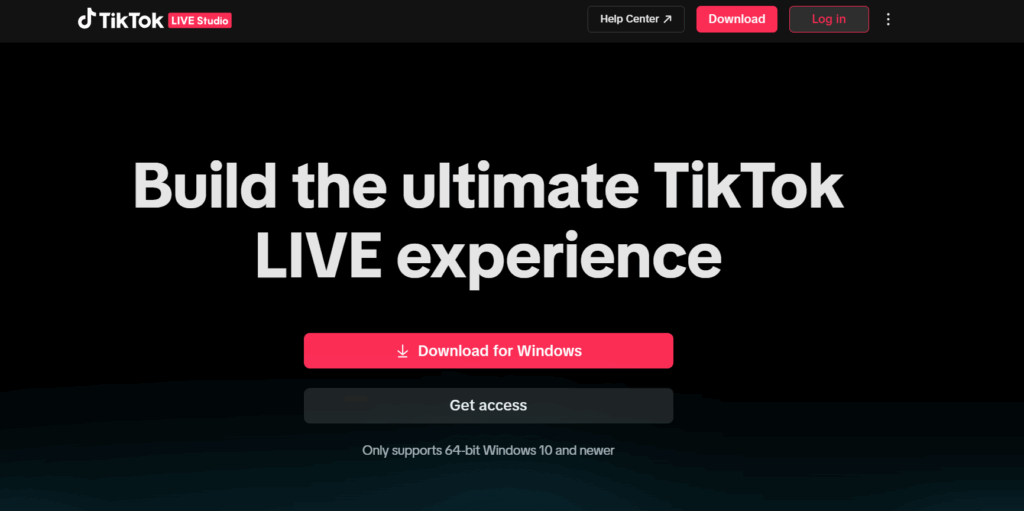
- Set up your stream: choose video and audio sources, add overlays, and configure your title, cover, and category.
- Click Go LIVE to start. This is perfect for gaming, interviews, or multi-camera setups.
2. With OBS or Streamlabs with a Stream Key
You should take the following steps to stream on TikTok with OBS:
- Get your TikTok stream key and server URL (requires Live access).
- Set up OBS/Streamlabs: add webcam, mic, screen capture, and overlays. Make sure your canvas is vertical (9:16).
- Start streaming from OBS, then confirm on TikTok. This gives full customization, like alerts, multiple cameras, or green screens.
3. By mirroring Your Phone to a PC
If you can’t access Live Studio or a stream key, mirror your phone to your PC and go live from the phone. This is handy for mobile games or showing apps on a bigger screen. You can use a tool like ApowerMirror to display your phone screen on your computer.
Once mirrored, open TikTok on your phone, start your live stream as usual, and your viewers will see whatever’s on your phone screen.
All Requirements to Go Live on TikTok (Followers, Age, & More)
One of the first questions creators ask is: How many followers do you need to go live on TikTok? And how old do you have to be to go live? Well, there are a few requirements you must meet before the “Live” option appears in your app.
- You need to have at least 1,000 followers to unlock the Live feature. Guests joining your live show don’t need this.
- You must be 18 or older to go live or send/receive gifts. If you made a mistake and entered the wrong birthday when setting up your account, you can change your age on TikTok.
Other things you must know before going live on TikTok:
- Follow TikTok’s community rules; violations can block your Live access.
- Both personal and business accounts can go live.
- Live might not be available in some countries due to local rules.
How to Go Live on TikTok Without 1,000 Followers?
TikTok normally requires 1,000 followers to unlock Live, but there are methods you can go live without even 1000 followers, including:
- Contacting TikTok Support (Not Reliable): Some creators try sending a feedback request to TikTok asking for Live access. This rarely works and isn’t an official solution, so it’s more of a long shot.
- Joining Someone Else’s Live (Collaboration): You can appear as a guest on another creator’s Live even if you have fewer than 1,000 followers. The host must meet the follower requirement, but guests don’t. This is a legit way to get Live experience and reach new viewers.
Note: You must avoid buying followers or using scams. Although offers for “free TikTok followers” or “free TikTok likes” may seem tempting, these usually involve bots that don’t engage. Using them can risk your account.
Also Read: How Much Money Do You Get on TikTok for 1 Million Views
How to Go Live With Someone on TikTok (Co-Hosting & Guests)?
Going live with others makes TikTok Lives more fun and engaging. There are two ways to do it:
How to Invite a Guest to Your Live (You as Host)?
While streaming, tap the “Guests” button, then invite friends or accept requests from viewers. Once they join, the screen splits, showing both of you.
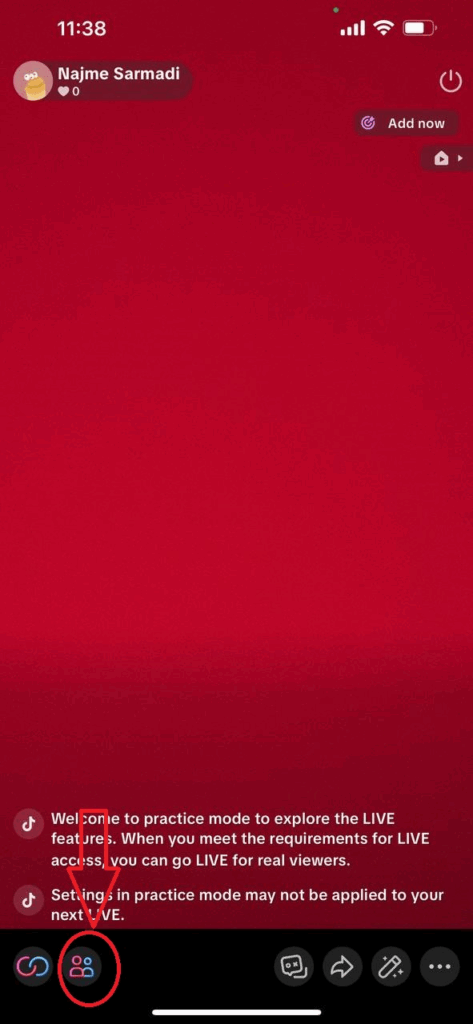
You can chat, do Q&A, or collaborate on content. Guests bring their followers, too, which can increase your audience. Moderators can help manage comments while you focus on the conversation.
How to Join Someone Else’s Live (You as a Guest)?
If another creator is live, tap the multi-guest icon and request to join. The host approves, and you appear on screen together. This is a great way to get exposure even if you don’t have 1,000 followers.
Why Go Live on TikTok?
Going live on TikTok has benefits that regular videos can’t match. With 1.59 billion monthly active users worldwide and people spending almost an hour a day (58 minutes) on the app, going Live gives you the chance to stand out in real time and connect with viewers in a way regular videos can’t.
Here’s why it’s worth it:
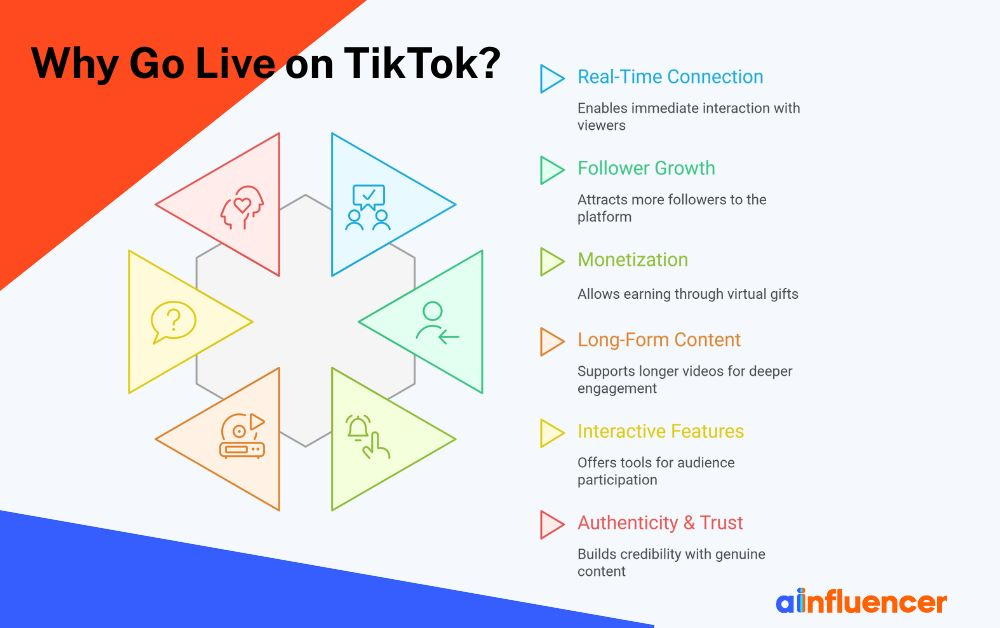
1. Real-Time Connection
TikTok Live lets creators interact with viewers instantly through comments and Q&A. Fans can ask questions, react with TikTok emojis, and feel truly involved, creating a sense of community that short videos can’t provide.
This kind of interaction also boosts engagement. Smaller creators with under 100K followers average a strong 6.8%–7.5% engagement rate on TikTok. It shows how Lives can help deepen connections.
2. Get More Followers on TikTok
Live streams get extra visibility on TikTok. The algorithm pushes Live content to followers and new viewers, helping creators get more followers on TikTok naturally.
3. Earn Money with Gifts
Viewers can send virtual Gifts that convert into cash. Using strategies like free TikTok likes or free TikTok followers can also boost engagement during streams.
4. Long-Form Content & Deeper Engagement
TikTok Live lets creators stream longer than regular videos, sometimes 30 minutes or more. This allows deeper discussions, Q&A sessions, or casual hangouts with fans, helping build stronger connections and engagement.
5. Interactive Features
Live streams include special tools like Q&A, co-hosting with friends or other creators, fun filters, and stickers. These features make streams more engaging and entertaining for viewers.
Moreover, Lives can be scheduled in advance, allowing followers to register and get reminders. This helps build anticipation and attract more viewers.
6. Greater Authenticity & Trust
Live streaming is raw and unfiltered, which helps humanize creators or brands. Fans see the real personality behind the account, which strengthens trust and loyalty.
10 Best Practices to Create Engaging TikTok Live Streams
Let’s get ready before you hit the “Go Live” button. It can make a big difference in how your stream turns out. Here’s a list of a few best practices to help keep things smooth, fun, and engaging for viewers.
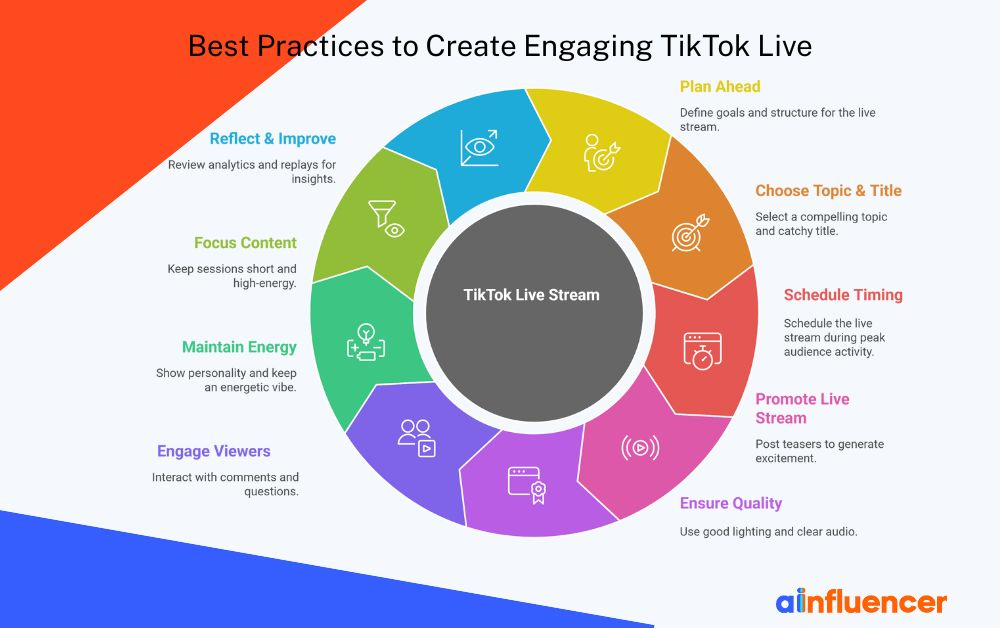
- Planning Ahead: Creators who plan their live sessions with a clear goal, like a Q&A, tutorial, or product showcase, usually have smoother and more focused streams.
- Topic & Title: A compelling topic and catchy title help the live attract viewers and set expectations for what they will see.
- Timing: Audience activity often peaks in the evenings, so scheduling a live show when followers are most active tends to increase viewership.
- Promotion: Posting teasers on TikTok and other social media generates excitement and lets followers know when to join.
- Lighting & Sound: Good lighting and clear audio make the live show more enjoyable and help keep viewers engaged.
- Early Grab Attention: Introductions and explaining the purpose of the live show at the start capture attention and help new viewers understand what’s happening.
- Interaction: Responding to comments, asking questions, and thanking viewers for gifts creates a personal and engaging experience.
- Authenticity & Energy: Hosts who show their personality, laugh at mistakes, and keep an energetic vibe make the live fun and relatable.
- Focused Content: Shorter, high-energy sessions of 20–30 minutes often hold viewers’ attention better than long, aimless streams.
- Reflection & Growth: Reviewing analytics and saved replays helps creators see what worked and what can be improved for future lives.
Final Thoughts
Going live on TikTok is a good method to connect with your audience, grow your community, and share what makes you or your brand unique.
Just make sure you meet the requirements, plan a bit, and focus on being yourself. With practice and consistency, you’ll get more confident, build a loyal following, and make your lives something people look forward to.
FAQs
1. How Many Followers Do You Need to Go Live on TikTok?
You need at least 1,000 followers to go live on TikTok. You also have to be 18 or older. If you have fewer than 1,000 followers, the Live option won’t appear in your app. Some regions may have slightly different rules, but generally, 1k followers + age 18 is required.
2. How Can I Go Live on TikTok Without 1,000 Followers?
Officially, you can’t. The only way is to join someone else’s Live as a guest since only the host needs 1,000 followers. Contacting TikTok support is rarely successful, so the best approach is to grow your followers or collaborate with a friend who can host you.
3. What Does “⚠ Live Access Removed” Mean?
This means your account broke TikTok rules, and your Live privileges were temporarily or permanently removed. Common reasons include inappropriate content, bullying, or nudity. You can check your notifications for details and appeal if you think it’s a mistake.
4. How Many Likes Do You Need to Go Live on TikTok?
Likes don’t matter. Only follower count (and age) affects live access. Likes can help grow your audience, but they don’t unlock Live.
5. Can I Save or Replay My TikTok Live Sessions?
Yes! Lives are saved for 30 days in your account. You can download them, clip highlights, or delete them. Go to Profile > Menu > TikTok Studio > LIVE > LIVE Recordings to manage your past streams.
6. How Many Followers on TikTok to Go Live as a Guest?
Going live as a guest is much easier than hosting your own Live. You don’t need 1,000 followers. Anyone can join someone else’s Live if the host invites them. So even if your account is new, you can still appear as a guest on a friend’s broadcast.
7. Why Can’t I Go Live on TikTok?
If you’re having trouble going live, don’t worry. It usually comes down to one of two things:
- You don’t meet the requirements yet (you need to be at least 18 years old and have 1,000+ followers).
- Or, TikTok might have put a temporary restriction on your account if you’ve broken community guidelines.