Struggling to figure out how to post on TikTok? This guide is here to help. With constant updates on the platform, both newbies and TikTok pros can struggle with sharing their content effectively.
Supposing you’re just starting out or have been creating for a while, this blog will walk you through the entire process of posting on TikTok. You’ll learn to post properly and get more followers on TikTok as a result.
We’ll explain everything you need to know about posting on TikTok using your phone or PC. Plus, we’ll include tips, features, and troubleshooting advice to help you create the most engaging posts. By the end of this guide, you’ll be ready to post like a pro!
Ready to begin with the basics, like setting up your TikTok account?
How to Set Up Your Account to Post on TikTok
Before you can learn how to post on TikTok, make sure you have an account and the updated app version. Here is how to set up an account on TikTok:
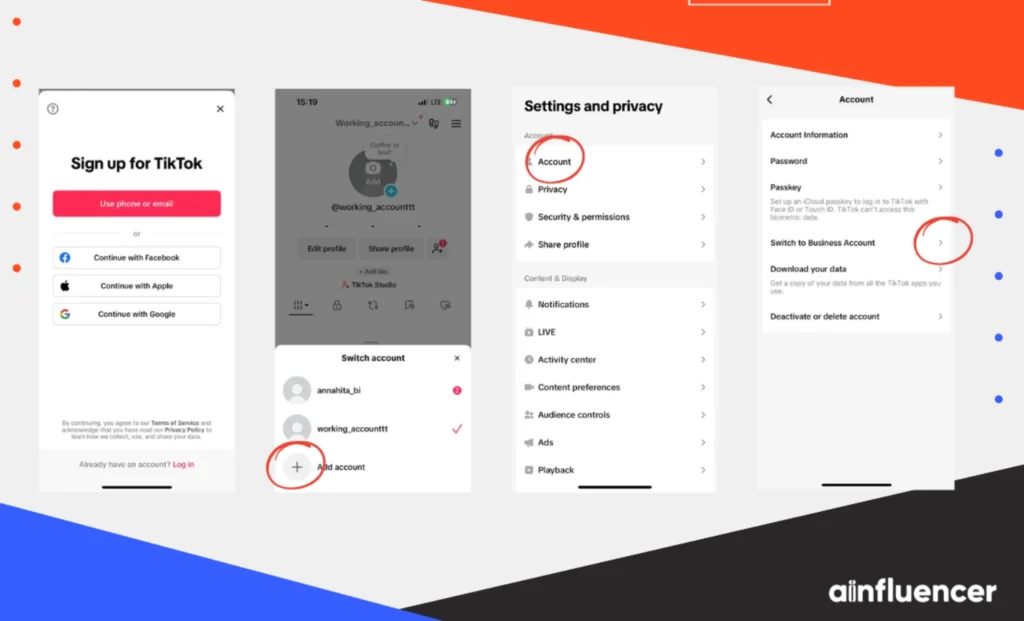
- Create a TikTok Account: By downloading the app on iOS or Android and signing up, you’ll have an account on TikTok ready to use. You can also sign up via TikTok Studio on the desktop.
- Switch to a Pro Account (optional): If you plan to analyze your reach or use TikTok Studio features, simply go to your profile and tap on settings, manage your account, and finally switch to Business/Creator.
- Explore the Interface: On the TikTok home screen, use the bottom navigation. The “For You” and “Following” feeds show content, and the + (plus) button at the bottom center is where you start making posts.
Once your account is set up, you’re ready to post content. In the sections below, we detail step-by-step how to post on TikTok. Stay with us to find out.
How to Post Videos on TikTok (Mobile)
Knowing how to post on TikTok is way easier than you think, and the most basic way to do it is by recording and then uploading a video. Here is a step-by-step guide.
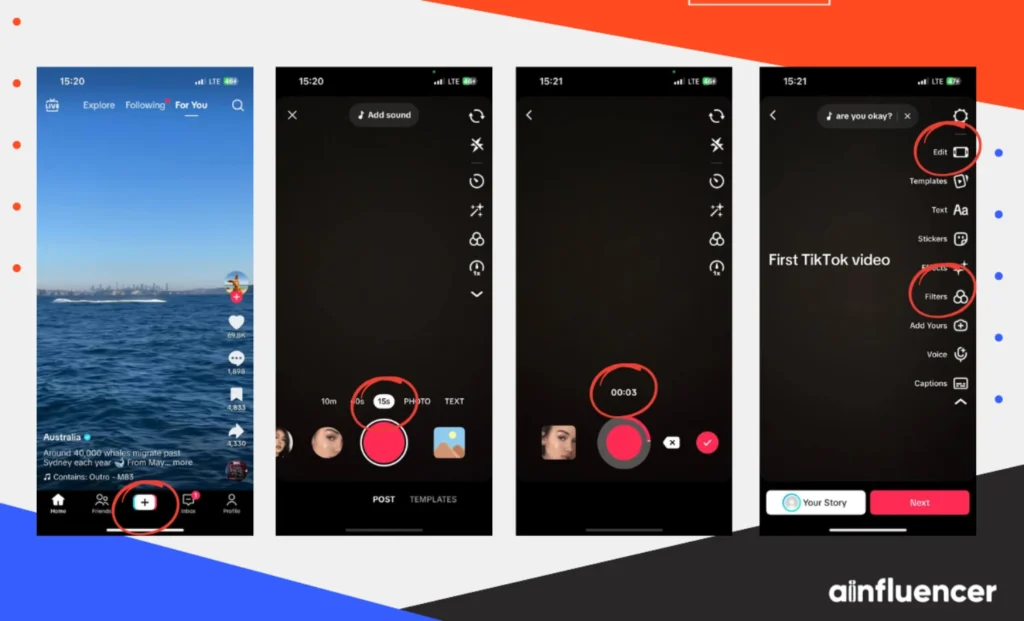
- Open the TikTok app and tap the + (plus) icon at the bottom of the screen (this opens the camera/creation interface).
- Record or upload a video. You can record by holding the red record button, or tap Upload (bottom right) to select a pre-recorded clip from your device. (TikTok supports videos up to 10 minutes (though shorter videos often perform better).
- Edit your video: After choosing/recording a clip, use TikTok’s editing screen to crop the video length, change the speed or add filters/effects. You can also add text, stickers, or emojis on top of the video or select sounds or music.
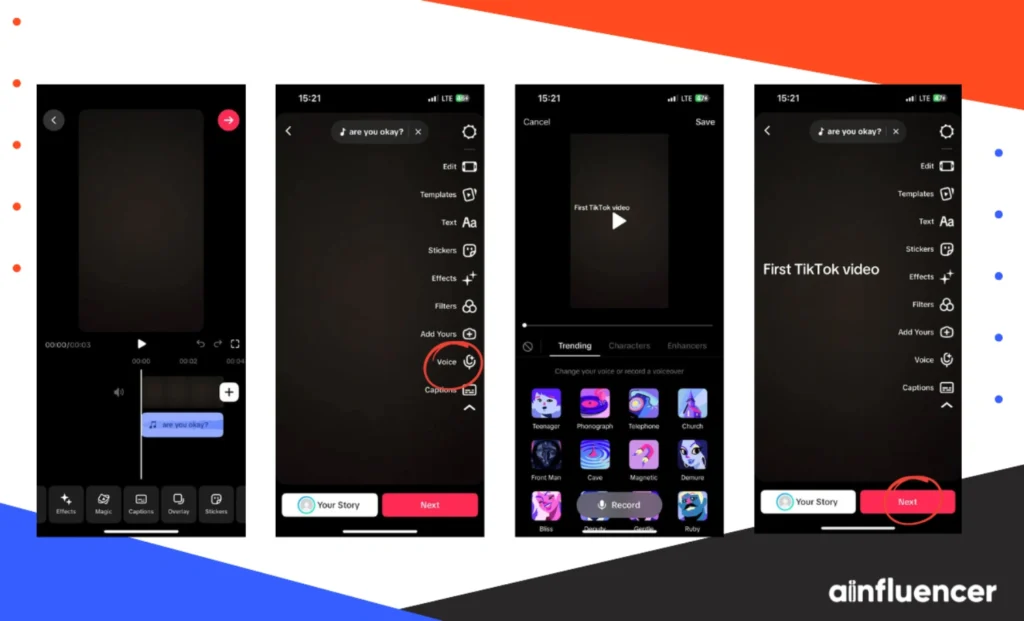
- Make sure to use original audio from TikTok’s “Commercial Music Library” to avoid copyright muting. If you add copyrighted music, TikTok might mute your video or reject it. You can also add voiceover or sounds, if needed.
- Tap Next to go to the final screen to finalize and preview your video. Here you must either write a caption to describe your video, add hashtags and tags, set settings to choose who can see the post (Public/Private), allow comments/duets if desired, and finally add a cover image. Do not forget to tag friends or mention other creators (they get notified).
- Publish your video by tapping on the “Post” button.
Be certain about when you post on TikTok and know the best times to publish, ideally when most of your audience is active. Check your TikTok analytics to see when your followers are online, and schedule your posts around those times, as many creators report higher engagement then.
Also Read: How to Post on Instagram
How to Post on TikTok from a Computer?
A lot of people think TikTok only lets you post from your phone, but you can also upload videos using your PC or Mac. TikTok offers a web-based content manager called TikTok Studio that makes this possible.
Here’s how to post on TikTok from a computer.
- Access TikTok Studio: Go to TikTok Studio in your browser and log in with your TikTok account. This links your TikTok account to the Studio platform.
- Upload video: In TikTok Studio’s dashboard, choose the option to upload a video. Select your video file (supports high-definition uploads).
- Edit and publish: Add a caption, tags, privacy settings, etc., just like on mobile. You can also add a cover image. TikTok Studio may offer scheduling (up to 15 days in advance) and analytics.
- Other tools: TikTok Studio lets you manage drafts and see your post performance.
If you’re a professional TikTok creator who edits content on your Mac or PC, the best way to upload and post directly from your computer is with TikTok Studio. For brands and creator accounts, this makes posting much easier since you don’t have to transfer videos to your phone first.
How to Post Pictures or Slideshows on TikTok?
TikTok is mostly known for posting videos, but that’s not always the case. Besides knowing how to post on TikTok, you also need to know how to post pictures and slideshows. TikTok introduced Photo Mode for this matter, and here’s how to post pictures on TikTok:
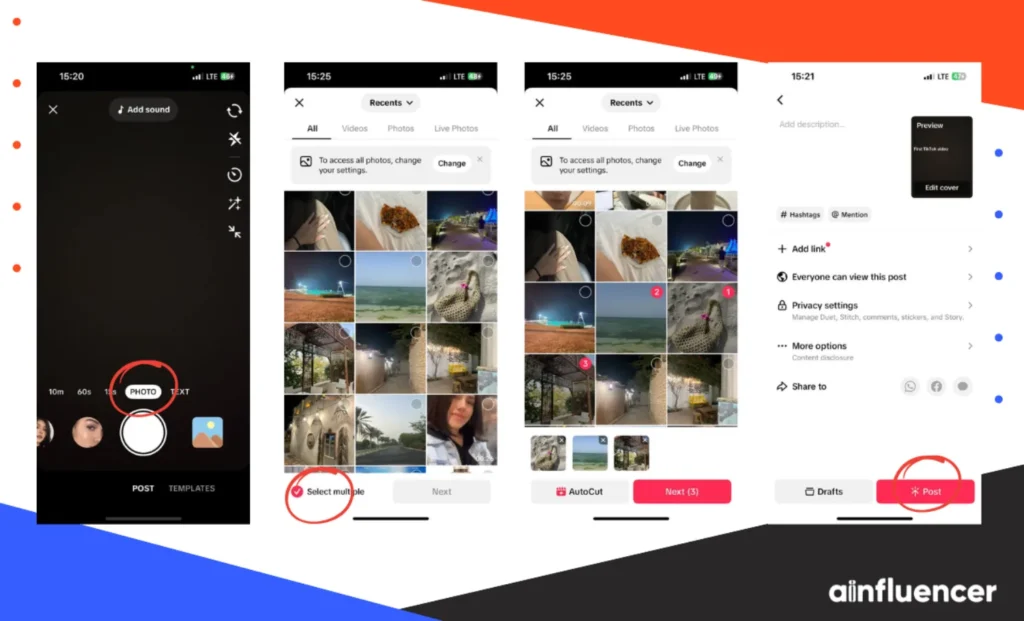
- Tap the + (plus) button to create a new post.
- Swipe or tap Photo to enter Photo “Mode”. This lets you use templates or manual selection for images.
- Choose your photos. You can either pick a template, which may allow up to 15 images, or tap Upload to manually select pictures from your camera roll. (TikTok supports up to 35 photos in a slideshow, though some templates cap at 15 or even 1 photo. If a template won’t fit all your images, use the manual upload).
- Arrange images, and if you are doing it manually, make sure to rearrange the order of your selected photos by dragging them.
- Set transitions and effects. This feature allows you to choose how slides transition (swipeable by the viewer, or an automatic slideshow). If you want users to control the pace, pick a swipeable layout. Otherwise, TikTok will auto-play slides.
- Add music/effects by tapping “sounds” to add a song or background audio. Choose something that matches your slideshow theme.
- Add text with stickers or TikTok emojis. You can overlay text on the slideshow frames or use stickers.
- Edit the slide timing of your post. If auto-play, adjust how long each photo shows. (Preview to ensure the pace feels right.)
- Last but not least, make sure to finalize your post by tapping “Next”. Now add a caption, hashtags, and a cover image just like a video.
- Publish and upload by pressing “Post” to share the slideshow.
TikTok says to use clear, tall photos (at least 1080×1920 pixels) for the best results. If your pictures look blurry, it’s probably because they are too small – always use sharp, good-quality images. Also, if a slideshow style only lets you add one photo or won’t take all your pictures, switch to Photo Mode and add them by hand.
If your slideshow doesn’t let people swipe between pictures, you may have picked a fixed style. To fix this, choose the swipe style instead.
How to Post a Story on TikTok?
TikTok Stories are typically short and are often up to 15 seconds. TikTok stories are posts that disappear after 24 hours. They appear like Instagram stories in the user’s “For You” feed and on profile icons (with a ring).
Here’s how to post a Story on TikTok:
- Open TikTok and tap the “Post” button (+) at the bottom of the screen.
- Swipe right to select “Story”. On the creation screen, scroll the mode menu to the right until you see “Story”.
- Choose your content. You can either record a short video or upload a photo/video from your device. Keep in mind that story content is limited to 15 seconds.
- Edit your story by adding stickers, text, or effects just like a regular post.
- Add a link if it’s available to you. This option only appears when your account is eligible (TikTok usually requires 10K+ followers or a verified business account). At that point, you can add a clickable link sticker
- Publish the story by pressing “Post” or “Share”. Your Story will go live and expire in 24 hours.
TikTok Stories are a great way to share quick updates or limited-time promotions without cluttering your main feed. They let followers interact with you in real time. Use them to ask questions, tease new videos, or send users to a link (if you have one) for products or blogs—and remember, you can always delete a TikTok story if you change your mind or want to update it.
Understanding TikTok’s Posting Features
When you start posting on TikTok, you’ll encounter several features and settings. Apart from understanding how to post on TikTok, you first need to be familiar with its features and settings so you can get free TikTok likes on every piece of content you create.
Here’s a breakdown:
- Privacy (Visibility): TikTok gives you the ability to choose who sees your posts. You can choose whether your posts are visible to all your followers on a public account, your friends, or only to yourself. Public posts can show up on the “For You” page and in hashtags.
Friends-only posts are just for people who follow you back. Private posts are only for you, which is helpful for drafts or personal videos. And if there are specific people you don’t want to interact with at all, you can also block them on TikTok.
- Duets & Stitches: When you post, go to “More Options”. There, you can choose if people can Duet, Share, or Stitch your video. If you turn these off, others can’t reuse or repost your video on TikTok.
- TikTok Coins & Gifts: TikTok Coins are virtual money used in live streams to send gifts to creators. They aren’t used for normal posts. You’ll only see them when someone taps the gift icon on a live video or sometimes in comments. Coins can be bought in the app through the app store.
- Emojis and Stickers: You can add emojis, GIFs, polls, and more to your posts in the editing step by tapping Stickers. Things like mentions (@), question boxes, or link buttons (in Stories) can help get more interaction.
- Auto-Captions & Voice Effects: TikTok can turn your voice into captions automatically, which is helpful for those creators who can’t type what they say in their content. You can also add fun voice effects (like robot or chipmunk) under the “Voice Effects” tab to make your videos more engaging.
Also Read: How Much Money Do You Get on TikTok for 1 Million Views? + 5 Proven Tricks
Best Practices & Tips for TikTok Posts
Now that you know how to post on TikTok, you need some tips on how to do it the best possible way.
- Post High-Quality Content Regularly: To get more free likes and free TikTok followers, share fun and real content, including tutorials, product demos, or comedy. TikTok pushes videos that people watch all the way through, so even new accounts can reach a lot of people if the video grabs attention quickly.
- Use Trending Sounds and Hashtags: Always use trending music or sounds to reach more audiences. Use a mix of popular hashtags that match your content. For example, if you post travel videos, try #TravelTok with #ForYou. Hashtags help people who like that topic find your videos.
- Engage Quickly: Grab attention in the first 1–3 seconds. Use text, effects, or other editing tools to make a strong start. If people watch most of your video, TikTok will show it to more people.
- Post at the Right Times: Identify when your audience is active. Some creators use TikTok analytic tools to see when followers are online. Generally, posting in the early evening or around lunch breaks (depending on your timezone) can get more immediate views and engagement.
- Be Consistent: Make sure to post daily or at least a few times a week to stay favored by TikTok’s algorithm. Many viral creators post often, and regular uploads can help your videos get seen more.
- Avoid Quick Fixes: Be careful with services promising ‘free likes’ or ‘free followers.’ TikTok rewards videos based on what people watch and enjoy, not numbers. Focus on real growth with good videos, trending sounds, hashtags, and engaging captions.
- Add Calls-to-Action: Ask viewers to comment or share your content. This can help your video get more engagement quickly.
- Apply Challenges and Trends: Keep an eye on TikTok trends (hashtags, dances, memes). Adapting a trending challenge to your niche can quickly gain visibility.
- Study Analytics: Use TikTok’s built-in analytics to see which posts perform best. Look at watch time, audience demographics, and peak hours to refine your strategy.
Also Read: Is TikTok Shop Safe?
Common Posting Problems on TikTok
Even experienced users sometimes hit glitches when posting. Here are quick fixes for frequent problems:
- “Video upload failed” or troubles on uploading: Check your internet connection and restart the TikTok app. Make sure your videos are under 10 minutes and less than 287.6 MB in a supported format (.mp4 or .mov). If you see “Couldn’t upload,” your video is saved to your drafts due to a temporary glitch or a TikTok server problem. Try closing and opening the app again.
- Permission errors: If TikTok says “Permission Denied” for your camera or gallery, go to your phone’s settings and give the platform full access to camera, photos, and videos. In some rare cases, reinstalling the app also fixes the problem.
- Post not going live (no sound?): TikTok can mute videos with copyrighted music. To avoid this, use sounds from TikTok’s library. Also, make sure your account is verified because new accounts may have a short posting limit.
- Privacy setting issues: Check your audience settings (Public or Friends). If others can’t see your post, you might have set your account to “Private” by mistake.
- Content blocked/removed: If your video breaks TikTok’s rules (like hate speech or dangerous acts), it will be removed and you’ll be notified. Check your video for anything that might get flagged and edit it if needed.
Conclusion
Posting on TikTok isn’t limited to mobile phones, and you can also upload from a Mac or PC using TikTok Studio. Besides knowing how to post on TikTok from your phone, it’s also important to learn how to do it from your computer, which we’ve explained in the guide above.
We’ve also covered how to post stories and pictures on TikTok. Many people assume TikTok only supports videos, but you can actually share photos and images too, something not everyone knows about.
FAQ
Yes, TikTok Studio (on PC and Mac) allows you to schedule posts up to 15 days ahead. This is especially useful if you want to plan your content calendar or post at the best times when your audience is most active.
Just upload your video, add your caption/hashtags, and select the scheduling option before publishing. If you use third-party scheduling tools, make sure they comply with TikTok’s policies to avoid account issues.
A common reason is that your video resolution is too low. TikTok recommends uploading videos in 1080×1920 (vertical format) or higher for best results. Also, check your app settings and make sure “Data Saver” is turned off, as it can lower video quality.
Yes, TikTok now supports Photo Mode, where you can upload single photos or slideshows (up to 35 images). You can add music, effects, text, and transitions just like a video.
Many creators use this feature to share memes, tutorials, product images, or photo stories. It’s a great way to diversify your content and reach users who enjoy swipeable photo posts as much as videos.