Have you ever felt uncomfortable with someone’s interactions on TikTok? The best way to handle it is to block that person so you can feel safe in your environment. But how to block someone on TikTok?
Blocking someone will give you the freedom and relief you need to start posting on TikTok without any boundaries, and without someone harassing you all the time. It doesn’t matter whether you’re using your phone or PC; the steps are almost the same. So, if you want to learn how to block someone on TikTok, keep reading this blog to find out.
How to Block Someone on TikTok (Android & iPhone)
Let us teach you how to block someone on TikTok through your Android or iPhone. Since the steps are the same for both devices, blocking someone on the platform is not hard at all. The first step is to open the TikTok app on your phone. Then:
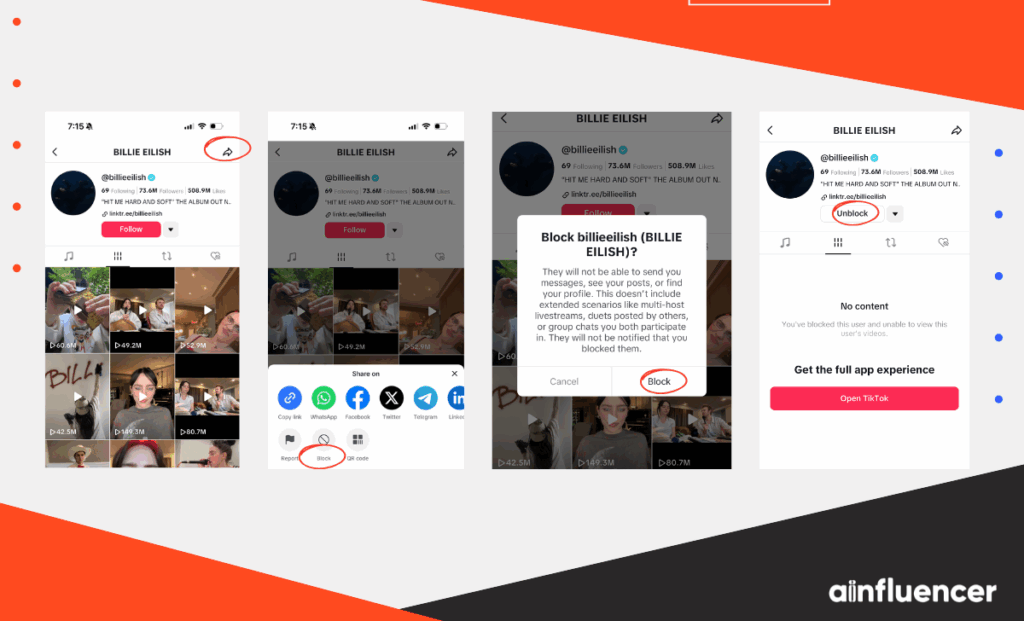
- Tap the user’s profile.
- On their profile page, tap the “Share” icon (the right-arrow) at the top, or tap the three-dot menu in the top-right corner.
- Select “Block.”
- In the menu that appears, tap “Block”.
- TikTok will ask you to confirm. So, tap “Block” again to finalize the action.
- You’ll see a message confirming the block.
- The user’s profile will now appear blank to you, and the “Follow” button is replaced with “Unblock“.
Each of these steps is documented by TikTok support and security guides. In practice, this means the person is effectively frozen out of interacting with you on the app. No past comments or duets will be visible to you anymore, and they can no longer find your profile.
In case you change your mind, you can unblock the user later. They won’t be notified of the unblock, but unblocking will allow them to follow and see your content again.
If you couldn’t find any of these steps, one action you can take is to clear your TikTok cache or reinstall the app. This has worked for many users who weren’t able to block someone on TikTok.
How to Block Someone on TikTok (Desktop/Computer)
In case you’re using TikTok through your PC, we’re going to teach you how to block someone on TikTok from your desktop. It doesn’t matter whether you’re on Windows or Mac, since you first have to log in through the web, the steps are the same.
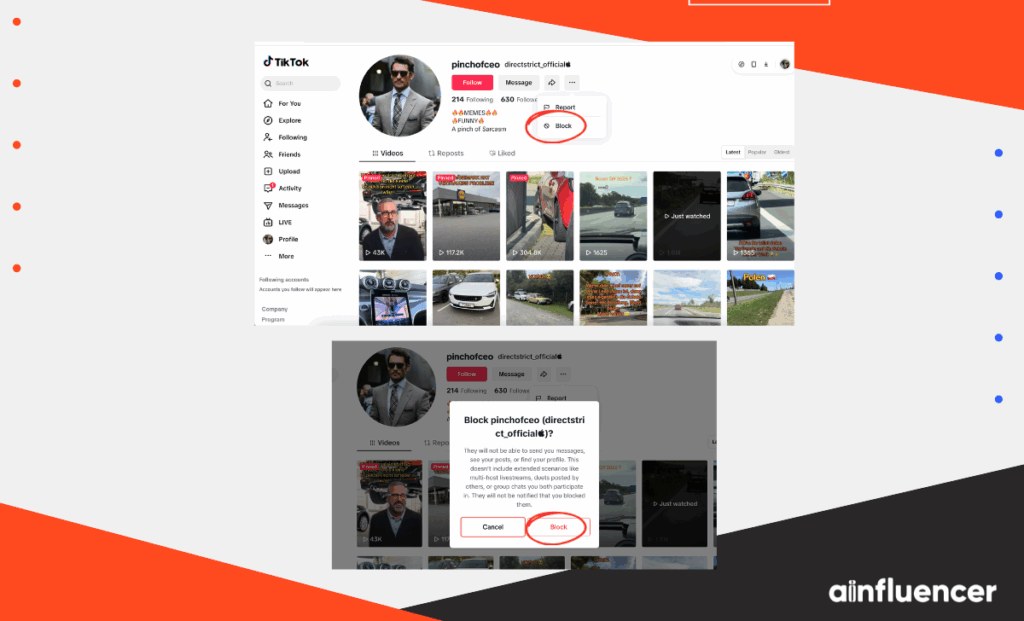
- Go to “TikTok.com”, log in, and navigate to the user’s profile page.
- Click the three-dot menu on the user’s profile (web) page,
- Select “Block.” In the dropdown,
- Click “Block” and confirm when prompted.
Blocking on the desktop site works the same way as on mobile. But you still have to complete the process, and after that, the user will no longer be able to interact with you or your profile page. One important point to remember is that TikTok’s desktop interface sometimes changes, so you have to be careful.
How to Block TikTok Users in Bulk (Without Visiting Each Profile)
Have you heard about the TikTok bulk block feature? It has become very handy for those who want to block multiple users at the same time. Mostly used by public accounts on TikTok, this feature allows you to block several users without opening each profile.
This is useful if you have many unwanted accounts commenting on a video. Here’s how to do it:
- Go to your video’s comments.
- Open one of your TikTok videos and tap “Comments”.
- Press and hold on any comment (or tap the “Filter” button) to start selecting multiple comments.
(On Android/iOS, you should see the “Manage” option. - Check the circle next to each comment from the users you want to block.
- After selecting all the relevant comments, tap “More” (or the three-dots) at the bottom.
- Choose “Block Accounts” from the menu, then tap “Block” again to confirm.
- This will block each user whose comment you selected.
This is often easier than blocking users, especially if spam bots or trolls have made many comments. Note that TikTok currently limits bulk-blocking to at most 100 accounts at once.
After bulk-blocking, TikTok will automatically remove those accounts from following you and you from following them.
How to Block Someone on TikTok Without Them Knowing?
One common concern people have is how to block someone on TikTok without them knowing. The good news is that TikTok’s design already does this for you.
When you block someone, TikTok never notifies them. There’s no alert, no pop-up, and no message. However, they may eventually figure it out if they try to interact with your account.
For example, they might notice that they can’t see your profile, posts, comments, or participate in your TikTok lives anymore. Sometimes they’ll see messages like “No content” or “Account not found” when searching for your profile, which can make them suspect they’ve been blocked.
In short, if you’re wondering how to block someone on TikTok without them knowing, the platform already ensures privacy, though blocked users might guess if they realize they can no longer view your videos or contact you.
How to Block Someone on TikTok You Don’t Follow?
Blocking someone on TikTok is not just for users who follow you or those you follow. TikTok gives you the ability to block any user, regardless of whether you follow them.
The blocking system is not limited to friends or followers. Even if you’ve never interacted with a user, you can still visit their profile and block them.
TikTok’s support system makes one thing clear: when you visit someone’s profile, you’ll have the option to block. All you have to do is select “Block”, and you can block both random strangers and people you know.
In fact, blocking is a powerful privacy tool you can use at your discretion, even if the other account is public. The result is always the same. They lose the ability to find or follow you, and the connection between your accounts is cut off completely.
How to Block Someone Who Blocked You on TikTok?
If you’ve already been blocked by someone on TikTok, their account and profile will be hidden from you, so you won’t be able to find them normally. But here’s the tricky part! You can still block them as well. You can use a second account or your browser to access their profile link and then block them.
Here’s one method:
- Log in to a different TikTok account (or create one).
- Search for the user who blocked your main account.
- When you find them, tap “Share” and copy their profile link.
- Switch back to your main account and paste that profile link into a browser or the app search.
- Even if you were blocked, sometimes TikTok will still load their profile if you use the direct link.
- Once on their profile in your main account, tap the ⋯ menu and choose “Block”.
But just in case your plan fails, here’s another detour. Simply check your direct messages. If you’ve exchanged messages with that user before, their name might still appear in your chat list even if they blocked you. Open the chat, tap the user’s name or the menu, and you may see a “Block” option there.
How to Block Someone from Following You on TikTok?
If a TikTok user is following you and you want to stop them, blocking does the job. When you block a user, they are automatically removed from your followers list and lose any ability to see your private content. In effect, blocking them prevents them from following you again unless you unblock them later.
Alternatively, TikTok also lets you manually remove followers without a block. To remove someone from your followers list without blocking them, make sure to follow these steps:
- Go to “Profile”.
- Then tap on “Followers”, find the user,
- Tap the “More” (⋯) icon next to their name,
- And select “Remove This Follower”. You can even do this by going to their profile and choosing “Remove” this follower via the “Share” menu.
Keep in mind that removing a follower simply ends the fact that they follow you, but blocking stops them from finding you later.
How to See Blocked Users on TikTok?
Here we will show how to see blocked users on TikTok. To find your blocked accounts list:
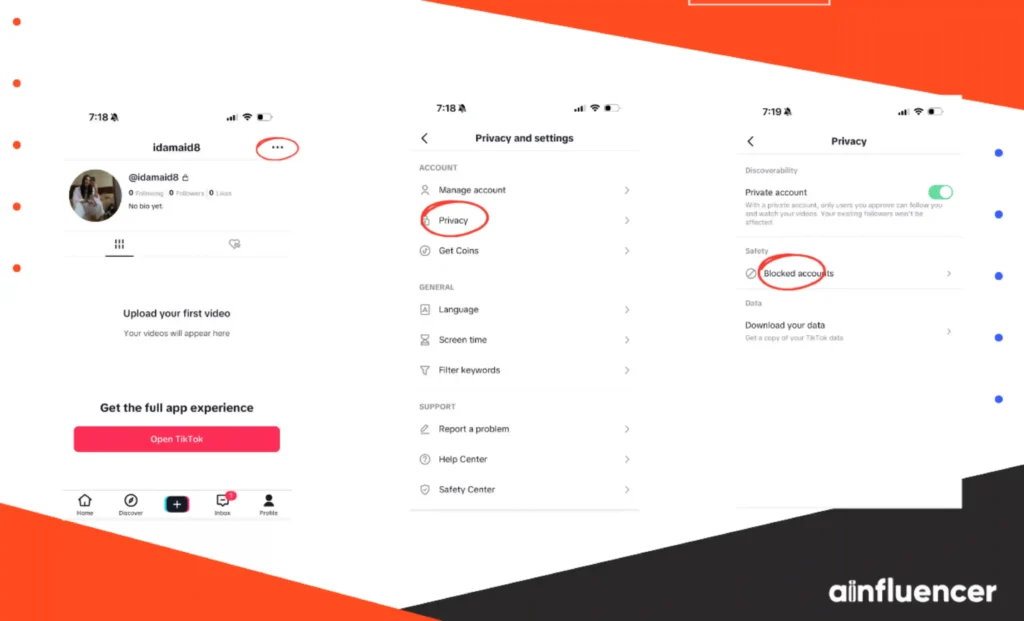
- Open the TikTok app and go to your “Profile”.
- Tap the “Menu” icon in the top-right corner and choose “Settings and Privacy”.
- Tap “Privacy”, then scroll to “Blocked Accounts”.
- You’ll see a list of every TikTok account you’ve blocked. From here, you can tap a name to visit their profile or “Unblock” them if desired.
These steps are confirmed by TikTok’s Help Center. In other words, your Blocked Accounts section is where you can manage all blocked users. In order to reverse everything, you need to know how to unblock someone on TikTok, which we’re going to teach you in the next part.
How to Unblock Someone on TikTok?
Unblocking on TikTok is easy, and you can do it from either the block list or the person’s profile:
To unblock someone through Settings (blocked list):
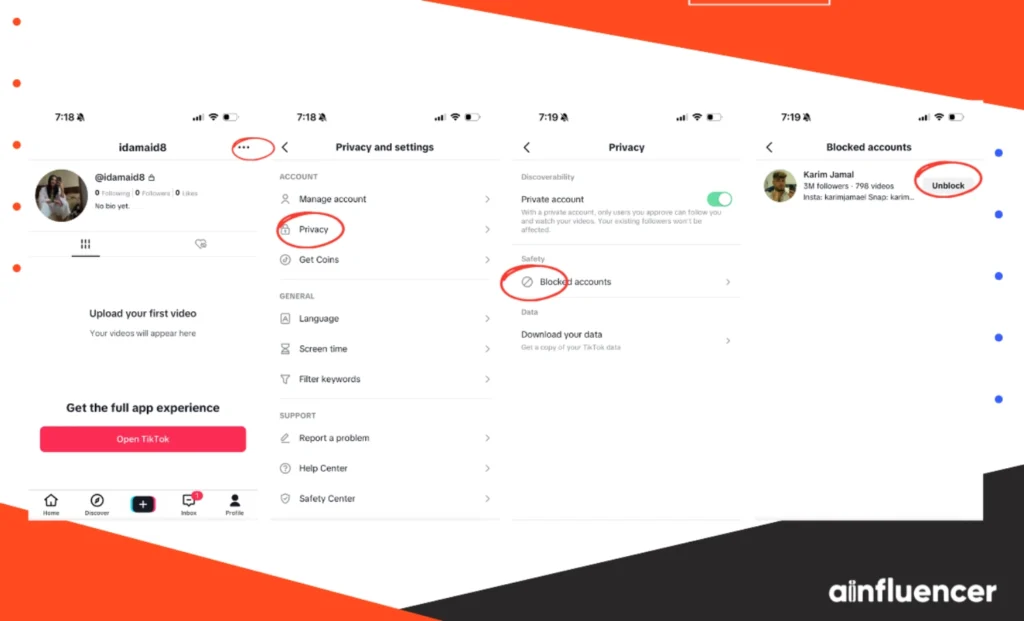
- Go to “Profile”.
- Tap on “Menu” and then “Settings and Privacy”.
- Blocked accounts will be right there as above. In the list, find the person you want to unblock and tap “Unblock” next to their name.
Trough Profile, here is how to unblock someone on TikTok:
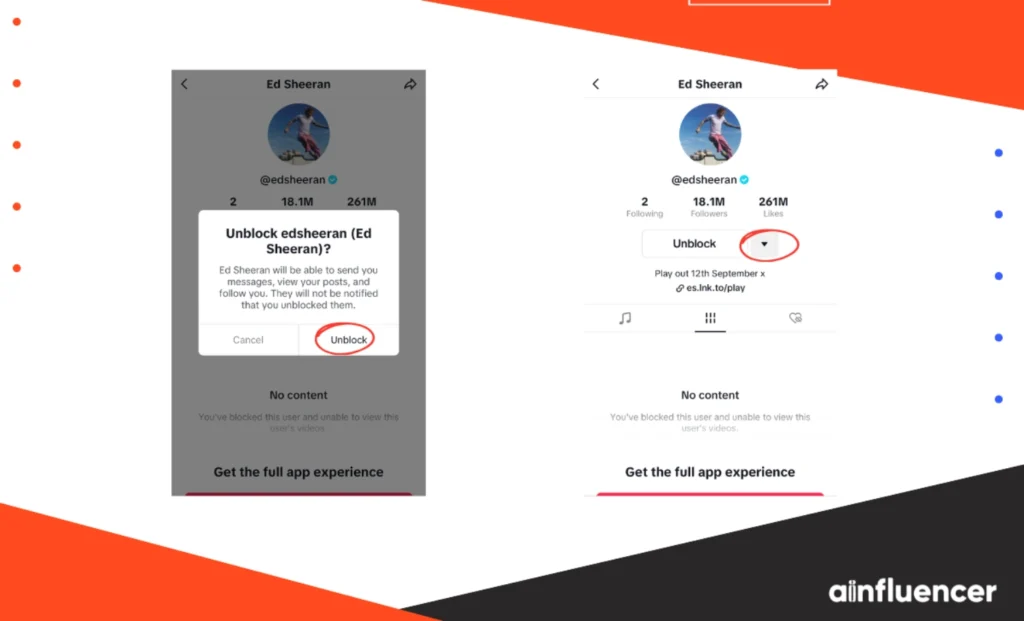
- Search for their profile in the app.
- On their profile page, you’ll see an “Unblock” button in place of “Follow.”
- Tap it to unblock that person.
Once unblocked, that user can follow you and see your content again. Once more, TikTok does not notify people when they are unblocked, similar to blocking.
If privacy is still a concern after unblocking someone, remember you can always make your account “Private” in Settings so that only approved followers can see your videos.
Why Should You Block Someone on TikTok?
When you block someone on TikTok for any reason, you’re essentially hiding your profile and content from them. According to TikTok’s algorithm, once you block someone, neither of you can view each other’s posts or stories.
In other words, a blocked account effectively disappears from your TikTok, and you from theirs. TikTok never notifies a person when you block them, so you can quietly end unwanted interactions.
People choose to block TikTok accounts for several reasons, such as:
- Harassment, bullying, or spam: Blocking fake accounts, trolls, bullies, or even people who make you uncomfortable prevents them from commenting or messaging you. For example, if someone is cyberbullying you or spamming your posts with unwanted promotions, blocking them immediately cuts off all contact.
- Inappropriate or harmful content: If one of your followers starts posting or commenting in a way that feels offensive, distressing, or negative, blocking them can be the best option. This protects your mental health and shields you from unwanted videos, comments, and messages.
- Privacy and security: Spammers and scammers are common on TikTok. Blocking suspicious accounts helps protect your personal information. Once blocked, those users can’t follow, message, or tag you, making your account more secure.
- Brand protection: From a marketing point of view, brands use blocking, too. For example, if rude or spammy accounts show up to start bothering other people with their negative vibe, blocking them helps keep the community positive. This way, their campaigns reach the right people without being interrupted by trolls.
To keep it short and clear, blocking someone may seem like an aggressive step, but it’s actually a powerful way to moderate your TikTok experience. It doesn’t matter if it’s cutting off harassment, removing negative vibes, or protecting your brand reputation; instant blocking keeps everything much safer.
Also Read: Does TikTok Notify Screenshots?
Conclusion
Now that you know how to block someone on TikTok, you can see that most of the time, the steps are the same across different devices. It doesn’t matter whether you’re using TikTok on iPhone, Android, or the web, there’s always one simple way to block someone.
If you ever change your mind, you can just as easily unblock that person. So, if someone is starting to get on your nerves with unwanted interactions, simply block them and you’ll be fine.
FAQs
TikTok doesn’t notify you if someone blocks you, but clues include: you can’t find their profile via search, their page shows “No content”, and any past messages say “Account not found”. Their comments on your videos will also disappear. These signs usually mean you’ve been blocked.
No. As mentioned before, TikTok never notifies users when they are blocked. They won’t receive a message or alert. However, they may realize they’ve been blocked if they start digging into your profile.