Tired of creating constant content on TikTok and need some fresh ideas? Before burning out, you can repost other creators’ content while refreshing yourself to come up with more videos. To do that, you first need to know how to repost on TikTok.
Reposting someone else’s content on TikTok is similar to posting your own, but with a small difference. When you post on TikTok, you’re the creator of that content.
But when you repost, you’re simply resharing another creator’s video with your followers. This is a simple yet effective way to gain new followers and boost engagement. Wondering how?
In this blog, we’re going to explain what reposting on TikTok means, how to do it, and share the benefits and tips. Stick with us to find out more.
What Is the TikTok Repost Button?
Before getting to our main topic and starting to tell you how to repost on TikTok, we first need to clarify what reposting is, how it started, and why users use it so often. TikTok first tested the repost feature in early 2022 and officially launched it in May of that year.
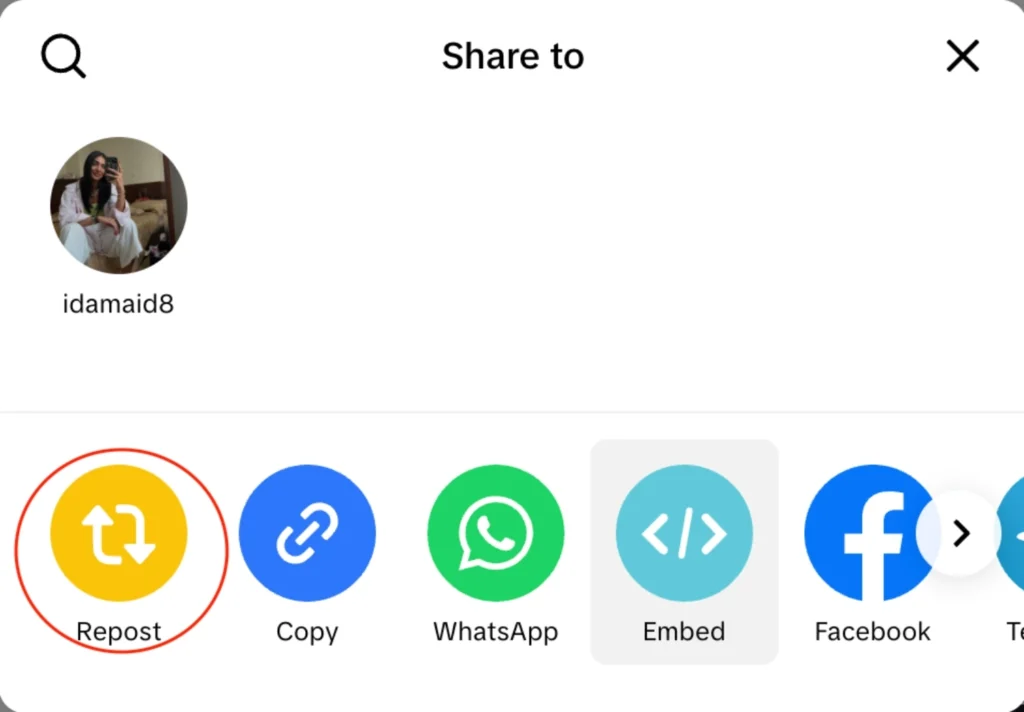
Since then, it has become a common way for TikTokers to engage with trending content. The repost button is located in the share menu (and sometimes right under a video), depending on your app version.
To keep it short and clean, reposting on TikTok allows you to share a video you find interesting with your followers.
When you repost, the video appears in their “For You” feed just like any other TikTok, but it carries a “repost” label along with your profile photo and nickname. This way, your followers know you reshared the video while the original creator still gets full credit.
Why Should You Repost on TikTok?
Reposting on TikTok is not the same as Duet or Stitch. With Duets and Stitches, you add your own content to someone else’s video. Reposting, on the other hand, is a straightforward reshare of the original clip without changes.
This makes reposting a powerful feature for keeping your feed active. Instead of always filming new content, you can select videos from other creators that match your audience’s interests.
It’s best for creators who don’t have much time or who want to stay consistent without burning out. Reposting on TikTok also shows you how to get new TikTok followers without bothering at all.
In the next part, we’ll finally move into our main topic and explain step by step how to repost on TikTok.
How to Repost on TikTok?
Allow us to give you a clear step-by-step guide for reposting on this platform. Here’s how to do it:
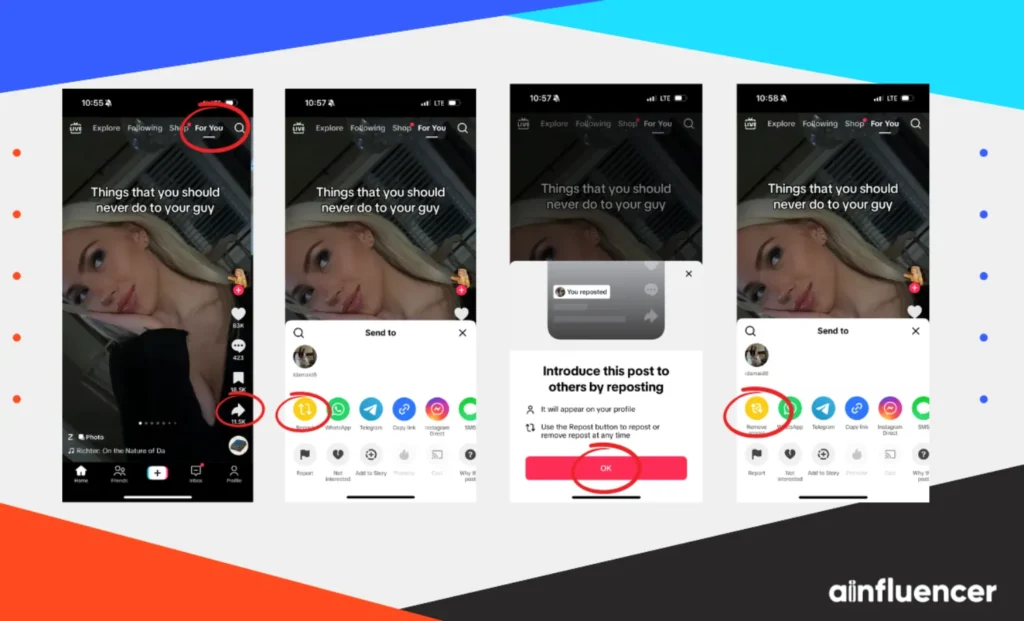
- Open TikTok and scroll through your “For You” or “Following” feed until you see a video you want to repost.
- Tap the “Share” button. It looks like an arrow pointing right on the side of the video.
- In the share menu, tap the “Repost” option.
- After hitting Repost, TikTok gives you an option to add a short comment or caption. This comment will appear above the repost when your followers see it.
- Once you tap “Repost”, the video is shared to your followers’ feeds. TikTok will confirm the repost, and the “Repost” icon turns a different color.
Now that you know how to repost videos on TikTok, you need to note that by reposting, the video will not appear on your main profile grid like your original posts.
Instead, TikTok automatically categorizes it under a separate Repost tab on your profile. Your followers will see it on their “For You” page with a “Repost” label and your profile picture (showing you as the one who shared it).
How to Repost a TikTok to Your Story
Apart from learning how to repost on TikTok, if you’re wondering how to repost a TikTok to your story, here’s a quick guide for you.
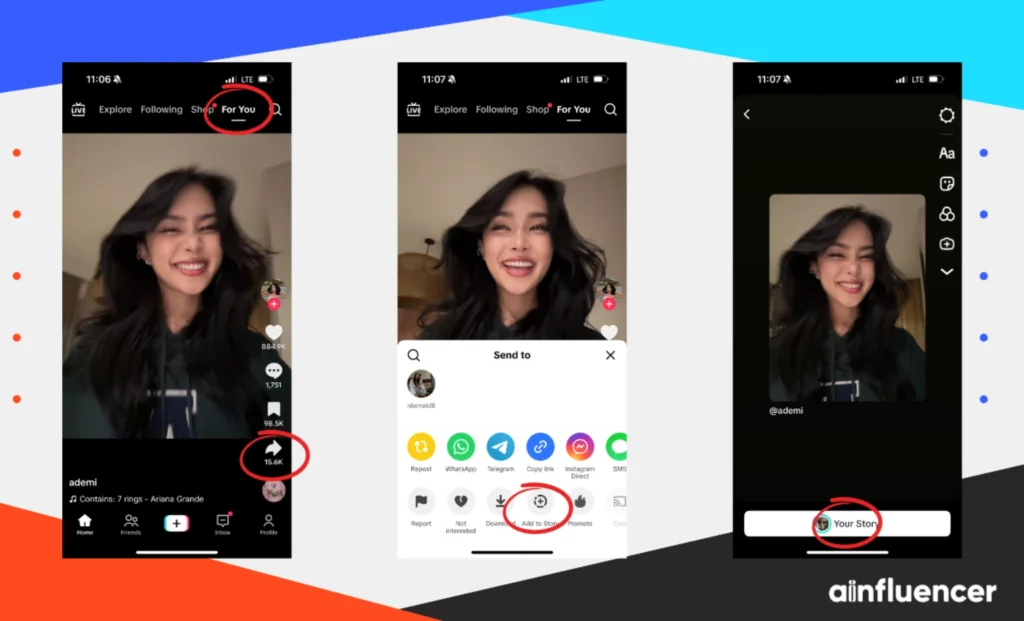
Note that the process is a bit different, and TikTok doesn’t have a built-in “repost to story” button like Instagram, but you can use the share options:
- Tap “Share” on the video, then select “Add to Story” (if this option is available). This will post the video as a Story. Note that not all videos are shareable due to privacy settings, and adding to a story requires the original video to have sharing enabled.
- As another option, you can download the video (if allowed) and then upload it to your story, or use screen recording. However, always make sure you have permission to share someone else’s content.
In case you’ve changed your mind about reposting on TikTok, the next section breaks down all the information you need to know about how to delete a repost on TikTok.
How to Delete Reposts on TikTok?
Made a mistake or changed your mind about a repost? You can remove it in the blink of an eye. Here’s how to delete a repost on TikTok:
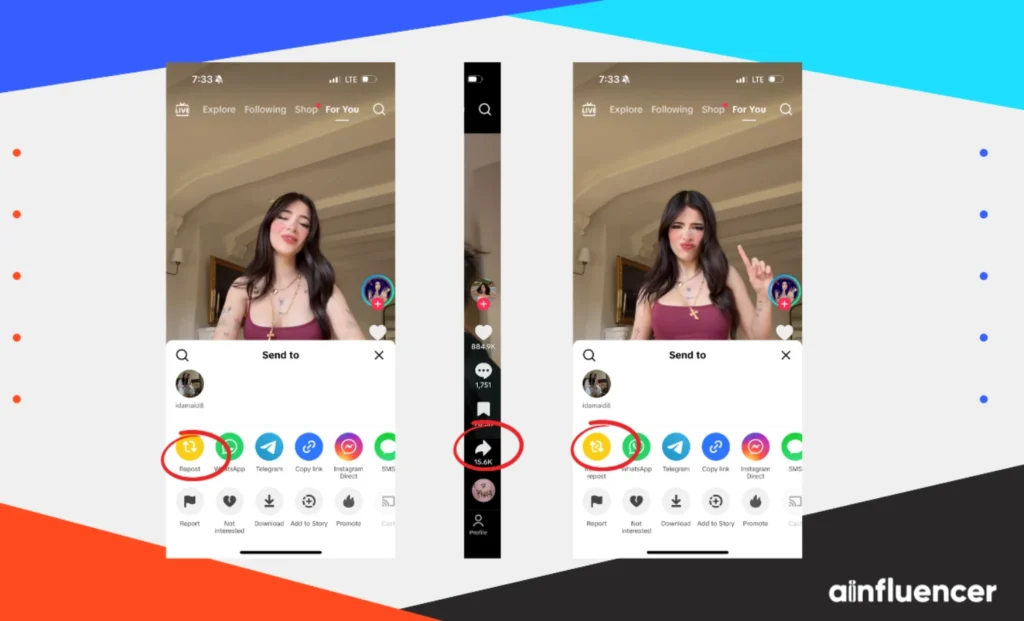
- Go to the TikTok video you previously reposted. You can find it either by searching or by visiting your profile and tapping the “Repost” tab to locate it.
- With the video open, tap the ”Share” button on the video.
- In the share options, tap “Remove repost”. The repost button will turn gray to confirm removal.
- You can also press and hold on the video itself, and then tap “Remove repost” from the menu.
Once removed, the video is no longer considered reposted from your account, and your followers’ feeds will no longer see it as your repost, and it will disappear from your repost tab. In effect, this undoes the repost action.
If you want to undo all your reposts at once, TikTok doesn’t offer a native bulk delete.
Some users use TikTok analytic tools or browser extensions to automatically remove reposts, but be careful with unofficial tools. In most cases, it’s easier to delete reposts one by one.
Also Read: How to Delete TikTok Story (Step-by-Step Guide)
How to Hide Reposts on TikTok?
TikTok does not let you completely “Hide” reposts from your own profile, but you can control who can see them or whether they appear on your main profile feed. Here’s how to hide a repost on TikTok:
- Private Account: If your TikTok account is private, only your approved followers can see any reposts you make on their “For You” feed. Simply put, making your account private effectively hides reposts from the general public.
- Repost Visibility Setting: TikTok now offers a setting to adjust where reposts appear. Tap on “Settings,” then press “Privacy” and look for a section on “Repost” or “Post interactions” depending on the app version. You can often choose whether reposts appear in your main profile feed or only in the dedicated “Repost” tab.
By switching off a setting like “Show reposts on profile,” you can keep reposted videos out of your profile grid (they’ll still be visible in the Repost tab). This is how to silence reposts on TikTok, while still allowing them to exist in the Repost section.
- Turn Off Reposts Completely: If you’re curious to know how to turn off repost on TikTok, and don’t want anyone to repost your content, you can disable repost for your account.
On the other hand, if you simply want to prevent others from sharing a particular video you post, set that video’s audience to “Only me” or “Friends” in the post’s Privacy settings.
In the next part, we are going to show you how to turn off repost on TikTok. So, stick around to find out.
How to Allow Repost on TikTok?
TikTok lets you control whether others can repost your videos or not. This is useful if you only want certain audiences to be able to share your content. To allow or disallow others from reposting your videos:
- In TikTok, tap “Profile”, then tap the three-line menu and choose “Settings and privacy”.
- Find the “Privacy” section.
- Scroll down to find “Repost”.
- You should see an option like “Allow reposts of your videos”.
- Now set this to “Everyone”, “Friends (followers you follow back)”, or “No one”.
When you choose everyone by default, this means any TikTok user can repost your videos.
“Friends” means only your chosen followers can repost, and when you select the “No one” button, you are in fact disabling reposts of your videos entirely.
How to Repost on TikTok: Best Practices
After you understand how to repost on TikTok, you should also know what to do when deciding to take this action. Reposting is powerful, but doing it the right way maximizes benefits and avoids issues. Here are some best practices and tips for reposting on TikTok:
1. Give Credit to the Original Creator
Always tag or mention the person whose video you are reposting. Even though TikTok shows their name on the video, giving credit in your caption shows respect and helps them grow as you do. Tagging them also notifies the creator and can open up collaborations for you.
2. Align with Your Brand and Audience
Don’t just repost whatever you see on TikTok. Choose videos that fit your niche, style, or brand voice.
For example, if you’re a fitness coach, repost popular workout clips; if you’re a fashion influencer, repost outfit videos. This keeps your profile cohesive and ensures your followers are engaged.
3. Quality Over Quantity
Be selective. Only repost videos that are high-quality, entertaining, or informative. Reposting on TikTok with random or irrelevant content can confuse followers.
Your goal is to share stuff your audience will love, so pick trending or well-made videos. Don’t just hit repost on all videos you come across.
4. Add Context or Commentary
Even though you’re sharing someone else’s content, you can make it yours by adding a caption, question, or a TikTok emoji.
For example, explain why you’re reposting it shortly. You can use captions like (“This trick is crazy!”, “LOL this is so true”, “Our team’s favorite smoothie hack”). Adding your voice makes the repost more personal and can encourage comments.
5. Maintain Copyright and Ethics
Only repost videos that are safe to share. Be careful with copyrighted content or original music. If in doubt, ask the original creator for permission before reposting their video.
This avoids takedowns or account issues. Remember, TikTok’s guidelines forbid unauthorized sharing of copyrighted material.
6. Monitor Repost Performance
Use TikTok Analytics if you have a Pro account to see how reposted videos perform compared to original content.
If reposts get good engagement, make sure to do more of that type. The more you align reposts with audience interests, the better your overall engagement.
7. Shout Out Creators and UGC
If you’re a brand, reposting user-generated content (UGC) is the best action to take. For example, brands like BarkBox repost videos of customers’ dogs to tap into that community.
We’ve seen this approach (asking customers to tag you, then resharing their posts) really boosts engagement, because audiences love seeing “real people” stories.
8. Stay Current with Trends
TikTok’s content trends change rapidly. Use reposts to hop on trends you miss. For example, if a dance challenge is viral and you’re late to make your own video, repost a popular version with a comment. This keeps your profile active and shows you’re tuned into what’s trending.
To wrap things up, reposting on TikTok should be strategic. Think of it as if you created and posted that content. When done well, learning how to repost on this platform is a secret weapon for growing your channel.
Benefits & Strategies of Reposting on TikTok
Wondering if reposting on this platform is really worth it? The answer is yes, but only when you do it the right way. Here are the key benefits of reposting:
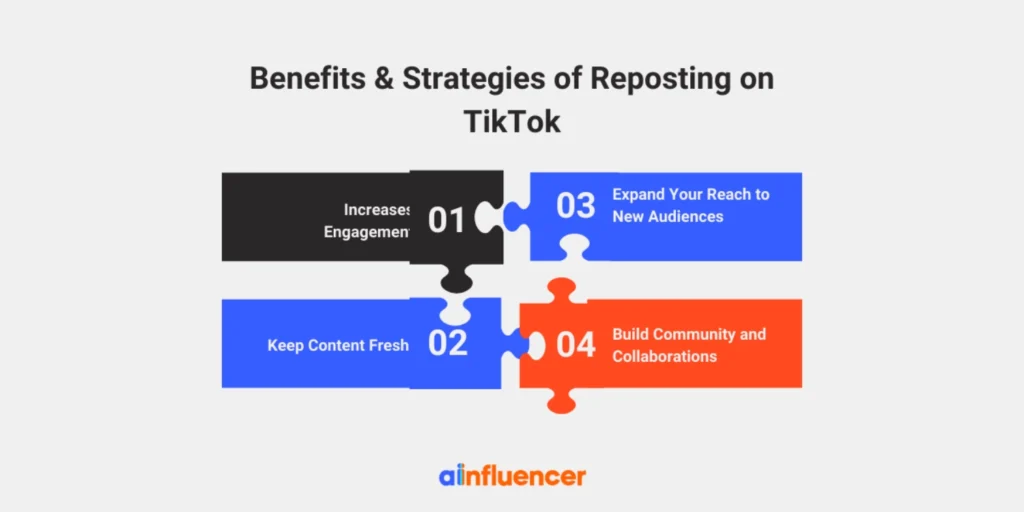
1. Increases Engagement
Reposting interesting, fun videos can bring you likes, comments, and shares from your followers. In effect, we often see reposted content get quick interactions because it’s often already proven content.
2. Expand Your Reach to New Audiences
When you know how to repost on TikTok, sharing someone else’s video can help their audience discover your profile.
In other words, if a video you repost goes viral with its original creator’s followers, those viewers might end up checking out your profile as well. This often brings new followers interested in the same niche you reposted content from.
3. Keep Content Fresh
Some days it’s hard to come up with new video ideas. Reposting on TikTok reduces the pressure by adding good content to your feed without you having to film it yourself.
By adding reposts, you can keep posting often (which TikTok’s algorithm favors) even when you have no ideas. This way, your audience stays entertained and engaged.
4. Build Community and Collaborations
By sharing other creators’ work, you show appreciation and build relationships. This can lead to collaborations or shoutouts.
For example, after reposting someone’s video and tagging them, they might thank you or follow you back. Over time, reposting can help you become an active member of a TikTok community, where everyone promotes each other.
If you really want to use the tips and strategies, it’s better to take examples from real-world brands. Here’s how brands use reposts on TikTok.
How Brands Use Reposts on TikTok
To bring these benefits into context, consider real-world examples:
- GoPro: This brand famously reposts user-created TikToks of people using their cameras. They monitor the #GoPro hashtag and regularly share top videos.
Fans love seeing their own adventure clips featured on GoPro’s official account. This strategy has built a community around GoPro’s products and driven brand awareness. It also provides GoPro with a steady stream of free, authentic content.

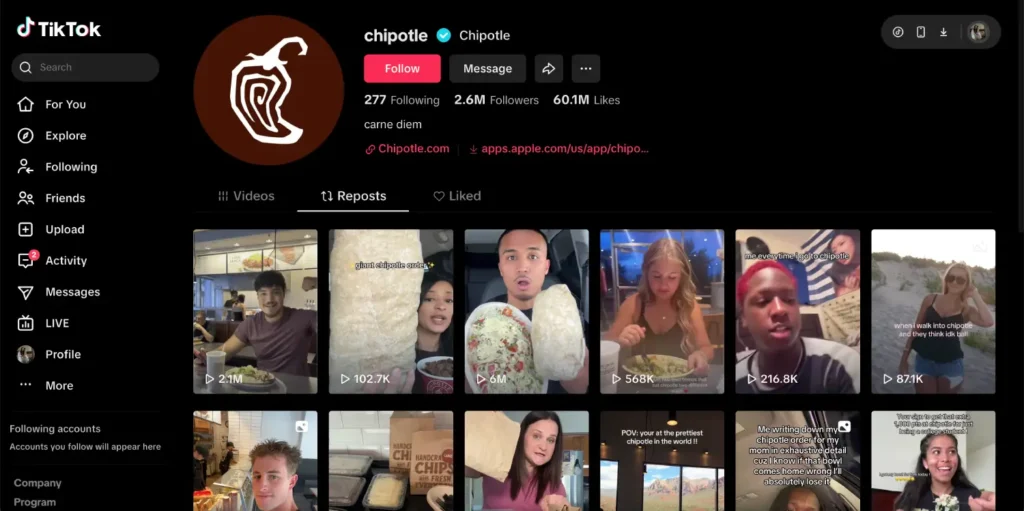
- Chipotle: Chipotle keeps its TikTok fun by reposting fan-made videos like food hacks, taste tests, and funny skits. They usually add a caption or reaction, so it feels less like an ad and more like a community. These posts work well because people already enjoy them, and they help Chipotle post often without making everything themselves. When fans get featured, they feel excited and want to create more, which keeps the cycle going.
Troubleshooting: Why Can’t I Repost on TikTok?
Knowing how to repost on TikTok may seem easy, but sometimes the repost button might not show up or work as expected. Here are the most common reasons why you might be unable to repost on TikTok, and how to fix them:
- Feature not yet available: Keep your TikTok updated all the time. If you don’t see a Repost option, make sure your app is fully updated to the latest version. If the option still isn’t there, check with friends; sometimes the feature isn’t enabled for all accounts immediately.
- Wrong video source: You can only repost videos from the “For You” feed. If you’re trying to repost a video from the “Discover/Search” page or your “Following” tab, the repost button may be unavailable.
- Creator has disabled reposting: Some videos have sharing restrictions. If the original creator has turned off reposts or their account is private, you won’t be able to repost that video. TikTok will simply not show the repost option. In that case, respect the settings and try another video.
- Account restrictions: If your account has any restrictions or has been flagged for violating TikTok’s guidelines, features like reposting can be disabled. Check your email or TikTok inbox for any warnings, and ensure you’re following the rules.
- Technical issues: Sometimes glitches happen, and they don’t always have a reason. Try clearing TikTok’s cache. Also, restarting the app or even reinstalling TikTok can resolve odd bugs.
- Network problems: A poor internet connection can prevent TikTok’s features from loading. Make sure you have a stable Wi-Fi or cellular connection when trying to repost.
Conclusion
We’ve shown you how to repost on TikTok and shared what to do if it doesn’t work, plus some useful tips. Reposting on TikTok is a simple yet powerful way for creators to boost engagement, especially if you’re tired of making constant content and need fresh ideas.
Sharing someone else’s content and giving them credit not only increases your engagement but also opens up new collaboration opportunities. So, make sure to try this feature at least once.
FAQs
TikTok’s repost feature is designed for sharing other people’s videos. You cannot “repost” your own videos with that button. If you want to share your own video again, simply post it anew, or share it to your TikTok Story.
To delete or undo a repost, open the TikTok video you reposted, tap the “Share” icon, and select “Remove repost”. Confirm the removal. The video will disappear from your Reposts tab, and your followers’ feeds will no longer see it from you.
Yes, reposting can drive engagement and growth when done right. It adds diversity to your content, connects you with other creators, and helps you leverage trending videos. Just follow the best practices above to get the most out of reposting.