
Have you ever run into annoying problems on TikTok? Like videos not loading properly, the app freezing, or other strange glitches. Have you ever wondered why it happens? Often, these issues happen because of TikTok’s cache. Knowing how to clear TikTok cache can solve many of these problems and make your app work more reliably.
When you clear your cache, it removes old data that might be causing slowdowns or bugs, so your app can run smoothly without interruptions. This is especially helpful when you’re posting on TikTok, going live, or uploading stories, as everything will load faster and perform better.
In this blog, we’ll guide you through all the steps you need to know to clear the TikTok cache effectively. We will explain what happens when you do it, and give tips to keep your app running at its best.
How to Clear TikTok Cache on iPhone
Clearing your TikTok cache is super easy on the iPhone. Here’s how to clear the cache on TikTok using your phone.

- Open the TikTok App,
- Go to “Profile”,
- Tap on the “Profile” icon in the bottom right corner.
- Press the three horizontal lines (menu icon) in the top right corner to open your settings.
- Scroll down to tap “Free up space” under the “Cache & Cellular Data” section.
- On the next screen, you’ll see an option to “Clear Cache.”
- Tap it, and the cache will be cleared.
By following these simple steps, you can ensure that your iPhone’s TikTok app is running as efficiently as possible. However, if you are an Android lover, no worries, we’ve always got your back. In the next part, we’ll show you how to clear TikTok cache on your Android device.
How to Clear TikTok Cache on Android
Here is how to clear the cache on TikTok on Android systems:
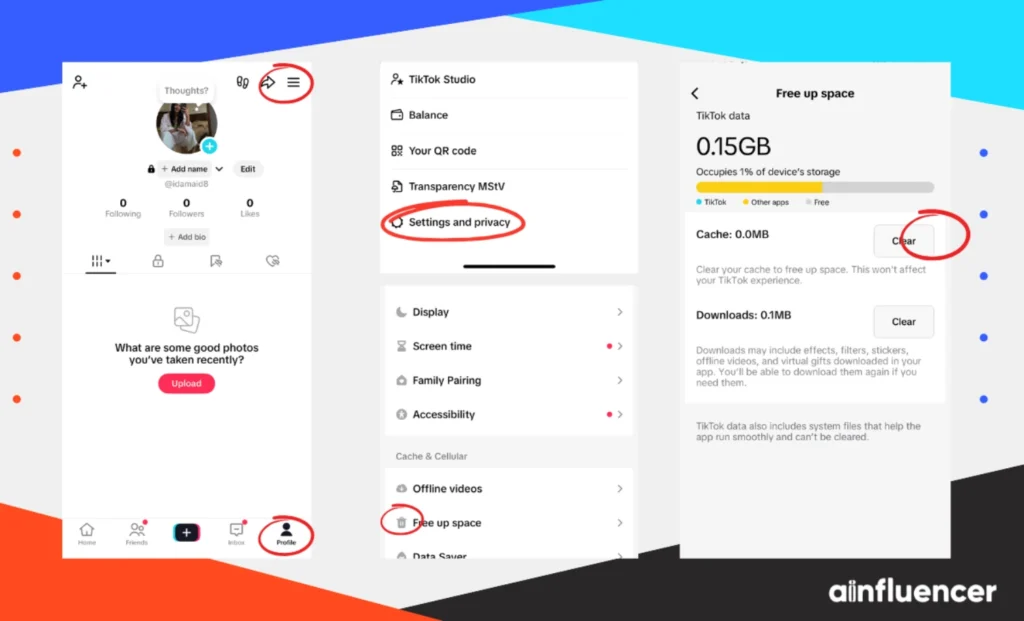
- Open TikTok on your Android device.
- Tap on your “Profile” icon in the lower right corner.
- Tap the three horizontal lines in the top right corner to open your account settings.
- Scroll down and tap on “Free up space.”
- On this page, you’ll see “Clear cache” with the amount of space it’s occupying.
- Tap it, and the cache will be cleared.
How to Clear TikTok Cache on PC/Mac
Currently, TikTok doesn’t offer an option to clear cache directly via the desktop app. However, you can manage your browser cache, which is useful if you access TikTok via a web browser. This is how to clear the cache on a PC or your Mac.
- Open Chrome and go to “Settings” (three dots in the top right corner).
- Select “Privacy and Security“,
- Then click “Clear browsing data.”
- Ensure the “Cached images and files” option is checked.
- Click “Clear Data.”
Why Should You Clear Your TikTok Cache?
Now that you know how to clear TikTok cache, we’re going to explain why someone might take that action and why it’s beneficial. By the end of this section, you’ll understand whether you want to clear your TikTok cache or not.
It’s important to note that clearing the cache will not delete your account data, liked videos, or other personal information. It simply removes temporary files.
- Faster App Performance: Over time, cache data can cause your TikTok app to slow down. You won’t be able to go live on TikTok, or repost on this platform, since it can not work properly. Clearing it helps the app run smoothly and without any disruptions.
- Free Up Storage Space: Cache files can occupy a significant amount of storage, which can again slow down the overall performance of TikTok. Knowing how to clear TikTok cache is a good choice for those who use the app frequently.
- Fix Bugs and Glitches: If you’re experiencing issues like freezing or crashing, clearing the cache can sometimes resolve these problems.
- Privacy Concerns: If you’re concerned about your data and want to keep it safe, clearing your cache can ensure that temporary data isn’t on your device.
What Kind of Data is Stored in Your TikTok Cache?
According to TikTok’s guidelines, its cache saves and keeps temporary data to help improve your user experience. This includes:
- Video Data: Thumbnail images, preloaded videos, and playback information.
- App Data: Information related to the app’s performance, settings, and interactions.
- User Data: Content you’ve interacted with, like liked videos and comments.
- Metadata: Information related to your browsing activity on the app.
Keeping most of this data isn’t good for you and doesn’t make much sense. For instance, there’s no reason to keep temporary files, such as data from someone going live on TikTok.
Also Read: Is TikTok Shop Safe? Best Guide
What Happens When You Clear the Cache on TikTok?
Apart from knowing how to clear TikTok cache, you also need to understand what happens when you do it. Clearing the cache on TikTok has a few effects:
- Improved Performance: Your app will likely run faster since there is less stored data to load.
- Temporary Slower Load Times: The first time you open TikTok after clearing the cache, videos may take slightly longer to load as the app rebuilds its temporary data.
- No Data Loss: Clearing the cache does not affect your account or content. All your data remains intact, including followers, following, and posts.
Troubleshooting: Common Issues and How to Fix Them
If you’ve cleared your cache and still experience problems with TikTok, try these troubleshooting tips:
- Make sure your TikTok app is up to date. Sometimes bugs are fixed in newer versions.
- If issues persist, uninstall and reinstall TikTok to refresh the app.
- Ensure your phone’s operating system is up to date, as updates can resolve compatibility issues.
Conclusion
Now that you know how to clear the TikTok cache, you also need to know that this action enhances your app’s performance. It frees up valuable storage space and fixes minor bugs or glitches. It does not matter whether you’re on an iPhone, Android, or PC; the steps are simple and easy to follow.
Remember, if you use TikTok a lot, keeping the app running easily is important to get more followers. Try clearing your cache regularly to help your app work better!
FAQ
Yes, clearing the cache will only remove temporary files like data and videos you’ve viewed. It will not affect your account or your posted content.
There’s no set frequency, but if you notice performance issues or if TikTok starts running slow, clearing the cache is a good first step.
Yes, clearing cache can help your app run better, including improving video playback. If videos are loading slowly or buffering, removing old cached files can speed things up and make your TikTok experience smoother.
Yes, clearing the cache is completely safe. It does not affect your personal information or the videos you’ve uploaded.